Video booth in Easy Mode
Add a boomerang or short video template to an event in Easy Mode in about a minute, and see what guests get.
Boomerangs, slow motion, a clip that bounces back and forth: guests love video. In Easy Mode you can add a video template to an event in about a minute, without opening a studio.

Chapters (22)
- 0:00Intro: what Motion Studio makes
- 0:27Open Motion Studio · the three panels
- 0:50Output settings
- 1:05Process and record from the camera
- 1:25The result and Share
- 1:40Motion Path: record once, many moves
- 1:57The five presets
- 2:10Motion Path Editor · save your own preset
- 2:33Animated effects
- 2:45360 videobooth
- 3:01Why a GoPro
- 3:21Connect the GoPro
- 3:43Glambot
- 4:03Adding clips · clip types
- 4:32Video Recording · image intro
- 4:49Order, duplicate, delete
- 5:00Transitions
- 5:12Background music · overlay
- 5:34An AI clip
- 5:52Save, process · the finished video
- 6:15Using it at an event
- 6:32Three things to remember
Before you start
- Q-Booth is in Easy Mode (the button at the bottom left reads Switch to Expert mode).
- A camera is connected and shows a live view (see Camera settings).
- Prepare a cover picture for the template (portrait, 3:4 fits the template card well) and, if you want one, a frame: a PNG with a transparent middle, in the same shape as the video.
Add a Video template
- On the Easy Mode home screen, create a New Event, or Edit one you already have.
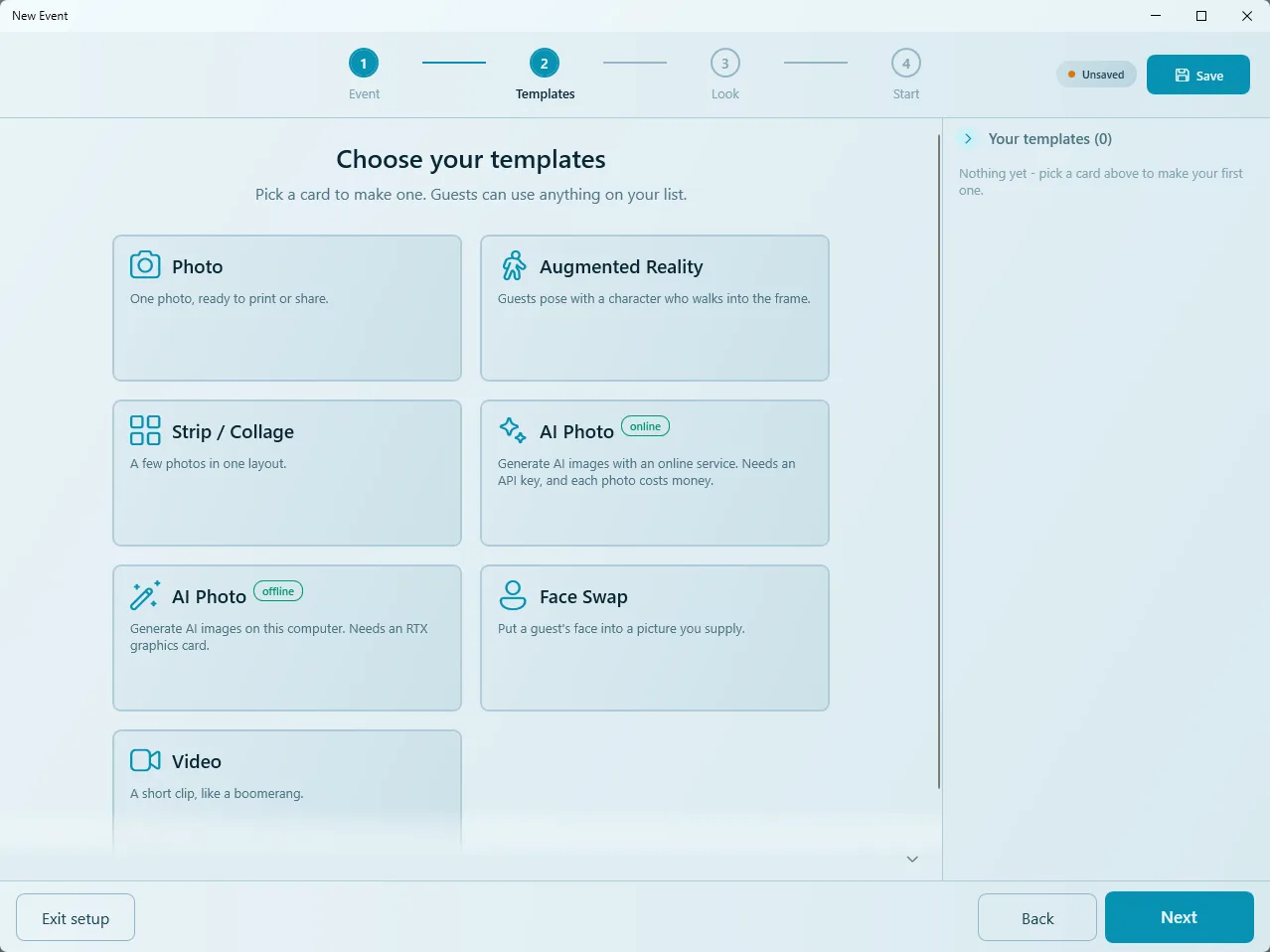
- Go to step 2, Templates. The page Choose your templates shows the template cards.
- Click the Video card ("A short clip, like a boomerang"). The Create Video Template window opens.
Name and cover
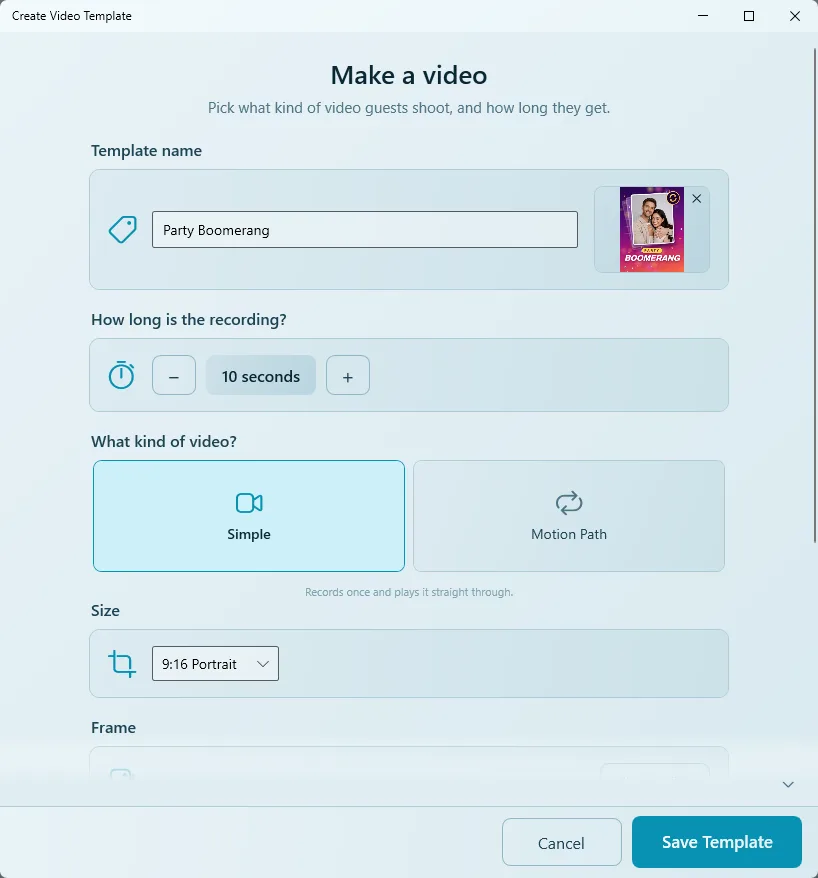
- Type a Template name, for example Party Boomerang.
- Click the cover box next to the name and choose your cover picture.
The cover is what guests tap on the start screen. Video templates do not make a cover on their own, so do not skip it: without one, the guest sees an empty card.
Recording length
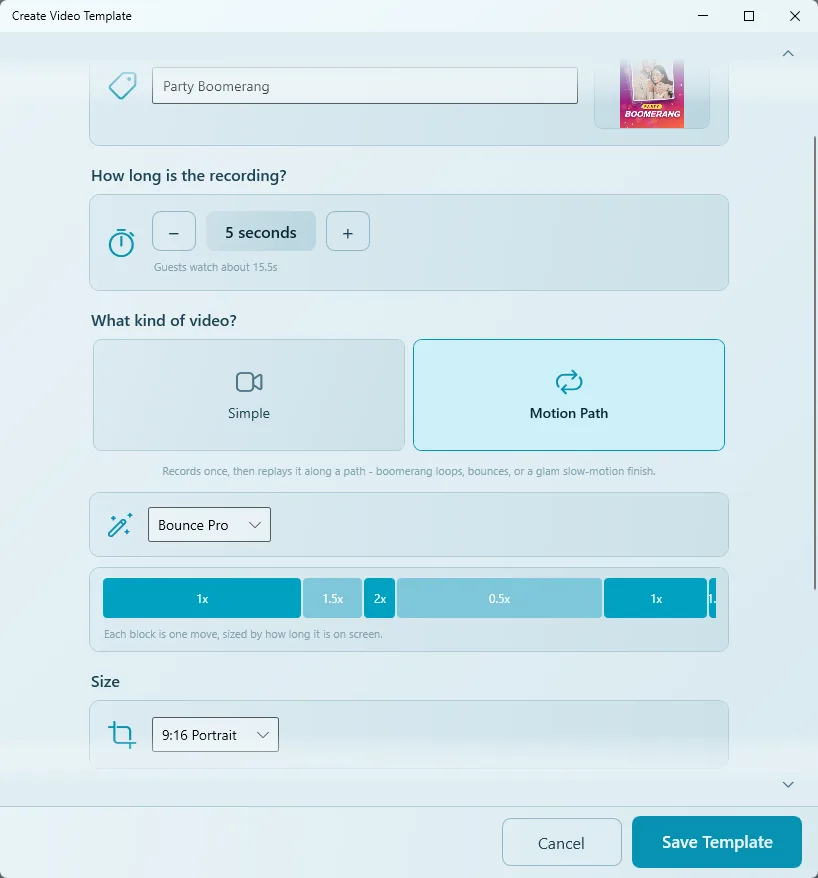
Under How long is the recording?, use − and + to set the number of seconds. Five to ten seconds is plenty: longer clips mean a longer wait for the result. For Motion Path, the line underneath (Guests watch about … s) tells you how long the finished video will be.
Simple or Motion Path
Under What kind of video?, choose:
| Kind | What it does |
|---|---|
| Simple | Records once and plays it straight through. Can record sound. |
| Motion Path | Records once, then replays it along a path of moves: forward, backward, slow and fast. Boomerang loops, bounces, or a glam slow-motion finish. |
The Motion Path presets
| Preset | Feel |
|---|---|
| Classic Boomerang | Back and forth. |
| Hype Ramp | Starts slow and speeds up. |
| Bounce Pro | Bounces with energy. |
| Rewind Rush | Plays mostly in reverse. |
| Showtime | Ends on a big slow-motion finish. |
The bar shows each move with its speed (for example 1x, 1.5x, 2x, 0.5x); each block is sized by how long it stays on screen.
Size, frame and sound
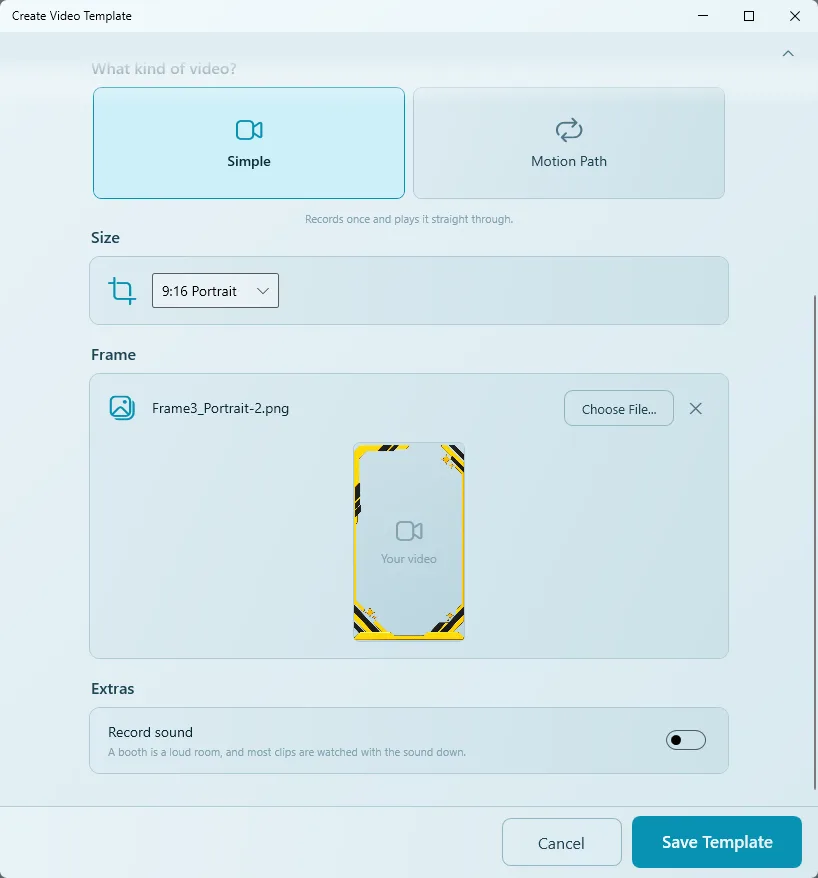
- Size: choose the shape of the video. 9:16 Portrait fits phones best, and that is where most guests watch.
- Frame (optional): click Choose File... and pick a PNG with a transparent middle. The preview shows how it sits on the video; the × removes it.
- Extras › Record sound: for a Simple video you can record sound too. A booth is a loud room and most clips are watched with the sound down, so most people leave it off.
Save the template
- Click Save Template. The template appears under Your templates on the right, marked Video.
- Use the pencil to edit it again later, the bin to remove it, and the arrows to change the order. Add more templates the same way if you like.
- Click Next to continue with Look and Start, and Save the event.
What guests see
- Start the event. The guest taps the video template on the start screen.
- A countdown runs, then the recording starts and stops on its own.
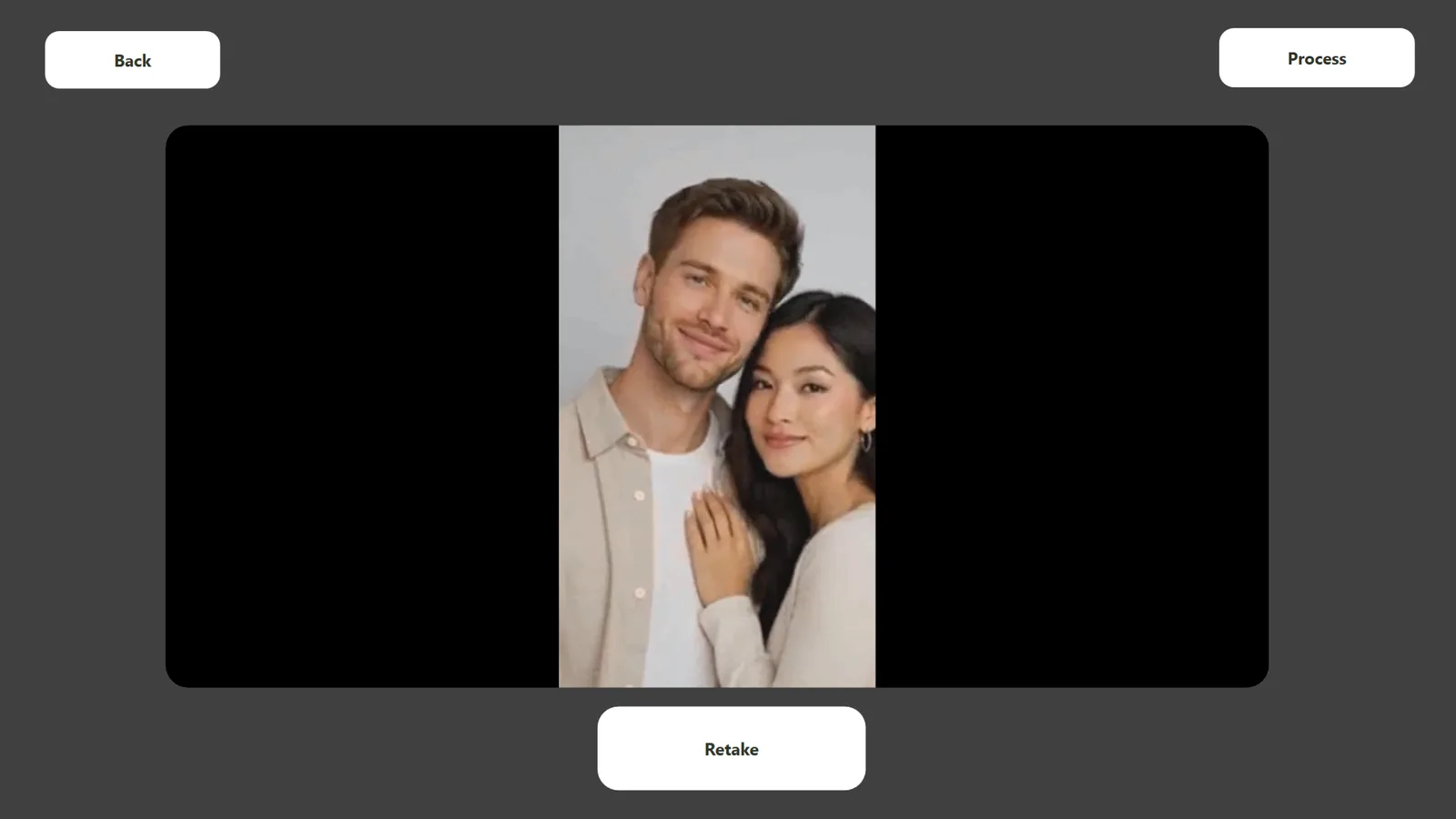
- The guest can Retake or keep the clip and continue.
- A few seconds later the video is ready, with a QR code to take it home on their phone.
For the full event flow (start screen, printing, sharing) see Run an event.
When to move on to Motion Studio
The Easy Mode Video card makes simple one-clip templates. Switch to Expert mode and continue in Motion Studio when you want:
- background music, transitions or several clips in one video (an intro card, the boomerang, an outro);
- your own Motion Path moves or saved presets, or animated effects;
- an AI clip inside the video;
- a fixed frame rate or resolution.
Click Switch to Expert mode at the bottom left, open the event's templates, and edit the video template there: it opens in Motion Studio.
Tips
- Always add a cover.
- Keep recordings short (5–10 seconds).
- Choose 9:16 for phones, and use a frame drawn in the same shape.
- Do a full test run as a guest before the event, with the real camera and lighting.
Common problems
The template shows as an empty card on the start screen.
It has no cover. Edit the template with the pencil and choose a cover picture.
Guests wait too long for the video.
Shorten the recording, or choose a preset with fewer slow-motion moves; the line under the recording length shows how long the finished video is.
I cannot turn on sound.
Record sound is offered for Simple videos only. Choose Simple if the clip needs sound.
The frame does not fit the video.
Draw the frame in the same shape as the Size (for example 1080 × 1920 for 9:16) and check the preview before saving.
Next steps
Still need help?
Our team answers on WhatsApp. Tell us your Q-Booth version and what you see on screen.