Settings: Advanced
Auto-launch an event, fix a black camera preview, play high-fps video, and choose CPU or GPU for AI Offline with the GPU Pack.
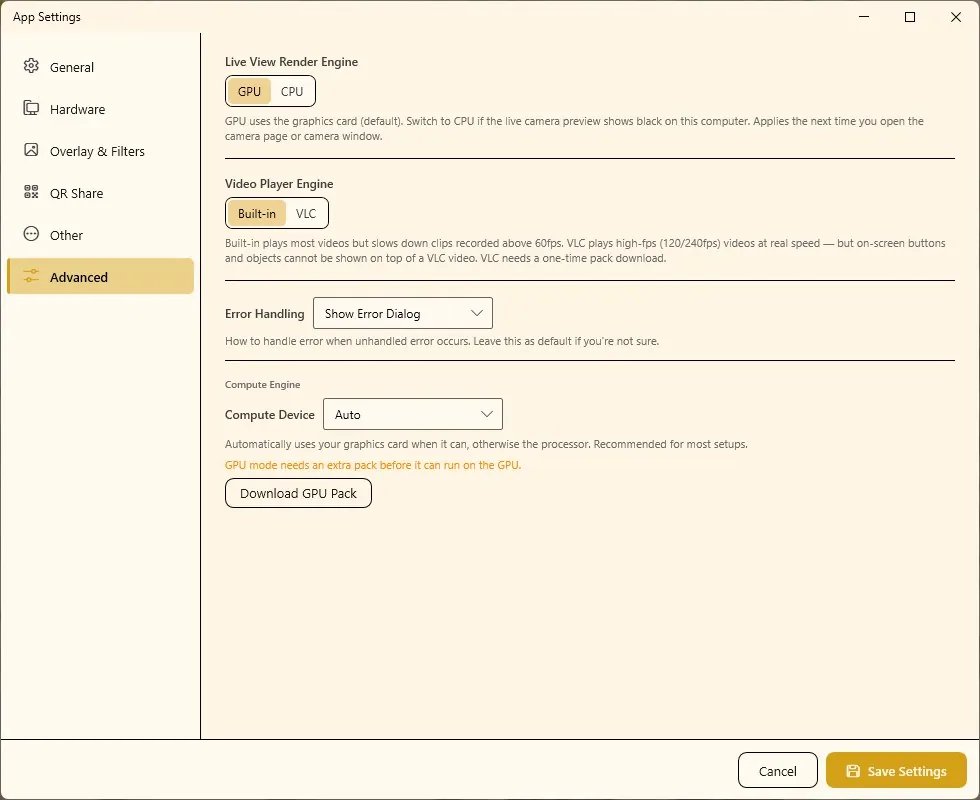
The Advanced tab holds technical settings: starting an event automatically, how the camera preview and videos are drawn, error handling, and the Compute Engine that runs AI Offline features on your processor or graphics card. Leave everything on its default unless you have a reason — each option below says when to change it.
If the Advanced tab is missing, turn on Show all settings at the bottom left of the App Settings window.
Auto Launch Event on App Start
Turns a computer into a self-starting booth: when Q-Booth opens, it launches the chosen event full screen.
- Turn on Auto Launch Event on App Start.
- Choose the Event to run.
- Click Save Settings.
Next time Q-Booth starts, a countdown appears first. Cancel it to stay in the app instead (for example to change something before the event).
Combine this with Windows starting Q-Booth automatically after login, and the booth recovers by itself after a power cut. Set an exit PIN in the event so guests can't leave kiosk mode — see Event settings.
Live View Render Engine
| Choice | When to use |
|---|---|
| GPU (default) | Uses the graphics card to draw the camera preview. Smooth and light on the processor. |
| CPU | Use when the live camera preview is black on this computer (often while photos are still taken correctly). Works everywhere but uses more processor power. |
The change applies the next time you open the camera page or camera window. If Q-Booth finds no graphics card at all, it switches the preview to CPU by itself and tells you; updating the graphics driver usually helps.
Video Player Engine
| Choice | Pros | Cons |
|---|---|---|
| Built-in (default) | Plays most videos. On-screen buttons and objects can be shown on top of the video. | Clips recorded above 60 fps play slower than real time. |
| VLC | Plays high-frame-rate video (120/240 fps) at real speed. | Buttons and objects can't be shown on top of the video. Needs a one-time download: click Download VLC Pack. |
Only switch to VLC if high-fps clips (for example from a GoPro slow-motion booth) stutter or play too slowly, and check that no page relies on buttons drawn over the video.
Keep original without overlay
When on, Q-Booth saves an extra copy of every image result before the overlay frame is added, into an _original folder next to the result. These copies are not shown in the gallery and are never shared or printed — copy them by hand when a client wants frameless photos. Images only. Off by default.
Error Handling
How Q-Booth reacts to an unexpected error: Show Error Dialog (default) shows a message; Silent keeps going without a dialog, which can suit an unattended kiosk. Leave it on the default if you're not sure — a visible error is easier to report.
Compute Engine
The Compute Engine runs the AI Offline tools on this computer — Face Swap, Face Restore and Background Change. It does not affect AI Online, which runs in the cloud.
Compute Device
| Choice | What it does |
|---|---|
| Auto (default) | Uses the graphics card when it can, otherwise the processor. Recommended for most setups. |
| CPU | Always uses the processor. Works on any computer, but Face Swap and Face Restore are slower. |
| GPU | Always uses the graphics card. Much faster. Needs an NVIDIA RTX 30-series or newer card and the GPU Pack. Greyed out on computers without an NVIDIA card. |
Download the GPU Pack
On a computer with an NVIDIA card, GPU mode needs an extra pack. If it isn't installed yet, the tab shows GPU mode needs an extra pack before it can run on the GPU and a Download GPU Pack button.
- Make sure you have a stable internet connection — the pack is large (around 2.4 GB). Do this at the studio, not at the venue.
- Click Download GPU Pack and wait until it has finished downloading and installing.
- Set Compute Device to GPU (or leave Auto).
- Click Save Settings and restart Q-Booth.
Test the engine
With GPU selected on an NVIDIA computer, the tab shows the Detected GPU and a Test Engine button. The test checks Graphics acceleration, Face Swap and Face Restore and reports whether all checks passed. Use Test Again after fixing something (for example updating the graphics driver).
Engine Boot (warm-up)
Decides whether the AI engine stays loaded in memory (faster) or is loaded only when needed (uses less memory). The choices depend on the device:
| Device | Choice | Effect |
|---|---|---|
| GPU | Auto | Q-Booth picks the best mode for your card. Recommended. |
| Warm Boot | No delay when switching templates, but keeps about 3 GB of graphics memory reserved the whole session. | |
| Cold Boot | No extra memory at rest. A template's first run — and the first run after switching templates — takes a few seconds longer. | |
| CPU (or Auto without an NVIDIA card) | Keep Loaded | Recommended. Loads once on the first photo and stays ready; uses about 2.5 GB of memory until you close the app. |
| Free After Each Photo | Frees memory after every photo. Only for computers short on memory — each photo can take up to a minute longer on a slow PC. |
Changes to Compute Device or Engine Boot take effect only after you restart Q-Booth — the tab reminds you with Changing this takes effect after you restart the app. Never change them in the middle of an event. After restarting, wait until the AI Offline Server status at the bottom of the main menu shows it is ready before processing AI Offline templates.
Troubleshooting
The camera preview is black.
Set Live View Render Engine to CPU, save, and reopen the camera page. See also Camera troubleshooting.
The AI Offline Server stays offline.
Check Compute Device. If it is set to GPU, download the GPU Pack first and restart. Make sure security or antivirus software isn't blocking Q-Booth. If it still fails, switch to CPU, restart, and send logs to support (Export Logs).
The GPU option is greyed out.
No NVIDIA graphics card was detected. GPU mode needs an NVIDIA RTX 30-series or newer card; otherwise use Auto or CPU. Check the requirements in System requirements.
Some engine checks fail.
Update the NVIDIA graphics driver, restart the computer and run Test Again. Until it passes, use Auto or CPU.
High-fps video stutters or plays slowly.
Switch Video Player Engine to VLC and download the VLC pack. Remember that buttons can't be shown on top of VLC video.
The first AI photo of a session is slow.
That's the engine loading. Use Warm Boot (GPU) or Keep Loaded (CPU), restart, and make one test photo before guests arrive.
Next steps
Still need help?
Our team answers on WhatsApp. Tell us your Q-Booth version and what you see on screen.