SMS sharing with Twilio (United States)
For US booths: upgrade a Twilio account, buy a toll-free number, get it verified, then connect it in Q-Booth. Nothing sends until Twilio approves the number.
Q-Booth can text guests a link to their photo. The texts go out through your own Twilio account: the booth talks to Twilio directly, and Twilio bills you per message. This page is for booths in the United States, where every sender number must be verified before it can text anyone.
Use the general guide instead: SMS sharing with Twilio.
A new US number can't text anyone — not guests, not even a Test Send to your own phone — until Twilio approves its verification. Twilio still accepts the text, so Q-Booth shows it as sent, but it never arrives. Approval takes days to weeks: start 2–3 weeks before your first SMS event.
SMS sharing comes with the next Q-Booth update. The link in the text is the same one the QR code and the email use, so Web QR must already be set up and working on the booth (QBooth cloud service or your own FTP).
What you need
- A Twilio account that has been upgraded (paid).
- Your business details for Twilio's review: legal business name, address, website, contact email, and your EIN. No EIN? You can register as a Sole Proprietor instead.
- A toll-free number (800, 888, 877…) bought in Twilio and verified — this page walks you through both.
- A budget: Twilio charges a monthly fee for the number and a price per text. See Twilio's US SMS pricing.
Step 1 — Create a Twilio account
- Go to twilio.com/try-twilio and sign up with your email and a password.
- Verify your email, then your own mobile number (Twilio texts or calls you a code).
- Answer the short questions about your project. Choose SMS when asked what you want to use.
- You land on the Twilio Console home page: console.twilio.com.
Step 2 — Upgrade the account
A new account starts as a trial. A trial can only send Twilio's own sample messages, so it refuses Q-Booth's text ("Twilio 572006: Invalid template name"), and it can't buy a toll-free number.
- On the Console home page, click Upgrade (top right).
- Add your business details and a payment method, and add some balance. Twilio takes the cost of each text and the number from this balance.
Turn on auto-recharge in Twilio's billing settings, so the balance never runs out in the middle of an event.
Step 3 — Copy the Account SID and Auth Token
Both are on the Console home page, in the Account Info box.
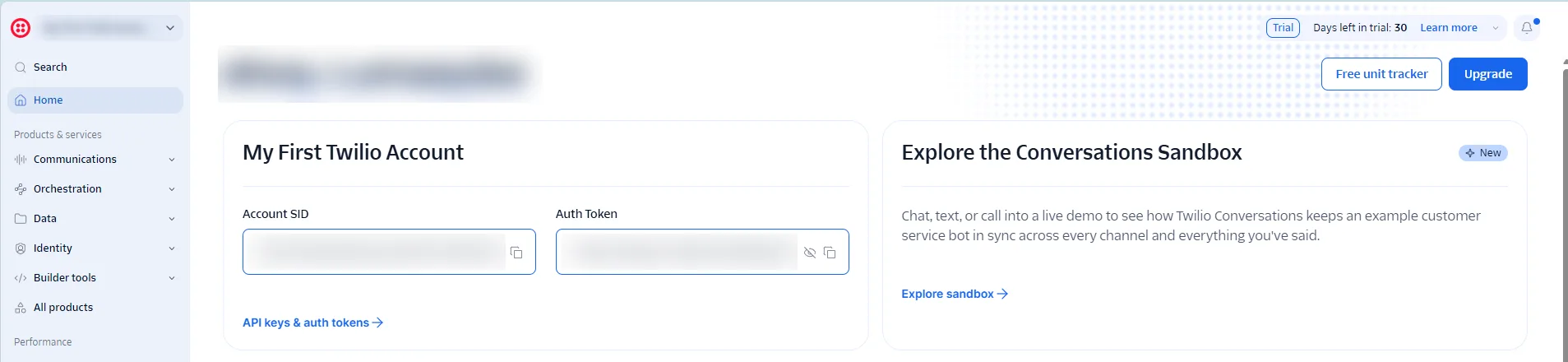
- Account SID — starts with
AC. Click the copy icon next to it. - Auth Token — hidden by default. Click the eye icon to show it, then copy it.
The Auth Token works like the password to your whole Twilio account. Never post it in a chat or a screenshot. If it ever leaks, open API keys & auth tokens → Auth tokens, create a new token, and paste the new one into Q-Booth.
Step 4 — Buy a toll-free number
- In the Console, open Communications → Numbers & senders and click the Phone Numbers tab. (Or type Numbers in the Search box.)
- Click Set up a new phone number.
- On Basic information, choose Business / Nonprofit / Sole Proprietor — toll-free numbers only show up then. Pick United States, the type Toll-free, and SMS.
- If Twilio asks for a business profile (Trust Hub), fill it in now with the business details from What you need. It's needed once per account.
- Pick a number, click Next, then Purchase. Write it down with the
+1, for example+18885551234.
A local 10-digit number works too, but it needs a different registration (A2P 10DLC: a "brand" plus a "campaign", with extra fees and usually a longer wait). For a single photo booth business, a toll-free number is the simpler route, so this guide uses it.
Step 5 — Verify the number
- Go back to Numbers & senders → Phone Numbers and click your new number.
- Under Finish setting up your number, start the toll-free verification.
- Fill in the form. These answers fit a Q-Booth photo booth:
| Field | What to enter |
|---|---|
| Business name, website, address, contact email | Your own business details. |
| Business registration number | Your EIN (authority: EIN). Not needed if you registered as a Sole Proprietor. |
| Use case | The closest one to photo delivery, for example Delivery notifications. |
| Use case summary | Guests at our event photo booth receive a link to their own photo by text. Each guest types their own number on the booth's touchscreen and presses Send; one text is sent per request. |
| Sample message | Your photos from Sarah & Mike's Wedding are ready: https://cloud.lumaqube.com/view/abc123 — or your own text, if you wrote one (Step 7). |
| Opt-in type | The closest one to a screen where people type their number — usually Web form. |
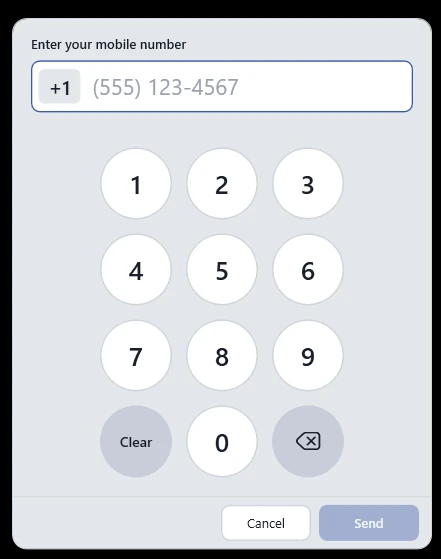
| Opt-in image URL | A picture of where guests enter their number. You can use ours: https://www.lumaqube.com/docs/img/sms-twilio/guest-keypad-us.webp |
| Message volume | Your estimate per month — a few hundred to a few thousand texts for most booths. |
- Submit. Follow the status under Trust Hub → Registrations: Pending while Twilio reviews it, Verified when it's approved. If it's rejected, Twilio shows the reason — fix that field and submit again.
Start the SMS text with your brand (for example "MyBooth: your photos from {event} are ready: {link}", see Step 7), so guests — and carriers — can see who it's from.
Step 6 — Connect Twilio in Q-Booth
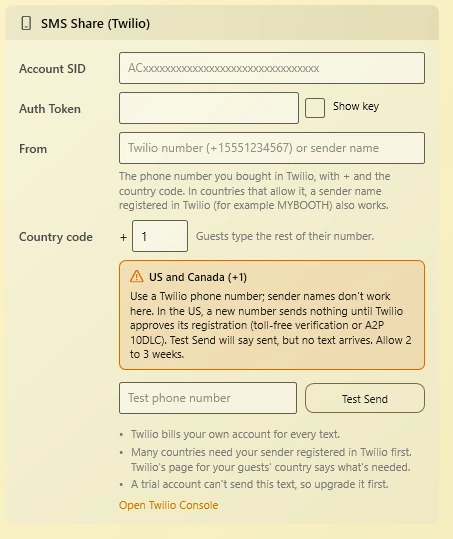
- Open the App Settings window and go to QR Share. If you don't see the SMS Share (Twilio) card, turn on Show all settings at the bottom left.
- Fill in the card:
- Account SID and Auth Token — from Step 3.
- From — your toll-free number with the
+1, for example+18885551234. - Country code —
1.
- Once the number shows Verified, type your own mobile number in the test box and click Test Send. The text should arrive within seconds.
- Click Save Settings.
Step 7 — Turn it on for guests
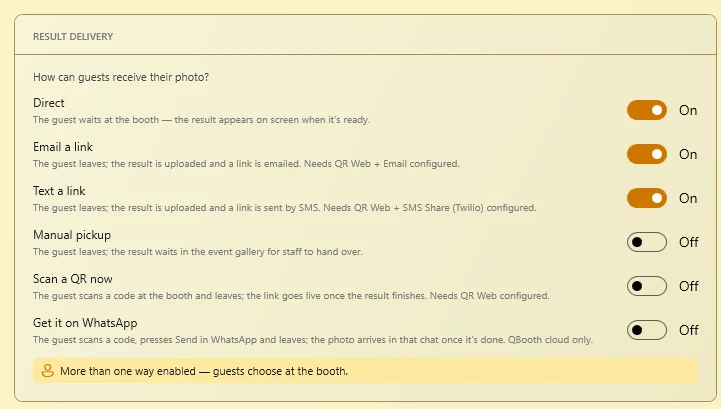
Choose one or both:
- Send it after the photo is made. In the event editor, open GENERAL → Settings → RESULT DELIVERY and turn on Text a link. The guest types their number after their shots and can walk away; the text arrives when the photo is ready. With more than one delivery way on, the guest picks Text it to me.
- A button on the Result page. In the Result page designer, add a Button with the action Share: SMS, or tick SMS on a Share button.
The guest sees the number pad with +1 already filled in and types their 10-digit number. Send stays greyed out until all 10 digits are in. The text they get is the event's own SMS text — see below.
Write your own text
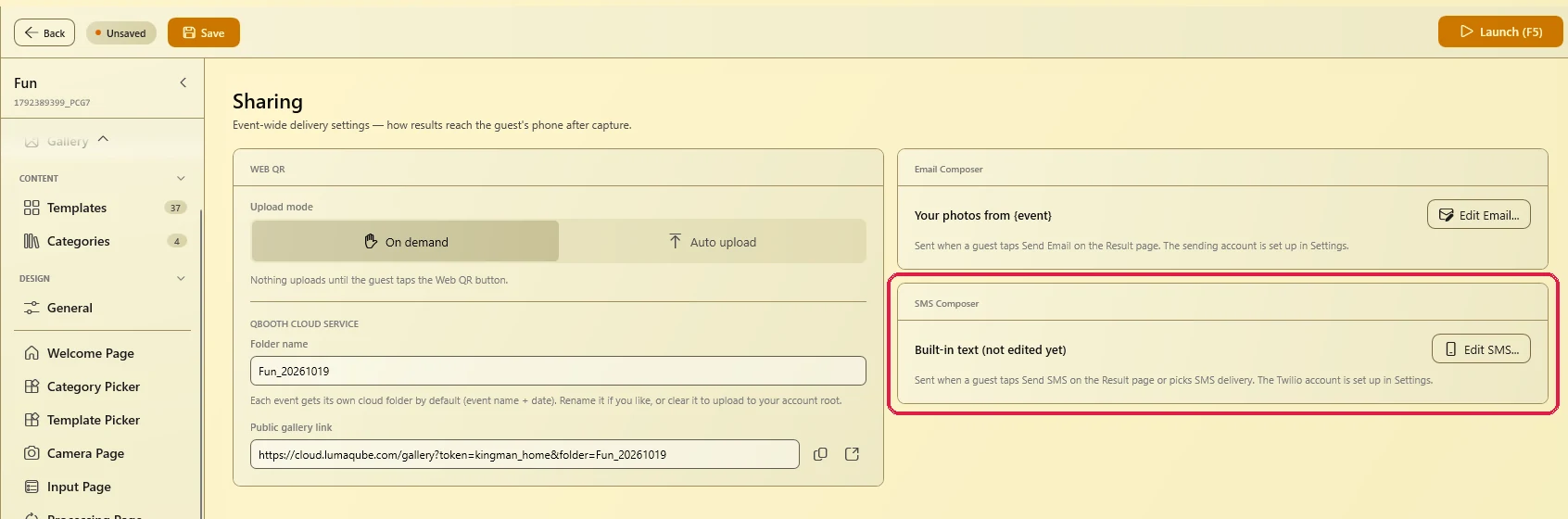
Each event has its own SMS text. In the event editor, open OTHERS → Sharing and click Edit SMS... on the SMS Composer card.
- Variables — click Event name or Photo link to put
{event}or{link}in the text. If the text has no{link}, Q-Booth adds the link at the end, so the guest always gets it. - Length — under the box you see the characters and how many SMS the text takes. One SMS holds 160 characters, or only 70 when the text has an emoji or a special letter. Longer texts are split, and Twilio bills every part. The photo link counts too (about 80 characters).
- Preview shows the text the way a guest sees it. Send Test SMS sends it to your own number through the Twilio account in Settings, with a sample link — once your number is verified.
- Reset to Example puts back the starter text. Click Save, then save the event.
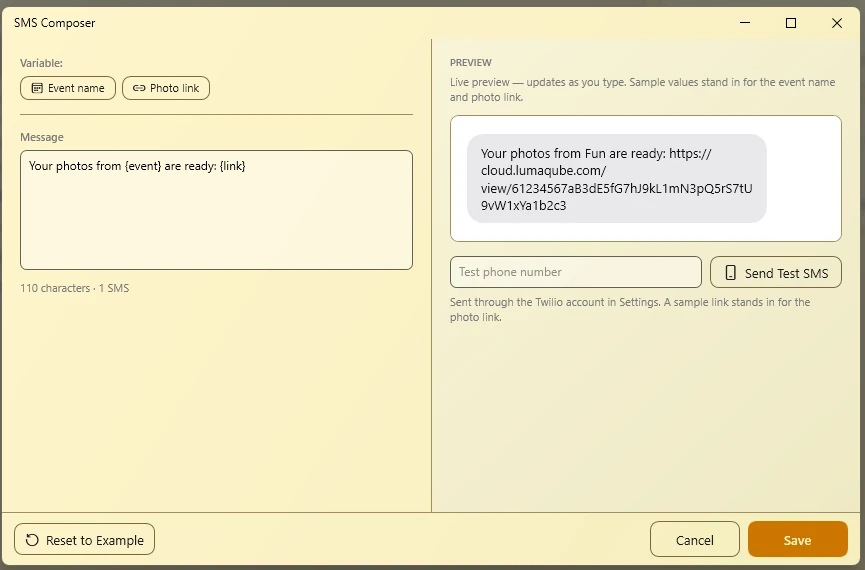
New events start with "Your photos from {event} are ready: {link}". Events made before this version keep the old built-in text until you edit and save it.
Run one full guest session yourself before the event, on the venue's internet, and check the text arrives.
If texts don't arrive
| You see | What it means |
|---|---|
| Test Send says sent, but nothing arrives | The number isn't verified yet. Check Trust Hub → Registrations. Twilio's message log (Monitor → Logs → Messaging) shows error 30032 for an unverified toll-free number, 30034 for an unregistered local number. |
Twilio 572006 — "Trial accounts can only use predefined SMS templates" | The account is still a trial. Upgrade it (Step 2). |
Twilio 20003 — authentication error | The Account SID or Auth Token is wrong. Copy both again from the Console home page. |
Twilio 21606 / 21659 — the From number can't send | The From number isn't a number on your Twilio account, or it has no SMS. Copy it from Numbers & senders. |
Twilio 21408 — permission not enabled for the region | The United States isn't switched on for sending. Search Geo permissions in the Console and tick it. |
| Verification rejected | Twilio shows the reason in Registrations. Fix that field (often the website, the EIN or the opt-in image) and submit again. |
| Text a link is greyed out in the event | The SMS Share card isn't filled in. Do Step 6. |
| Booth offline | Texts wait in the Job Monitor and go out when the internet is back. |
The keypad always uses +1. A guest with a phone from another country can't change it — offer them the QR code or email instead.
Still need help?
Our team answers on WhatsApp. Tell us your Q-Booth version and what you see on screen.