Running an Event
Test with Preview, Simulate and Launch, run the booth full-screen, exit safely with a PIN and monitor the event.
This article covers the event day: testing your event the right way, launching the booth full-screen, what guests go through, how staff get out of the booth safely, and how to keep an eye on things while the event runs.

Chapters (11)
Preview, Simulate and Launch: don't mix them up
Q-Booth has three ways to "run" something, at three different scales. Each one tests something different.
| Mode | Where | What it tests | What it does not do |
|---|---|---|---|
| Preview (F9) | Every page in DESIGN | The look of one page: layout, animations, transitions. | No camera, no template, no session. |
| Simulate (F10) | Camera Page only | The whole capture flow with built-in sample photos: countdown, cue video, flash, several shots, retake, filter strip, auto capture and auto process. | No real camera and no real processing. Pressing Process only shows a notice. |
| Launch (F5) | Event Editor (F5), or Launch on the event card in the Event list | A real, complete booth session: real camera, real templates, real results, real printing, QR and email. | Nothing is simulated; results are saved and counted in the report. |
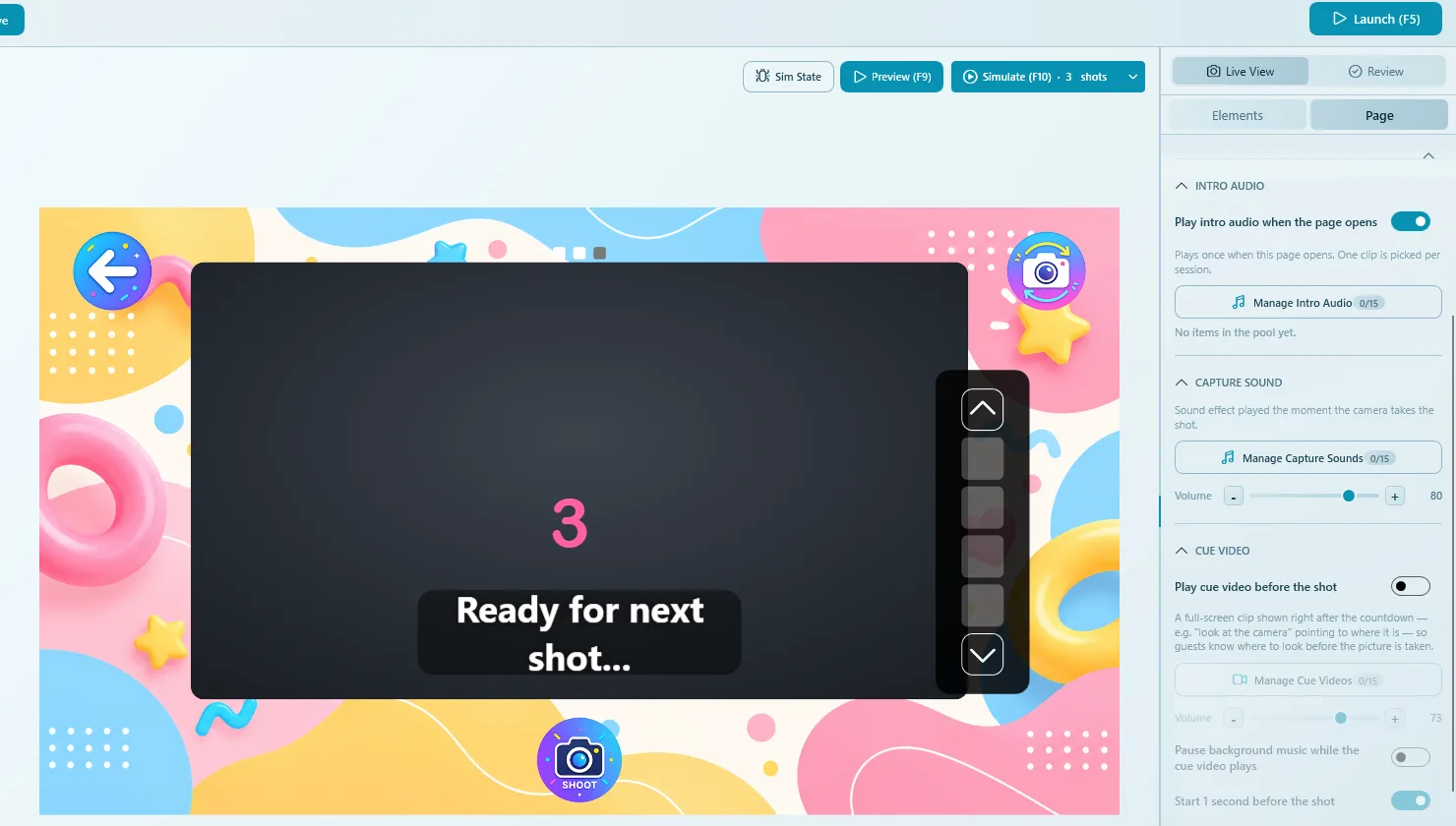
In Simulate (F10) you choose how many shots to simulate (1 shot or 3 shots). Press R to run it again and Esc to close it.
Launch does not need a Save first: it runs whatever is in the editor right now, including unsaved changes. Those changes are not saved by launching. If the test looks good, go back and click Save before you close Q-Booth.
Before you launch
- The event has at least one active template. Launch is blocked with a warning if it has none. See Templates.
- The camera and printer work. See Camera settings and Printer & audio.
- In GENERAL › Settings, the OUTPUT MONITOR is the screen guests will see, and EXIT ACCESS and KEYBOARD CONTROL are set (see below).
- The event is saved and backed up (GENERAL › Manage › Backup). See Backup & export.
- You have done one full test session with Launch, including a print, a QR scan and (if used) a voucher or a Payment Gateway test payment.
The full list is in the Event checklist.
Launch the booth
- In the Event Editor, click Launch (F5) or press F5. From the Event list, click Launch on the event card instead (the F5 key only works inside the Event Editor).
- Q-Booth checks the event's templates first (since 5.5.0.0). If some can't run on this computer (the license is too low, an AI Online API key is missing, an AI Online model is unavailable, or the AI Offline engine is not ready), a Before You Start window explains it. Fix the listed problem, or click Start Anyway to run the event; a guest who picks one of those templates is told what is missing. Since 5.9.2.0 the same window also warns when the PC has no speaker or sound output but the event uses sound: videos with a sound track won't play without one.
- Wait a moment. Q-Booth prepares the event (cover thumbnail, camera filter previews, and a check of the video files) so the first guest never sees a frozen screen.
- The booth opens full-screen on the chosen OUTPUT MONITOR, and the editor window is minimised behind it. A short hint shows how to leave the booth and open the gallery.
If a booth session is already running, pressing Launch again only brings the running booth to the front. It does not open a second one.
To open an event automatically every time Q-Booth starts, use Settings › Advanced › Auto Launch Event on App Start and pick the event (since 5.4.0.0). A countdown appears at startup; cancel it to stay in the app.
"Kiosk mode" in everyday talk usually means the full-screen, locked booth. In Q-Booth that is simply Launch. The KIOSK MODE section in the Event Editor is something else: it makes guests enter a voucher or pay before they can start. See Kiosk, payment & vouchers.
Camera connection
GENERAL › Settings › CAMERA › Early camera connect (on by default) starts the camera while the guest is still choosing a template, so the Camera Page opens instantly. Turn it off to connect only when the Camera Page opens. An unused camera closes itself after 2 minutes (since 5.6.0.2).
What guests go through
At the booth, a guest moves through these screens in this order. Screens marked "if" only appear when you turned that feature on.
- Welcome Page: the guest taps the start button. This page is also the idle screen between guests.
- Kiosk gate (if Kiosk Mode is on): enter a voucher code or pay by QR through the Payment Gateway. See Kiosk, payment & vouchers.
- Survey (if a survey is live): a few questions, one per screen. See Survey.
- Category Picker (if categories are shown as a standalone page; skipped when there is only one category).
- Template Picker: the guest picks a style. Skipped when the event has only one template.
- Input Page (if the chosen template asks the guest something, such as their name, a text or a prompt choice). This comes before the camera.
- Camera Page: countdown (if the page has one), capture, then review with retake. Templates with several photos take several shots in a row.
- Processing Page: the guest waits while the result is made.
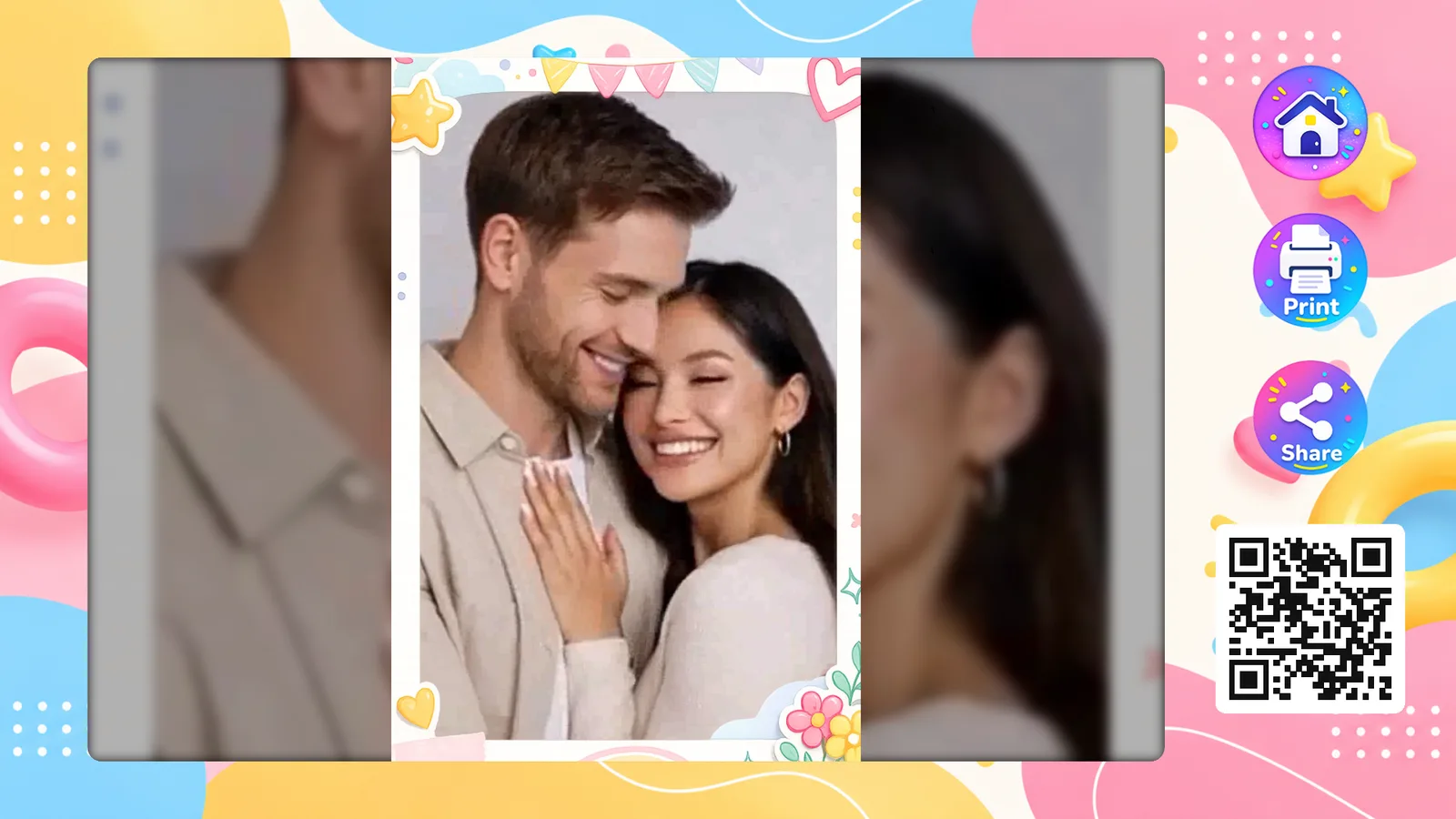
- Result Page: print, scan a QR code, send an email or a text message, or start again. The Result Page's own timer (TIME LIMIT on its Page tab) brings the booth back to the Welcome Page for the next guest.
If more than one way of receiving photos is turned on in RESULT DELIVERY, guests choose at the booth how they want to receive their photo. See Sharing & printing.
Exit the booth
To leave the booth and return to the editor:
- Press Shift + F4, or
- double-click (double-tap) the top-right corner of the screen.
Esc does not close the booth. It is disabled on purpose so guests can't leave. Use Shift + F4 or the top-right corner.
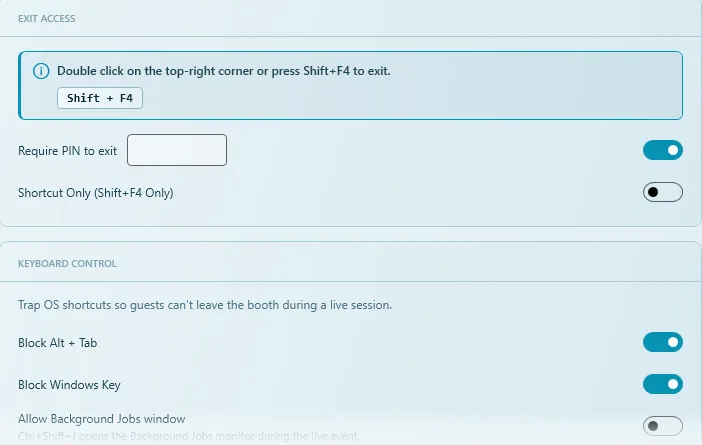
Set how staff exit in GENERAL › Settings › EXIT ACCESS:
| Option | What it does |
|---|---|
| Require PIN to exit | Asks for the PIN typed in the box beside it before the booth closes. Strongly recommended for unattended or self-service booths. |
| Shortcut Only (Shift+F4 Only) | Turns off the corner double-click, so only the keyboard shortcut works. Useful on touch screens where guests might tap the corner by accident. |
Write the exit PIN down and keep it somewhere safe, away from the booth. Without it, staff cannot leave the booth from the screen.
Keyboard control
In GENERAL › Settings › KEYBOARD CONTROL you can block Windows shortcuts so guests can't leave the booth during a session:
- Block Alt + Tab: guests can't switch to another program.
- Block Windows Key: guests can't open the Start menu.
- Allow Background Jobs window: lets staff press Ctrl + Shift + J during the event to open the background jobs monitor (uploads, logs, processing).
Keys and gestures at the booth
| Key or gesture | Action |
|---|---|
| Shift + F4 / double-tap top-right corner | Leave the booth (may ask for a PIN). |
| Shift + F2 / double-tap top-left corner | Open the event gallery, when allowed (may ask for a PIN). |
| Ctrl + Shift + J | Background jobs monitor, when allowed. |
| A template's own key | Picks that template on the Template Picker. Set it in the template's advanced settings under KEYBOARD SHORTCUT. See Templates. |
The gallery shortcuts are set on the Welcome Page: DESIGN › Welcome Page › Page › Gallery Access, with Secret area (top-left corner), Hotkey (Shift+F2) and an optional Require PIN. The corner and the hotkey are both on by default for new events (since 5.5.3.0). A button with the Launch Gallery action opens the gallery too. The same tab also has Start Session › Require PIN, which asks for a PIN before every session starts, so staff must unlock the booth for each guest. See Page Designer.
Monitor the event while it runs
- Event gallery (Shift + F2): reprint a photo for a guest, show a QR code with all photos of a session, or delete photos that didn't work out. See Gallery.
- Print counter: turn on Show print counter to see the running total on the Print buttons. See Sharing & printing.
- Background jobs (Ctrl + Shift + J, if allowed): check that uploads and emails are going out.
- Report: during a break, leave the booth and open OTHERS › Report to check sessions, prints and the Errors list. See Report.
- Hardware: keep an eye on printer paper and ink, the camera battery, and the internet connection if you use Web QR, email or the Payment Gateway.
After the event
- Leave the booth with Shift + F4 (and the PIN).
- Open OTHERS › Report and export the report for your client.
- Copy the Public gallery link from OTHERS › Sharing and send it to your client, if you used Web QR. Since 5.9.4.0 the link uses your gallery name, not your licence key, so it is safe to share.
- Back up the event in GENERAL › Manage.
Common problems
Esc doesn't close the booth.
That is intended. Use Shift + F4 or double-tap the top-right corner.
Launch shows a warning and does not start.
The event has no templates. Add at least one in CONTENT › Templates.
A "Before You Start" window appears at launch.
Some templates can't run on this computer (license, AI Online API key or model, AI engine), or (since 5.9.2.0) the PC has no speaker or sound output while the event uses sound. Fix the problem it lists, or click Start Anyway. See Troubleshooting.
The booth opens on the wrong screen.
Choose the right screen in GENERAL › Settings › OUTPUT MONITOR, then launch again.
My changes were gone after restarting Q-Booth.
Launch uses unsaved changes but does not save them. Always click Save after a successful test.
I can't leave the booth.
If Shortcut Only is on, the corner double-click does nothing; use Shift + F4. If a PIN is asked, you need the exit PIN set in the event settings.
Guests switched to Windows during a session.
Turn on Block Alt + Tab and Block Windows Key in KEYBOARD CONTROL.
The camera box turned black with "Couldn't take the photo".
The camera couldn't take the shot (since 5.8.0.0). The box shows an error code and the reason in plain words, for a Canon for example lens retracted, couldn't focus or a memory card problem. It stays until someone presses [ Continue ], which takes that same shot again; earlier shots of a strip are kept. Since 5.8.1.1 a Canon photo that can't be saved to the PC (for example a full disk) shows here too, instead of closing the app. Causes and fixes: Troubleshooting.
The booth said "Sorry, the booth needs a quick restart" and restarted by itself.
A page's background video stopped playing (since 5.8.3.0), or Q-Booth was using far more memory than normal (since 5.9.0.0). Q-Booth then restarts itself between guests and goes straight back into the same event. See Troubleshooting.
Next steps
Still need help?
Our team answers on WhatsApp. Tell us your Q-Booth version and what you see on screen.