Troubleshooting
Find the cause and fix for camera, printer, QR, email, AI, video, kiosk, template, update, performance and licence problems.
Something is not working? Find your area below, open the problem that matches what you see, and follow the fix. Each entry gives the symptom, the usual cause and the steps to solve it, with links to the full articles.
First checks
Many problems are already fixed in newer versions, so check your version first: About › Version. When an entry below says "fixed in 5.x", update with About › Check for Updates before trying anything else. Never update in the middle of an event — the app closes while it updates.
Many problems disappear with these quick checks:
- Did you click Save Settings (in App Settings) or Save (in the Event Editor) after your change? Launch does not save the event for you.
- Some options only take effect after you reopen the camera page or restart Q-Booth — the setting's own hint says so.
- Can't find an option mentioned here? Turn on Show all settings at the bottom left of App Settings. Easy mode hides the advanced pages until you do.
- Is the internet working? AI Online, Web QR, email, licence sign-in and updates need it. Capture, printing, AI Offline, Face Swap and Local QR do not.
Camera
The live camera preview is black, but photos are still taken
Cause: the graphics card cannot draw the live view on this computer.
Fix:
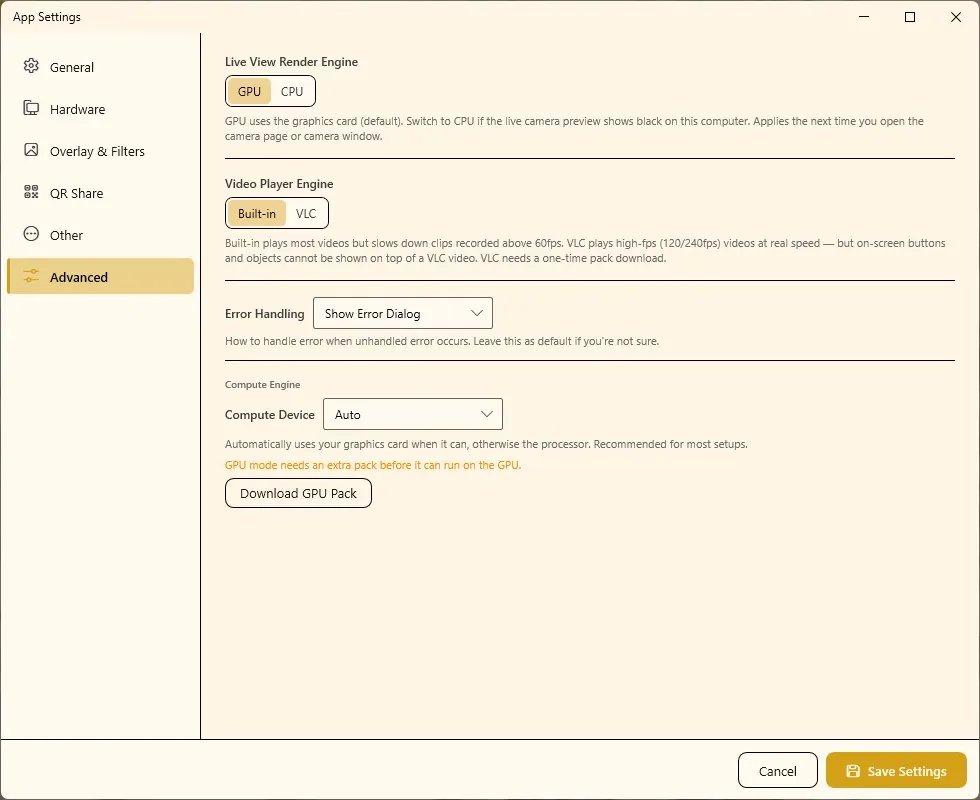
- Open Settings › Advanced.
- Set Live View Render Engine to CPU and click Save Settings.
- Close and reopen the camera page or camera window. The change applies the next time it opens.
Q-Booth may also tell you at launch that no graphics card was detected and that the preview runs in CPU mode. The camera still works; install or update the graphics card driver from the maker's website. (That message points to "Settings › Others", but Live View Render Engine is on the Advanced page.)
Still black on CPU? Then it is a real camera problem — see the entries below.
"No camera detected" or the camera is missing from the Device list
Cause: the camera is off, not plugged in, set to the wrong type, or was connected after the list was loaded.
Fix:
- Open Settings › Hardware and check that Status is on for Camera 1.
- Check that Type matches your camera: WebCam, Canon, GoPro, or (since 5.9.4.0) Nikon or Sony.
- Check the cable and that the camera is switched on, then click the Refresh icon next to the device list. Try another USB port and cable — avoid long USB extensions and unpowered hubs.
- Close other programs that may be using the same camera (video-call apps, the Windows Camera app, and for Canon EOS Utility or Camera Connect), then try again.
- Restart Q-Booth, then the computer.
Webcam stuck on "loading camera" after an update while the Windows Camera app works: fixed in 5.5.3.1 — update, then pick a Resolution again in Configure. A webcam settings window that froze with a very high frame-rate camera (some virtual cameras) was fixed in 5.6.0.2.
More: Camera settings. For a Nikon or Sony, see the entry below.
Nikon or Sony: not detected, no photo, or "battery too low"
Nikon and Sony cameras work since 5.9.4.0. The full setup and the list of models are on Nikon & Sony cameras. The usual fixes:
- Not detected: switch the camera on, check the cable, and close Nikon or Sony camera software. On a Sony, set USB Connection › PC Remote in the camera menu.
- A Nikon won't take a photo: put a memory card in the camera.
- "Camera is busy": wait a moment and try again.
- "The camera battery is too low for live view": charge or replace the battery, or use a mains adapter, then press Retry.
- Unplugged during an event: an error shows. Plug the camera back in — Q-Booth reconnects by itself, or press Retry.
Canon: "The camera is not responding" or the camera hangs during an event
Cause: the camera switched itself off (auto power-off), the camera or USB went to sleep while the booth sat idle, the battery ran low, or the USB cable came loose for a moment.
Fix:
- Set the camera's Auto Power Off to a long time, and use a mains power adapter instead of a battery for all-day events.
- Turn off Windows USB selective suspend (Windows power options) so the USB connection doesn't go to sleep.
- Use a good, firmly seated USB cable.
- "Camera connection lost. Reconnecting..." during the event: reseat the cable; Q-Booth reconnects by itself when the camera is back. If a Retry appears on the camera box, tap it.
- "The camera connection could not be closed cleanly and is now stuck…" (newer wording: "The camera connection is stuck. Unplug the camera's USB cable…"): unplug the camera's USB cable and plug it back in, then close and reopen Q-Booth — the camera works again after the restart. Since 5.9.5.0 the app does this restart by itself during an event, between guests, and goes straight back into the event. The message only stays on screen if the camera gets stuck again within 10 minutes.
If the stuck message keeps coming back, the USB link is dropping. It is often seen on laptops: the camera works after a replug, then breaks again after a while.
- Plug the cable straight into the computer, not through a hub.
- Keep a laptop on its charger.
- Power the camera from a mains adapter, and turn off its auto power-off.
- Turn off Windows USB selective suspend.
Stuck on "connecting to camera..." after the booth sat idle: Q-Booth retries by itself since 5.0.1.0. The app freezing while taking a photo, often part-way through a strip, was fixed in 5.3.0.0 and 5.3.1.0. Update if you are on an older version.
Canon: live view and Test Capture work, but every shot on the event's Camera page fails
What you see: "Hold your pose…", then nothing, then "The camera is not responding". Since 5.9.0.0 the message can also be "The camera stopped responding while switching to photo settings…".
Cause: with Live View Mode › Use Separate Settings, Q-Booth switches the camera to the photo settings right before each shot, and that switch could get stuck on the event's Camera Page (seen on the EOS 700D). This was a Q-Booth bug, not a faulty camera, and it is fixed in 5.9.0.0.
Fix:
- Update Q-Booth.
- On an older version, or if it still happens: close and reopen Q-Booth — the stuck camera needs a restart.
- If it happens again, set Live View Mode to Use Capture Settings. If live view then looks too dark, add steady light on the guests.
Canon: "No Canon camera available…"
Cause: the camera isn't connected, or another app holds it.
Fix: close EOS Utility, Camera Connect and similar apps, check the USB cable, switch the camera off and on, then click the Refresh icon.
Flash doesn't fire: turn on Configure › External flash mode. Live view too dark when exposure is set for flash: Live View Mode › Use Separate Settings.
Canon: "The camera sent a RAW / HEIF file, which this app cannot read"
Cause: the camera is set to save RAW or HEIF.
Fix: in the camera's own menu, set image quality to JPEG, then shoot again.
Canon: ISO, aperture or shutter speed cannot be changed from Q-Booth
Cause: the camera's mode dial is on full Auto, which ignores manual commands. The dial position also limits what you can change (Av mode: aperture only, Tv mode: shutter only, M: both).
Fix: turn the mode dial to a creative or manual mode (for example M), then open Configure again.
If you choose a Kelvin white balance on a body that does not support it, Q-Booth switches to Auto white balance and tells you — that is expected.
Canon: Kelvin white balance has no effect
What you see: the photo and live view colors don't change, whatever Kelvin value you set (for example on an EOS 60D).
Cause: a bug — Q-Booth never really switched the camera to color-temperature mode, and picking Shade did it instead. Fixed in 5.8.2.0, but a custom Kelvin still didn't reach the photos until 5.9.0.0.
Fix: update to 5.9.0.0 or later, then check the white balance in Configure once. On an older version: set the Kelvin value in the camera body's own menu, then pick Shade in Q-Booth — on older versions that is the choice that puts the camera in Kelvin mode, using the body's value.
Canon: the countdown ends and no photo is taken ("Couldn't take the photo")
Cause: the camera refused the shot. Since 5.8.0.0 the camera box turns into a black error box: Couldn't take the photo, an error code and the reason in plain words. It stays until someone presses [ Continue ], which takes that same shot again; earlier photos of a strip are kept. Take a photo of the screen if you contact support.
Most common causes:
- Lens retracted (code 0x8D0F) — kit lenses like the RF-S 18-45 fold in for storage. Turn the zoom ring until the lens extends and unlocks.
- Couldn't focus (0x8D01) — point at something with contrast, or set the lens to MF. On some bodies (seen on the R100) a focus failure could later freeze the camera and restart the app; since 5.9.6.1 Q-Booth releases the camera after a failed focus to prevent that. Frequent focus failures still mean the light or the focus setup needs fixing.
- No, locked or faulty memory card (0x8D06 – 0x8D08).
- "Can't take a photo in its current state" (0x8D0C – 0x8D0E) — the camera is in movie mode, or External flash mode is on without a flash.
Before 5.8.0.0 nothing showed on the event screen (a retracted lens showed as "UNKNOWN_ERROR_0x00008D0F" in the Canon Configure test capture), and the reason was only in log\canon\canon_log_<date>.txt (look for TakePicture result) — update. Freeze Frame capture mode works around it because it never fires the shutter, but it saves a live-view frame (lower quality), so fix the camera instead.
Canon: the photo is taken a few seconds after the flash, guests have already moved
Cause: the camera is slow to fire, usually autofocus hunting in a dim room. Older bodies such as the EOS 1100D can take about 3 seconds on every shot.
Fix: put more light on the guests, or set the lens to manual focus (MF) once it is focused on the spot where guests stand.
Since 5.8.1.1 guests see "Hold your pose…" while the camera is still busy. Since 5.8.2.0 it is its own Hold Caption element on the Camera Page, with its own size, font and color; Show after on that element sets how soon it appears, and hiding it with the eye turns it off. (In 5.8.1.1 it sits in the countdown box: Camera Page › Show a message while waiting for the camera.)
"Hold your pose…" is too small to read
Cause: in 5.8.1.1 the message is squeezed into the countdown's box.
Fix: update to 5.8.2.0 or later, then select the Hold Caption element on the Camera Page and raise its font size. You can also give it your own text, color and background, and move or resize it.
A spinning icon flashes over the photo after each shot
Cause: it is the loading icon over the held shot while the photo is prepared. When the photo is ready quickly, the icon only flickers.
Fix: update to 5.8.2.0 or later. By default the icon then only appears if the photo takes longer than 1 second. To change that: Camera Page › Page tab › Show a loading icon while the photo is prepared — turn it off, or raise Show after so it only appears when the photo is really slow.
After the flash the screen goes back to live view, and the photo takes many seconds to appear
Cause: an older version. Guests walk off before their photo shows.
Fix: update. Since 5.8.1.0 the screen holds the shot with a loading icon and DSLR photos appear much faster; since 5.8.1.1 photos with a camera filter are ready faster too.
Canon: "The photo couldn't be saved to this computer" (older versions: the app closed with "SDK Error: 0xA8")
Cause: the photo came off the camera but could not be written to the PC. Usually the disk is full, antivirus or Windows Controlled folder access is blocking the app's folder, or the USB cable dropped during the transfer.
Fix: free up disk space, allow Q-Booth in the antivirus, and reseat the cable. Then tap Continue to take the shot again.
Before 5.8.1.1 this closed the app with a "Fatal Exception" box (SDK Error 0xA8, 0xA9 or 0x2A). Update to get the message instead.
Canon: the app freezes for about a minute after a Test Capture, then works again
Cause: seen with a very slow shutter speed (several seconds) in the Canon settings window. It is under investigation and has not been seen on the event's Camera Page.
Fix: use a normal shutter speed for test captures for now.
GoPro: pairing or connecting fails
Cause: the camera is not in pairing mode, Bluetooth or Wi-Fi is off on the computer, or the camera is too far away. Q-Booth needs a GoPro HERO 9 or newer.
Fix:
- Put the GoPro in pairing mode on the camera's own screen: Preferences › Wireless Connections › Connect Device › GoPro Quik App. Keep the GoPro Quik app on your phone closed.
- Turn on Bluetooth in Windows. The computer needs Bluetooth 4.0 or newer and a Wi-Fi adapter.
- If Windows denies Wi-Fi access for the app, allow it in Windows settings.
- Move the camera closer to the computer (within about 10 m) and try again; if it still fails, restart the camera and pair it again.
- For a test recording: charge the battery and make sure an SD card is in the camera.
"Live preview not available" means the GoPro's preview stream didn't come up. The camera still records: press the capture button when ready and the video comes back as usual. GoPro problems in events (missing countdown, frozen result video, garbled retake) were fixed in 5.0.1.2.
GoPro: the booth loses its internet while the GoPro is connected
Cause: the Wi-Fi adapter used for the GoPro is dedicated to the camera's own hotspot.
Fix: give the booth a second connection — a network cable, or a second Wi-Fi adapter picked under WiFi Adapter — for Web QR, email and AI Online.
At the event: the camera page is slow to open, or "Switch camera" is missing
- Early camera connect (event GENERAL › Settings › CAMERA, on by default) starts the camera while the guest picks a template, so the camera page opens instantly. An unused camera closes itself after 2 minutes (since 5.6.0.2).
- The Switch camera button hides itself when only one camera is set up.
- A countdown that froze on its first number, or stopped part-way on a slow computer, was fixed in 5.1.2.2 and 5.2.0.0.
Contact support when the camera works in other Windows apps but not in Q-Booth on a current version, or it disconnects repeatedly with a good cable and power. Export the logs first — they include a timeline of every camera connection and capture.
The final photo is mirrored (text reads backwards)
Cause: the live view is mirrored on purpose so guests feel they are looking in a mirror, and the result copies it.
Fix: in Configure Webcam (or the Canon settings), keep the mirrored Orientation for the live view and tick Flip result image so the final photo is the right way round.
Photos look low quality, soft or blurry
Likely causes, most likely first:
- Webcam resolution too low: in Settings › Hardware › Configure › Resolution, pick the biggest one your camera does well.
- Canon set to Freeze Frame: in the Canon Configure › Advanced Settings › Capture Mode, use Quick Shoot. Freeze Frame saves the live-view picture, which is lower quality. Also set the camera's own JPEG size to the largest.
- Out of focus or motion blur: that is the camera, not Q-Booth — check focus, light and shutter speed.
- Image Quality setting: Settings › Other › Image Quality. Optimal (85) looks perfect for normal prints; High (92) is for A4 or large prints. It changes the file size more than what the eye sees.
- Collage canvas too small (strips, multi-photo layouts): the canvas size is the result's pixel size, and the 2:3 Portrait preset is only 1333 × 2000. In Collage Studio pick Canvas › Custom Size with the same shape but bigger, for example 2400 × 3600. The layers keep their places.
- Small overlay picture: an overlay smaller than the print gets stretched. Make it the print size.
- Heavy crop: a template shape very different from the camera's crops away much of the picture. Pick a shape close to the camera's.
Old versions: studio camera photos saved at preview size were fixed in 5.0.1.1, overlays coming out at lower resolution in 5.5.4.0, and grainy Motion videos in 5.0.1.4. Zoom to crop on the event Camera page only enlarges the live view on screen — it doesn't change the photo.
Printer
The print is cropped, shifted or has white edges
Cause: margins or size mode do not suit the paper, or the template ratio does not match the paper size.
Fix:
- Open Settings › Hardware and click Configure… under Printer.
- Check Paper Size, Print Size Mode and Margins.
- Click Test Print and adjust until the sheet is right.
- Make sure the template's aspect ratio matches the paper (for example a 2:3 template on 4R / 4×6 paper).
More: Printer settings.
Several copies print, or photos print that nobody asked for
- Several copies from quick taps on Print: fixed in 5.5.0.0. Since 5.8.3.0 the Print button also stays off for 5 seconds after each print.
- Every photo prints without anyone pressing Print: Enable auto print is on in the event's OTHERS › Printing.
"Did it print?" — no sign the Print tap worked
Q-Booth only knows the photo was sent to the printer. It can't tell whether paper actually came out (jam, no paper, printer off). The brief flicker on screen is Windows' own "Printing page 1" box.
- Printer far from the booth: turn on Show "sent to printer" message in the event's OTHERS › Printing. After each print a short message confirms it was sent; it closes by itself after 5 seconds (since 5.8.3.0).
- To confirm paper actually came out, check the printer or the Windows print queue.
QR and sharing
Web QR: the guest's QR code does not open, or the upload fails
Cause: the cloud subscription is not active, the FTP details are wrong, or the venue network blocks the upload.
Fix:
- Open Settings › QR Share.
- Cloud method: check the subscription status shown under the method, and press ↻ to check it now (since 5.9.4.0; older versions: click Check License Status). An expired subscription stops uploads.
- FTP method: check the account details. The Result URL (the public address used in the QR) is not the same as the Upload URL.
- Click Test QR and scan the code with a phone.
- Repeat the test on the venue network before guests arrive.
A QR printed on the photo only starts working once that photo has finished uploading. If a link worked before but not weeks later: cloud uploads are kept for 21 days and then deleted. Download the event's photos from the member dashboard (Image Gallery › Manage) before then if you need them. More: QR Share settings.
FTP: "Error while uploading the file to the server"
Since 5.8.0.0 the line below that message shows the FTP server's own reason. Read it:
- "552 … Disk full" — your web hosting is out of storage. Nothing to fix in Q-Booth: delete old photos on the hosting, or ask the hosting provider for more space.
- "530 …" / login incorrect — wrong FTP username or password.
- "550 …" / permission denied — the FTP account can't write to that folder.
The QR keeps spinning on the Result page
Cause: the photo is still uploading, or the upload is stuck.
Fix:
- Check the internet at the booth.
- After a few seconds a short code like Q-XXXXXX appears under the QR — look it up in the Job Monitor (see below).
- Uploads that fail because the internet is down wait and continue by themselves when it is back, even after a restart. The guest's link works once the upload finishes.
The Job Monitor — seeing what is waiting or failed
Uploads, background emails and background results run in a queue. Open it with Settings › Other › Background Jobs › Open Job Monitor, or press Ctrl + Shift + J anywhere. During a running event the shortcut only works when Allow Background Jobs window is on in the event's GENERAL › Settings › KEYBOARD CONTROL.
- Status: Pending (waiting, for example for internet), Running, Succeeded, Dead (gave up after several tries), Cancelled, Paused.
- Last Error shows why a job failed. Retry sends a Dead (or Cancelled) job again from scratch, with a fresh set of tries, once you have fixed the cause (internet, FTP password, subscription). It uploads to the event's own cloud folder.
- If that photo was already shared by hand in the meantime, Retry doesn't upload it again — the job just turns Succeeded with the link it already has.
- The banner "Queue paused — no jobs are being claimed." means the queue was paused — press Resume All.
- Search id / token… finds a guest's upload by its Q-code.
- Show in main menu for quick access (Settings › Other) puts a small counter of waiting and failed jobs in the main menu.
If a studio says "A background result is currently being generated…", wait, or Pause the queue in the Job Monitor first. A guest who lost their QR: open the event gallery (or Report › Transactions › View Results), find the session and use Share or Combined QR.
Photos from a failed (Dead) upload ended up in the main cloud gallery, not the event's folder: on versions before 5.9.6.1, making the QR again with the gallery's Combined QR uploaded to the account's main gallery. Fixed in 5.9.6.1. On an older version, after a Dead job use Retry in the Job Monitor or the gallery's Share › Web QR instead — both upload into the event's folder. Photos already in the main gallery stay there.
Local QR: guests cannot open the download page
Cause: the local server is not running, the phone is on another network, or the firewall blocks the port.
Fix:
- If Q-Booth says "Local QR server is not running", pick a session in Settings › QR Share › Local QR and click Save Settings. Click Check Status to confirm the server runs, then Test QR.
- Since 5.9.3.0 the session list has an Off choice at the top, picking a session starts the server at once, and Check Status says why it failed — for example the port is used by another program: edit the session and pick another port (such as 8001). Before 5.9.3.0 there was no on/off switch (the message said "Enable Local QR"): choosing a session and saving turned it on.
- Guests must be on the same Wi-Fi as the booth. Add the Wi-Fi name and password to the session so the QR can connect them. If the computer's IP address changed, check it again in the session.
- The booth computer may be on a cable to the same router — that works. But phones on the router's guest network, or a router with AP / client isolation on, can't reach the computer.
- Make sure the Windows firewall does not block the Local QR port (8000 by default).
iPhone can't save the video, or Safari keeps reloading it: fixed in 5.9.3.0 — update. The Local QR now opens a page with a Download button, and the video plays properly on iPhone. The video lands in the Files app › Downloads; tap it, then Share › Save Video to put it in Photos. On older versions, Android phones can save it, or use Web QR.
"Email a link" is not offered, or results never arrive by email
Cause: Email a link needs both Web QR and Email Share working. In the event settings it is greyed out until an email method is set up, and a warning shows if Web QR is missing. A delivery option that can't work right now is not offered to guests.
Fix: set up and test Web QR and Email Share in Settings › QR Share. Results always land in the event gallery, so a guest who missed their email can still be sent the photo from there.
The result email is not sent or does not arrive
Cause: no email account is set up, Web QR isn't working, wrong SMTP details, or the venue network blocks the SMTP ports (587 / 465).
Fix:
- "No email account is set up." — choose a Method and account in Settings › QR Share › Email Share and click Save Settings.
- The email carries a link to the photo, so Web QR must work too ("Email needs cloud or FTP upload set up to create the photo link. Configure Web QR first.").
- Enter your address next to Test Send and click it. "Test email failed: …" shows the reason. Check the inbox and the spam folder.
- Gmail / Yahoo "authentication" error: use an App Password (needs 2-Step Verification on the account), not your normal password.
- If SMTP fails only at the venue, try another network (a phone hotspot) or switch Method to Qbooth cloud service (needs an active subscription — its status shows under the method, with ↻ to check again; older versions: Check License Status).
- A guest's email didn't arrive: ask them to check the spam folder, and check the address they typed in Report › Contacts.
Guest emails are sent in the background ("Your photos will be emailed shortly."). If the internet is down they wait and are sent when it is back — check the Job Monitor.
SMS
SMS (Twilio): the text is not sent or does not arrive
Since 5.9.2.0, SMS goes through your own Twilio account (Settings › QR Share › SMS Share (Twilio)). The text carries the same link as the QR and the email, so Web QR must work too. Work through these:
- Press Test Send in that card, to a phone you have. If it fails, it shows Twilio's own error.
- "Twilio 572006" / "Trial accounts can only use predefined SMS templates": the Twilio account is still a trial. A trial can't send Q-Booth's message at all, only Twilio's own presets — upgrade it (add billing in Twilio). "Twilio 21608": the number isn't verified on the account — verify it in Twilio, or upgrade.
- "Twilio 20003" / authentication: the Account SID or Auth Token is wrong. Copy both again from the Twilio Console home page.
- Test Send says sent, but nothing arrives in the US (even on your own phone), or US guests get nothing: the Twilio number isn't approved for US texting yet. Register it in Twilio (A2P 10DLC for a local number, toll-free verification for a toll-free one) and wait for approval — until then US carriers silently drop every text. Twilio's message log (Monitor › Logs › Messaging) shows error 30032 (toll-free) or 30034 (local).
- Wrong country: the keypad always uses the Country code from Settings. A guest with a number from another country can't change it — offer email or QR instead.
- Booth offline: texts wait in the Job Monitor and go out when the internet is back. A text Twilio refused shows its error there.
- Text a link is greyed out, or guests get no SMS choice: SMS Share or Web QR isn't set up, so Q-Booth hides it.
Setting up a Twilio account step by step: SMS with Twilio (US booths: SMS with Twilio in the US).
AI Offline
The AI Offline Server stays on Loading or red (Offline), or Process says the server is not online
Cause: the AI engine is still starting (this takes about one to two minutes), the NVIDIA driver is too old, or this computer cannot run it.
Fix:
- Start Q-Booth early on event day and wait until the AI Offline Server status at the bottom of the menu shows Online.
- If it stays red, first update the NVIDIA driver to the latest version — from nvidia.com or in the NVIDIA app. The AI engine needs driver 580 or newer. Restart the computer, then open Q-Booth again. An old driver is the most common reason the server won't start.
- Still red: double-click the AI Offline Server box › Start Server and watch the log. Close other heavy programs to free memory, and make sure no antivirus or security software is blocking Q-Booth.
- Still offline after the driver update? Click Export to File in that log window, export the logs too (see below) and send both to support.
To see which driver is installed, open Command Prompt and type nvidia-smi. The top line shows "Driver Version".
AI Offline needs a Pro licence and an NVIDIA RTX graphics card. If Q-Booth says the local AI engine is not available on this computer, one of these is missing.
The AI Offline Server box is missing: the licence isn't Pro, or the app is in Easy mode. Only Face Swap shows in AI Offline: that is an Advanced licence — the other AI Offline templates need Pro.
Face Swap does not need the AI Offline Server. AI too slow? Lower the Quality slider and test on the booth computer. More: AI Offline Studio.
The server log stops at "Checkpoint files will always be loaded safely." then "Server process exited."
Cause: the computer has an RTX card, but the NVIDIA driver is too old for the AI engine. It needs driver 580 or newer.
Fix:
- Check the driver: open Command Prompt and type
nvidia-smi. The top line shows "Driver Version". - Install the latest driver for the card from nvidia.com or the NVIDIA app.
- Restart the computer, then start the server again.
"Bad git executable" or "comfyui-manager PRESTARTUP FAILED" in the server log
Harmless — ignore it. It is never the reason the server stops. If the server won't start, see the entries above.
"No NVIDIA GPU was detected", "GPU mode needs an additional pack" or "the GPU could not be initialized"
Cause: Compute Device is set to GPU, but there is no NVIDIA RTX 30-series or newer card, or the GPU Pack is not installed.
Fix:
- Open Settings › Advanced.
- With a supported NVIDIA card: click Download GPU Pack and wait for it to finish. Otherwise set Compute Device to Auto or CPU.
- Click Save Settings and restart Q-Booth — the change applies after a restart.
- Click Test Engine to check that everything passes.
Face Swap or Face Restore is slow
Cause: it runs on the processor, or the engine is loaded again for every photo.
Fix: use GPU mode on an NVIDIA RTX card (see above). On a computer without a graphics card, set Engine Boot to Keep Loaded so only the first photo waits. Turn off Smart Faceswap / Face Restoration if speed matters more. See Advanced settings.
Face Swap fails or puts faces in the wrong place
Cause: no face is visible in the guest's photo, or the face order does not match the scene.
Fix:
- Wrong face on the wrong person: check Face Image order, Scene Image order and the Mapping preview. Easiest: press Clear on the scene picture and click its faces in the order you want (since 5.6.2.0).
- Only one person swapped in a group: the position lists are too short. Use
1,2,3/1,2,3, or click all the scene faces. The scene picture needs at least as many faces as guests. - "No faces found in this image": the scene picture has no clear face — pick another.
- Guest's face not swapped: the face must be clearly visible, facing the camera, not covered by hands, hair or sunglasses, and well lit.
See Face Swap.
The AI picture adds extra people or changes the guests' faces
Cause: the prompt describes people instead of giving an instruction.
Fix: write the prompt as an instruction, for example "change the clothes…, change the background…, keep the same people, do not add anyone". See Writing prompts.
AI Online
"API key for … is not set"
Cause: the template uses your own account (3rd Party), but no key is saved for the selected provider. Each provider keeps its own key.
Fix: open Settings › General › AI Online Service. Under Your own API keys, paste the key into that provider's row (fal.ai or WaveSpeed — both rows are always shown since 5.8.0.0; on older versions, pick the provider in the dropdown first) and click Save Settings. Or switch the template to Built-in to pay with tokens. See AI Online Studio.
"Not enough tokens" or "Your free trial tokens are used up"
Cause: the Built-in balance is lower than the model's cost. A template with a video step needs the cost of all steps together; nothing is charged when it stops.
Fix: click Buy tokens in AI Online Studio, top up on your lumaqube.com account, then refresh the balance. Check the balance before every event.
During an event (since 5.8.0.0): the error has a Buy tokens button that shows a QR code. Scan it with your phone, buy tokens, then press Retry. The guest's photo is kept, and you don't need to close the event. When you start an event that uses Built-in with fewer than 100 tokens left, a warning with Buy tokens appears first; you can still start the event.
AI Online fails, times out, or "Could not reach the server"
Cause: slow or blocked internet, or a model that takes longer than the time limit.
Fix:
- Check the internet connection on the booth.
- "Could not open a secure connection": check the computer's date and time, and any antivirus or firewall.
- On slow networks, raise Max Timeout in Settings › Other (default 180 seconds).
- Your own key: check the provider account has balance.
- Every generation fails with a connection error after you added a reference picture: on versions before 5.9.4.0 a very large picture can do this. Use a smaller copy (2048 pixels on the long side is plenty). Since 5.9.4.0 big reference pictures are shrunk to that size automatically.
"Still Generating — Keep waiting?"
This is not an error. The message says the result is taking longer than usual, nothing has failed, and it is still being generated. Press Keep Waiting; Stop gives up on this result.
- The waiting limit is Settings › Other › Max Timeout (default 180 seconds). Raise it for slow video models so the question appears less often.
- Results made in the background (email, QR, pickup) don't ask — they keep waiting on their own.
- Before 5.5.3.1, slow models simply failed after the time limit. Update.
At the event, a failed AI template shows the guest Something went wrong with Retry (same photos, no re-shoot) and Back to Home. Check the internet, then the tokens or your provider credit. Guests who don't want to wait can use Scan a QR now or Email a link delivery.
All AI Online messages and what to do
| Message | What to do |
|---|---|
| "API key for fal.ai / wavespeed.ai is not set…" | Settings › General › AI Online Service, paste the key in that provider's row (older versions: pick the provider first), Save Settings. Each provider has its own key. |
| "Not enough tokens…" | Buy tokens (or lumaqube.com › Cloud AI › Tokens), then press the refresh button on the balance card. During an event: press Buy tokens on the error, scan the QR with your phone, buy, then Retry (since 5.8.0.0). |
| "…All the steps of this template need N together…" | Picture + video templates need tokens for both steps up front. Nothing was charged. |
| "The generation failed (…). No tokens were charged." | Try again, or pick another model. |
| "This template's AI model is no longer available…" | The provider retired the model. Open the template, pick another model, save. |
| "…temporarily unavailable…" | The model is switched off for now. Try later, or pick another model. |
| "This template's AI model needs QBooth X or newer…" (since 5.9.2.0) | The model works, but this Q-Booth is too old for it. Update Q-Booth, or open the template and pick another model. |
| A template shows the token card, but this booth has no Built-in | 3rd Party row and can't switch to fal.ai | The template was saved on Built-in, and this booth (a dongle) doesn't offer it. Update to 5.9.2.0 or newer, which opens it on fal.ai. On older versions, make a new template and copy the prompt across. |
| "This booth's licence session is no longer current…" | Restart the app so it signs in again. |
| "Cloud AI needs a cloud licence. Dongle booths are not supported yet." | A dongle booth on 5.9.6.0 or older. Update Q-Booth — dongles can use Built-in tokens since 5.9.6.1 — or use 3rd Party with your own fal.ai / WaveSpeed key. |
| "This dongle isn't registered to a lumaqube.com account…" (since 5.9.6.1) | Contact support with your Dongle ID. Once support has registered the dongle to your account, press Retry. |
| "Your token balance is frozen…" | Contact support. |
| "Too many generations are still running on this booth…" | Wait for one to finish. |
| "Cloud AI is temporarily unavailable…" | Try again in a moment. |
| "Could not upload the photo. Check the connection…" | Internet problem — check the connection. |
| "Could not reach the server…" | Check the internet at the booth, then try again. |
| "Could not open a secure connection to the server…" | Check the internet, the computer's date and time, and any antivirus or firewall that inspects web traffic. |
| "Your free trial tokens are used up…" | Trial licence — get a full licence to keep using Built-in, or use your own fal.ai / WaveSpeed key. |
| "Prompt is empty" / "No dynamic prompt to process" | Write a prompt, or build one with Prompt Builder (Basic prompts) or the Dynamic Prompt Editor (Dynamic prompts — called Prompt Builder before 5.8.0.0). |
| "Please select a start frame picture in step 2 (Video)…" (older versions: "…on the Video Chain tab…"; since 5.9.1.0) | In Turn into video step 2 (Video) — the Video Chain tab in 5.9.5.0 and older — pick a Start Frame picture, or set Image result is the back to First Frame. |
On your own fal.ai / WaveSpeed account, a failure can also mean your balance on that provider's website ran out — top it up there. More: AI Online Studio.
The "Please Wait" window freezes just as the result is ready
What you see: the processing window stops on its last line, often "Downloading generated image...", and the elapsed time stops counting. Windows then says Q-Booth is Not Responding, and the only way out is to close the app.
- This only happens when Settings › Advanced › Video Player Engine is VLC, and not on every run.
- The result was already made. The freeze comes when the window closes its loading video, not from the download.
Fix: update — 5.9.5.0 changes how a VLC video is closed, which should stop this. On an older version, set Video Player Engine back to Built-in and click Save Settings; keep VLC only if you need 120 / 240 fps playback. If it still happens after updating, send the logs to support.
Video playback
High-fps video (120 / 240 fps) plays in slow motion or stutters
Cause: the Built-in player slows down clips recorded above 60 fps.
Fix: in Settings › Advanced, set Video Player Engine to VLC, click Download VLC Pack once, then save.
On-screen buttons and objects cannot be shown on top of a VLC video. Keep Built-in if your page design puts elements over the video.
The booth screen freezes on a background or idle video
Fix:
- Update to 5.6.0.2 or newer — this exact freeze was fixed there.
- Exit with Shift + F4 and launch again.
- Replace the video with a plain MP4 (H.264) at normal HD size and test it. 4K or unusual video formats are heavy to play all day.
- If the same videos play fine on other computers but hang on this one, the problem is in this computer's video playback components — contact support with the logs (they include this computer's graphics and video playback details).
The VLC player setting does not change how page background videos play — those always use the built-in player. A Collage-layer video (such as the before → after video) that showed blank on the Result page was fixed in 5.6.1.2.
The booth restarts by itself during an event ("Sorry, the booth needs a quick restart")
Since 5.8.3.0, if a page's background video stops playing, Q-Booth restarts itself between guests. This is expected — the event continues by itself:
- From that moment the pages show black instead of their background videos, so the booth stays quick for the guest still using it.
- That guest finishes first. When the booth is back on the Welcome Page, it shows Sorry, the booth needs a quick restart with a Restart Now button. It restarts by itself after 30 seconds.
- Q-Booth closes completely, opens again and goes straight back into the same event. A 10-second countdown offers Start with background video (the default) and Start without background video. "Without" shows black behind the pages for this run only — the next time you launch the event yourself, the videos play again.
- The logs are sent to support in the background after the restart (with no internet, the next time Q-Booth starts). They include extra detail about the video that stopped.
Why: once a background video stops on a computer, every video on that run stops, and the app slowly uses more and more memory until the computer freezes. A restart fixes it every time.
If it happens often:
- Update to 5.9.4.0 or later. The main cause was found and fixed there: every template card on the picker pages quietly made a video player, even cards with a picture, and each one talked to Windows sound. After a few hundred guests Windows sound stopped answering, and from then on background videos couldn't start. Signs on an older version: the restarts come after hours of busy use, on events with a template or category picker, and sometimes the computer's sound stops working until Windows is restarted. On an older version, fewer templates on the picker page make it rarer, and the automatic restart keeps the event going.
- Since 5.9.4.0 Q-Booth also no longer gets stuck on the start screen when Windows sound has stopped responding. On an older version, restart the computer.
- Another cause was fixed in 5.9.5.0: some videos — often from AI video generators, phones or screen recorders — stop playing after looping a few times. It isn't about how sharp or big the video is, but how it was saved. Signs: the booth restarts even when nobody is using it, it is always the same background video, and it happens on 5.9.4.0 too. Since 5.9.5.0 these videos loop safely: the event converts them once by itself when you save it or when it starts, so the first start can take a few seconds longer. On an older version, update — or use a different background video on that page, or re-save the video with a converter such as HandBrake (its default settings are fine) and pick it again.
- An earlier cause was fixed in 5.9.0.0: the live camera preview left a little graphics memory behind with every guest, so long events slowly wore the graphics card down until background videos stopped. Since 5.9.0.0 the preview is reused instead.
- On an older version where it keeps happening: set Settings › Advanced › Live View Render Engine to CPU and click Save Settings. The CPU preview doesn't build up like this, but it uses more processor — check the preview still runs smoothly.
- At the event, choose Start without background video, or replace the page backgrounds with pictures, and send the logs to support.
Memory restart (since 5.9.0.0): the booth also restarts this way if Q-Booth itself uses far more memory than normal (about half the computer's memory, at most 12 GB; other apps don't count). The countdown afterwards says "The app restarted to free up memory" and only has Launch Now, because background videos aren't the problem. It never restarts more than once every 30 minutes for memory. If an event is simply heavy and hits the limit again right after a restart, the booth stops checking for the rest of that run instead of restarting again. If memory restarts happen at an event, send the logs to support.
The switches: both restarts can be turned off in Settings › Advanced › Automatic restart during events (since 5.9.0.0): Restart when a background video stops and Restart when memory runs high. Both are on by default — keep them on. With the video restart off, the pages go black after a video stops and the booth keeps using more memory until the computer freezes.
Kiosk mode and running events
I cannot exit the running event — Esc does nothing
Cause: Esc is disabled on purpose while the kiosk is locked.
Fix: press Shift + F4, or double-click the top-right corner of the screen. If Require PIN to exit is on, enter the PIN. With Shortcut Only (Shift+F4 Only), only the keyboard shortcut works.
Guests get out of the booth screen
Fix: in the event's GENERAL › Settings, turn on Block Alt + Tab, Block Windows Key and Require PIN to exit. See Event settings.
Launch is blocked with a warning
Cause: the event has no templates. An event needs at least one template to run.
Fix: add a template in CONTENT › Templates. See Templates.
Booth opens on the wrong screen: set OUTPUT MONITOR in the event's GENERAL › Settings › DISPLAY.
A "Before You Start" window appears when I launch the event
When you launch an event, Q-Booth checks every template first (since 5.5.0.0). If some can't run on this computer, Before You Start lists why:
| Line | Fix |
|---|---|
| "Some templates need a higher license tier." | The event has templates your licence doesn't include (common with downloaded events). Remove them, or upgrade. |
| "Some templates use AI Online and need a third-party API key, which has not been set in Settings yet." | Settings › General › AI Online Service, paste the key. Or switch the template to Built-in. |
| "Some templates use an AI Online model that is unavailable right now…" | Open those templates and pick another model. |
| "Some templates use AI Offline and need the local AI engine, which is not ready." | Wait for the AI Offline Server to show Online, then launch again. |
Start Anyway still runs the event. A guest who picks one of those templates gets a message explaining what is missing and stays on the picker.
No speaker on this computer (since 5.9.2.0): the same window also warns "This computer has no working speaker or sound output, but this event uses sound…" when Windows has no playback device turned on and the event uses sound (background music, a page voice-over, or any video with a sound track). Without a speaker, Windows won't play a video that has sound at all — it stays still on the first frame. Videos with no sound track play normally, and music is simply silent. Fix: plug in or turn on a speaker (or the monitor's sound), or check in Windows › Sound › Playback that a device is enabled. If the booth really has no speaker, use background videos without sound. Start Anyway still runs the event.
My changes were gone after I closed Q-Booth
Cause: Launch runs what is in the editor but does not save it.
Fix: click Save in the Event Editor after testing. A new event is not written to disk until its first Save.
The Category Picker page does not appear
Cause: categories are shown As Filter on the Template Picker.
Fix: in Categories, set the display mode to As Standalone Page. See Categories.
Gesture control: the fist doesn't take the photo, or thumbs down doesn't retake
- The fist doesn't take the photo (since 5.9.0.0): check Use gesture control is on (Camera Page › Page tab) and the vision pack is downloaded. The guest should be close enough that their hand is clearly visible ("Come closer" means too far), in good light, and open the hand before making the fist. Test it with Try it. Gestures don't work with a GoPro or with Shoot from the camera.
- Thumbs down doesn't retake: the Retake button must be on screen (it is hidden when no retakes are left). Hold the thumb pointing straight down for 1.5 seconds.
See Page Designer.
Retake starts the countdown at once, and guests aren't ready
By default Retake starts the countdown right away. Since 5.8.0.1 you can change that: select the Retake button on the Camera Page and set After tap to Live View. Retake then goes back to the live camera and waits until the guest presses Capture (how Q-Booth v3 worked).
Retake redoes only the photo shown in Review, not the whole set — swipe to the one you want first.
The filter strip doesn't show on the Camera Page
Cause: the strip only shows when 2 or more filters are selected.
Fix: select 2 or more filters in the template's Camera Filter, or in Settings › Overlay & Filters › Camera Filter (called Filter Presets before 5.9.0.0) when the template uses the global filters. Since 5.9.0.0 a template with a Beauty Filter also shows the strip, with a Beauty tile first, even with 0 or 1 filters.
Payment Gateway (QRIS): payment messages at the booth
Since 5.9.0.0 the QRIS add-on is called Payment Gateway in the app, like on lumaqube.com. Guests in Indonesia still pay with a QRIS code. Payments are read in the event's Report › Payment Recap and Payments — the KIOSK MODE › QRIS page is gone.
| Message / symptom | What to do |
|---|---|
| "Payment is not available right now. Please ask the staff." | The licence's Payment Gateway period has ended or was switched off. Extend it on lumaqube.com — it works at once, no restart needed. |
| "Could not generate a payment code." | The payment service couldn't make a QR. Check the internet, then press Test on Kiosk Mode Settings, under Payment Gateway (older versions: on the QRIS page). |
| "This booth's payment account takes <X>, but this event's price is in <Y>" | Click Use <X> for this event on Kiosk Mode Settings and check the price. Guests can't pay until they match. |
| A guest says they paid, but the booth didn't start | Check Report › Payments for that time (older versions: KIOSK MODE › QRIS). The status shows whether the payment was received. |
| The guest scans the payment QR and the phone shows "This site can't be reached" | The QR is fine — it was the wrong scanner. The guest must scan from inside their bank or e-wallet app (its own Scan / Pay button). A phone camera or Google Lens opens the QR as a broken web link. This goes for QRIS, DuitNow, PayNow and QR Ph. |
A template won't open or won't run
Template messages and what they mean
| Message / symptom | Cause and fix |
|---|---|
| "This template was created in …, not … . Open it from the matching studio instead." | The file belongs to a different studio. Open it in the studio named in the message (or check the file's extension). |
| "The template '…' this file was saved with is no longer installed." | An AI Offline file made with an AI template this computer doesn't have. Rebuild it with a template from Select AI Template. |
| "'…' is missing its embedded … data — it was saved malformed." | A layer inside a Collage / Lenticular / Motion / Flipbook template is broken. Re-create that layer's template and save again. |
| "Could not read the template: …" / "Could not load template: …" | The file is damaged or incomplete (often a half-copied file). Copy it again from the original. |
| "The template file for this row is missing…" (event Templates list) | The template file was moved or deleted. Re-add it from Gallery or File. |
| "This template type (…) cannot be processed by this version of the app." | The template was made in a newer version. Update Q-Booth. |
| "This template can't be used in an event" | Text-to-image / text-to-video templates have no guest photo. Use a template that uses the photo. |
| "Your current license doesn't allow … templates" / "This AI Offline template needs a Pro license to run." | The licence doesn't include that studio. |
| "This template's AI model is no longer available." | AI Online model retired — pick another model. |
| "The model file needed to run this is missing…" | The Detailed background-removal model isn't downloaded — press Download model in the Background tab, or use Standard. |
| On a Carousel template gallery, tapping a card picks the card next to it, or tapping the centre card scrolls away (worse with auto-play on) | Fixed in 5.8.0.0. Update. |
| Template Gallery › Manage Folders shows an error like "Access to the path '…\Documents\My Music' is denied" | One of the gallery folders (often Documents itself) holds a hidden Windows folder the app may not open. Fixed in 5.9.4.0 — that folder is just skipped. On an older version, remove Documents from the gallery folders and add a folder that holds only templates. |
| Template picks up a filter or overlay it shouldn't | Check the template's Overlay / Camera Filter / QR Overlay; Default follows the event or global setting. |
To move events to another computer, use the event's Export or Backup, then Import from File… / Restore from Backup on the other computer. See Backup & export.
Lenticular
The lenticular print is blurry or shows ghosting between images
Cause: the LPI does not match this printer, paper and lens combination.
Fix:
- Run the Pitch Test again for the exact printer, paper and lens you use, and print it without scaling.
- Type the best value into LPI on the Lens tab yourself — the Pitch Test does not fill it in.
- For a two-image flip, keep the separator on.
Repeat the Pitch Test whenever the printer, paper or lens changes. See Lenticular Studio.
Performance, storage and gallery
Q-Booth gets slower, freezes or runs out of memory during a long event
Quick fix: close Q-Booth and open it again. If the computer itself is slow, restart it. Then work through the causes so it doesn't come back.
Likely causes, most likely first:
- An old version. The event editor and AI Online Studio used a little more memory each time they were opened, until the app restarted itself to free memory — fixed in 5.9.4.0; on an older version, close and reopen Q-Booth after a long editing session. Memory piling up during long sessions, which could slow the booth or close it with a low-memory message, was fixed in 5.6.1.1. A stuck background video that froze the screen was fixed in 5.6.0.2, and an event getting slower the longer the app was open in 5.3.0.0. Update.
- Giant overlay or frame pictures. A frame PNG made at a huge size (for example 9600 × 14400 pixels) uses hundreds of MB of memory every time it opens, and an event with many such templates can fill a 16 GB computer. Make overlays and frames the size of the print, not bigger — for a 4R / 4×6 print, about 1200 × 1800 pixels at 300 dpi (2400 × 3600 at 600 dpi) is plenty.
- Too many or very heavy background / idle videos. Use ordinary MP4 (H.264) files at normal HD size.
- AI engines keeping memory reserved. In Settings › Advanced › Compute Engine, Warm Boot keeps about 3 GB of graphics memory reserved and CPU Keep Loaded about 2.5 GB of memory. That is normal and makes Face Swap faster; on a computer short on memory use Auto / Cold Boot (GPU) or Free After Each Photo (CPU).
- Other programs on the booth computer (browsers, editing apps, cloud sync). Close them during the event.
If Q-Booth's memory in Task Manager keeps climbing guest after guest on a current version, contact support with the logs — the app writes its memory use to the logs every 5 minutes. Since 5.9.0.0 the booth also restarts itself between guests when Q-Booth uses far more memory than normal — see The booth restarts by itself during an event.
Between event days: press Ctrl + Shift + J to open the Job Monitor and check nothing is stuck waiting or failed. After the event, run GENERAL › Manage › Backup, then Reset Event before reusing it.
Q-Booth closes by itself during use
Likely causes, most likely first:
- Memory ran out during a long event — see the entry above.
- Error Handling is set to Silent. With Settings › Advanced › Error Handling › Silent, an unexpected error closes the app without any message, and it doesn't restart by itself. Set it back to Show Error Dialog while you troubleshoot, so you can see (and copy) the error.
- A Canon camera was switched off or unplugged while live view was running. Older versions could close instantly; current versions show "Camera connection lost. Reconnecting..." instead. Update.
- On some NVIDIA laptops, reading the graphics card's usage for the sidebar could close the app, even in the middle of an event. Fixed in 5.9.6.1: the sidebar numbers are no longer read during an event, and on a computer where this happened once, the sidebar stops reading the graphics card for good — its GPU line then stays empty. Nothing else changes: Face Swap, AI and videos still use the graphics card as before.
If you see an error box titled Unhandled Exception or Fatal Exception, take a photo or screenshot of it, then export the logs — every crash is written to the logs too. Since 5.9.3.0 the app also sends its logs to support by itself after an unexpected error (see Contact support).
Q-Booth closing during start-up, before the main window appears, on computers with basic or missing graphics drivers was fixed in 5.0.0.15 (a "Fatal Exception" graphics error near start-up in 5.0.0.14). Still happening on a current version: install the graphics card's driver from the maker's website, then contact support with the logs.
Want the booth to open the event again when Q-Booth starts? Settings › Advanced › Auto Launch Event on App Start. Q-Booth doesn't reopen an app that was closed or crashed. It only restarts itself in a few known cases: during an event when a background video stops (or, since 5.9.0.0, when its memory runs high) — see The booth restarts by itself during an event — and, since 5.9.5.0, when the graphics driver stops responding (next entry).
"Graphics Driver Problem" — the app restarted by itself
Cause: the computer's graphics driver stopped responding, so Q-Booth can't draw anything any more. Older versions showed a row of Unhandled Exception boxes (the text mentions UCEERR_RENDERTHREADFAILURE) over a frozen screen, and you had to close Q-Booth in Task Manager and open it again.
Since 5.9.5.0 Q-Booth restarts by itself instead:
- During an event, it reopens straight into the same event. The 10-second countdown says The app restarted because the graphics driver stopped responding.
- Anywhere else, it reopens at the main screen with a Graphics Driver Problem message.
- The logs are sent to support in the background.
- If the driver fails again within 5 minutes of that restart, Q-Booth shows one message and closes, because restarting won't help. Restart the computer.
Fix: the cause is the computer, not the event. Update the graphics driver from the maker's website — NVIDIA, AMD or Intel (for a laptop, the laptop maker's support page) — then restart the computer. Overheating, an old driver or a loose external monitor cable can also make the driver reset. If it keeps happening after a driver update, send the logs to support. On an older version showing the error boxes, update the driver and update Q-Booth.
Saving or downloading fails with a disk space message
Cause: event results are always saved inside the event's own folder, in the Q-Booth folder — so they fill the drive Q-Booth is installed on. Moving the Result Folder in Settings › General only moves Studio results, not event results.
Fix:
- Backup the event (keep the
.qeventbakon another drive), then Reset Event. - An event's Also copy to: folder (GENERAL › Settings › FILES) can keep a second copy on another drive.
- Copy old results to archive storage after each event, and delete what you no longer need.
"Not enough free disk space. This needs about … to download and unpack." appears when downloading from the Cloud template gallery — free up space and try again.
Results do not appear in the Gallery
Cause: the Gallery only shows folders you add yourself; it does not link to events automatically.
Fix: in the Gallery, click Manage Folders › Add Folder and add the event's result folder (and the event's Also copy to: folder if it uses one). Easier: open the event's own gallery from the Event Editor (GENERAL › Gallery) or the event card's … menu › Open gallery. Moved the Result Folder in Settings? The Gallery doesn't follow — add the new folder. See Gallery.
Deleting in the Gallery is permanent — there is no trash or undo.
Part of the window cannot be clicked ("Display Arrangement Problem")
Cause: a second monitor is placed higher than the main display in Windows.
Fix: in Windows display settings, drag the second monitor down until the top edges of both screens are level.
Licence, installation and start-up
"This license is already activated on another device"
Fix: on the old computer, open About and click Deactivate License. Then activate the same License ID on the new computer.
Old computer not at hand? On lumaqube.com, open Licenses & Cloud (formerly My Licenses) and click Deactivate on that licence's card, then confirm. The button is locked until 24 hours after the app last signed in with that licence (it says "available in N hour(s)") — it unlocks by itself. If the old computer is dead and the website won't let you deactivate, or the licence is (Non-Transferable), contact support.
Always deactivate before you reformat the computer or replace main hardware. Logout Session does not release the licence — it only ends the session on this computer.
A (Non-Transferable) licence is the exception for a Windows reinstall on the same computer: just enter the License ID again and it activates. On a different computer it is still refused — contact support. A few computers whose board has no unique ID still need support after a reinstall.
A Sign In window appears at start-up, or "Failed to Validate License" / "Backdate detected"
- Sign In fails: the computer has no internet. Connect (a phone hotspot is fine just to start the app) and press Sign In. If the licence has expired, renew it on lumaqube.com (Licenses & Cloud › Renew, or the Renew License button in the Sign In window since 5.9.0.0), then click Sign In again. Renewing asks you to log in to lumaqube.com with the account that owns the licence (username or email; Google works too). Renewing keeps the same License ID — don't buy a new licence to continue a rental.
- "Backdate detected, App Exit": the computer's date or time is wrong. Fix the Windows date and time, then start again.
- "Failed to Validate License": press Retry; if it keeps failing, restart the computer. The licence is not removed.
- Asked for the License ID again: normal after a hardware change or a Windows reinstall. Enter it again. A (Non-Transferable) licence reactivates this way after a Windows reinstall on the same computer.
- "Unable to save license data because access was denied…" (E10): right-click Q-Booth › Run as administrator once.
"License Belongs to Another Computer"
Cause: the licence was activated on a different computer — for example, the app folder or the whole disk was copied from another booth. Since 5.9.0.0, copying the app or a disk image does not copy the licence.
Fix: deactivate it on the other computer or on lumaqube.com (Licenses & Cloud › Deactivate), then activate it on this computer. Each booth needs its own licence.
"Unable to validate your license: this PC's hardware information could not be read"
Fix: restart the computer. If it keeps happening, contact support.
The licence asks to go online at the venue
Cause: a cloud licence keeps a session that lasts a limited time and renews online when Q-Booth starts.
Fix: open Q-Booth online shortly before you travel to a venue without internet (a phone hotspot is enough). For long offline periods, ask support about a USB dongle licence. See the FAQ.
"Windows Is Blocking This App" — Q-Booth does not start
Cause: Windows Smart App Control blocked a file Q-Booth needs.
Fix: click Open Windows Security in the message, choose App & browser control › Smart App Control settings, set it to Off and start Q-Booth again.
Windows does not let you switch Smart App Control back on without reinstalling Windows.
"Another instance is already running"
Cause: only one copy of Q-Booth can run at a time, and an earlier one may be stuck in the background.
Fix: look for an open Q-Booth window first (taskbar, other monitors). If there is none, open Task Manager, end every Q-Booth process, then start Q-Booth again. If this happens after leaving a running event, it was a known problem fixed in 5.6.0.2 — update. Since 5.8.3.0 the app also makes sure it has really closed, and a hidden leftover copy is ended by itself at the next start.
"Your settings file could not be read … settings have been reset"
Since 5.0.1.2 Q-Booth keeps a spare copy of the settings and repairs itself; this message only shows when the spare was damaged too.
Fix: check the camera, printer and QR settings again. If you exported your settings earlier, use Settings › Other › Backup & Restore › Import Settings… to restore them.
"Integrity Check Failed" — Q-Booth could not verify its own files
Cause: the app's own files were changed or damaged — often by antivirus software quarantining a file.
Fix: reinstall Q-Booth from the original installer (lumaqube.com member area › Dashboard › Quick actions › QBooth Installer). Add the Q-Booth folder to the antivirus exceptions if it happens again. See Installation.
Updates
The update fails, or no update prompt appears
| Message | What to do |
|---|---|
| "Could not reach the update server…" / "Update failed: …" | Check the internet and try again. |
| "No update package is available for this version. Please reinstall from the latest installer." | Your version is too old to patch. Download the latest installer from the member area (Dashboard › Quick actions › QBooth Installer) and install it. |
| "The update could not be verified (invalid signature)…" | Try again. If it repeats, reinstall from the latest installer. |
| "The updater component (Updater.exe) is missing…" | Usually removed by antivirus. Reinstall, and add the Q-Booth folder to the antivirus exceptions. |
| No update prompt at start-up | Small updates don't prompt (since 5.6.0.2) — use About › Check for Updates. The prompt also never appears while an event is running. |
Updating keeps your settings and events.
Still stuck? Contact support
Contact support (with the log ZIP) when:
- A problem continues on the latest version after the steps on this page.
- The app closes by itself or freezes repeatedly.
- A camera works in other Windows apps but not in Q-Booth.
- The licence can't be moved because the old computer is gone, or it's (Non-Transferable).
- Your token balance is frozen, or tokens were paid for but not added.
- The AI Offline Server never turns green on a Pro licence with an RTX card, after the NVIDIA driver was updated to the latest version and the computer restarted. Update the driver first — it fixes most of these (see AI Offline).
The most useful thing to send support is the log ZIP. Q-Booth writes logs all the time in the background — there is nothing to switch on — and keeps the last 30 days.
- Open Settings. In Easy mode, turn on Show all settings (bottom left) first.
- Go to Other › Export Logs and pick the period: Today's log (it happened today), Last 3 days, Last 7 days (earlier this week, or you're not sure) or All logs (support asked for everything).
- Click Export Logs… and choose where to save the ZIP (the Desktop is easiest). "No log files found for the selected period." — pick a longer period.
- Send the ZIP to support on WhatsApp, with your version number (About › Version) and licence type, the date and time it happened, what you were doing (event, template, button), and a photo or screenshot of any error message.
Easier: upload the logs straight to support (since 5.8.0.0). Next to Export Logs… there is an Upload to Server button. It sends the same ZIP, for the period picked in the list, directly to the support team — no file to find or attach. The app says "Your logs were sent to the support team (N files included)." Then just tell support on WhatsApp that you've uploaded. It needs an internet connection, and works for cloud licences and dongles. "Upload Failed": check the internet connection and try again, or use Export Logs… and send the ZIP by hand.
Support can also switch on automatic uploads for a licence from their side. While it's on, the app sends the chosen period once a day, at the first start of the day, with nothing for you to do. Support switches it off again when they're done.
After an unexpected error the app also sends its logs to support by itself (since 5.9.3.0) — right away if an error message appears (since 5.9.4.0 there is no need to close it first), or on the next start if the app closed. Turning the computer off with the app open is not treated as a crash (since 5.9.4.0).
What's inside the ZIP: what the app did and when (start-up, event sessions, camera connections and each photo, video building, AI Online requests, background uploads, update attempts), crash reports (since 5.9.4.0 also what Windows itself recorded if the app crashed or stopped responding), memory use every 5 minutes, this computer's details (Windows, processor, memory, graphics card and driver, video playback components) and a copy of your settings. Passwords and API keys are removed. Your photos, videos, events and templates are not included — send a template file separately if support asks. Export Logs exists since 5.3.1.0.
For AI Offline Server problems, update the NVIDIA driver and restart the computer first (see AI Offline). If it still fails, also double-click the AI Offline Server box › Export to File and send that log too.
The WhatsApp Support Group links are on the member dashboard (lumaqube.com › Dashboard › Quick actions). For how-to questions, this Help Center (also Help Center in the member dashboard menu) has step-by-step guides and video tutorials. Support tickets on the website have been retired.
Next steps
Still need help?
Our team answers on WhatsApp. Tell us your Q-Booth version and what you see on screen.