Troubleshooting
Find the cause and fix for camera, printer, QR, email, AI, video, kiosk, lenticular, performance and licence problems.
Something is not working? Find your area below, open the problem that matches what you see, and follow the fix. Each entry gives the symptom, the usual cause and the steps to solve it, with links to the full articles.
First checks
Many problems disappear with these quick checks:
- Did you click Save Settings (in App Settings) or Save (in the Event Editor) after your change?
- Some options only take effect after you reopen the camera page or restart Q-Booth — the setting's own hint says so.
- Can't find an option mentioned here? Turn on Show all settings at the bottom left of App Settings.
- Is the internet working? AI Online, Web QR, email and licence checks need it. AI Offline, Face Swap and Local QR do not.
Camera
The live camera preview is black, but photos are still taken
Cause: the graphics card cannot draw the live view on this computer.
Fix:
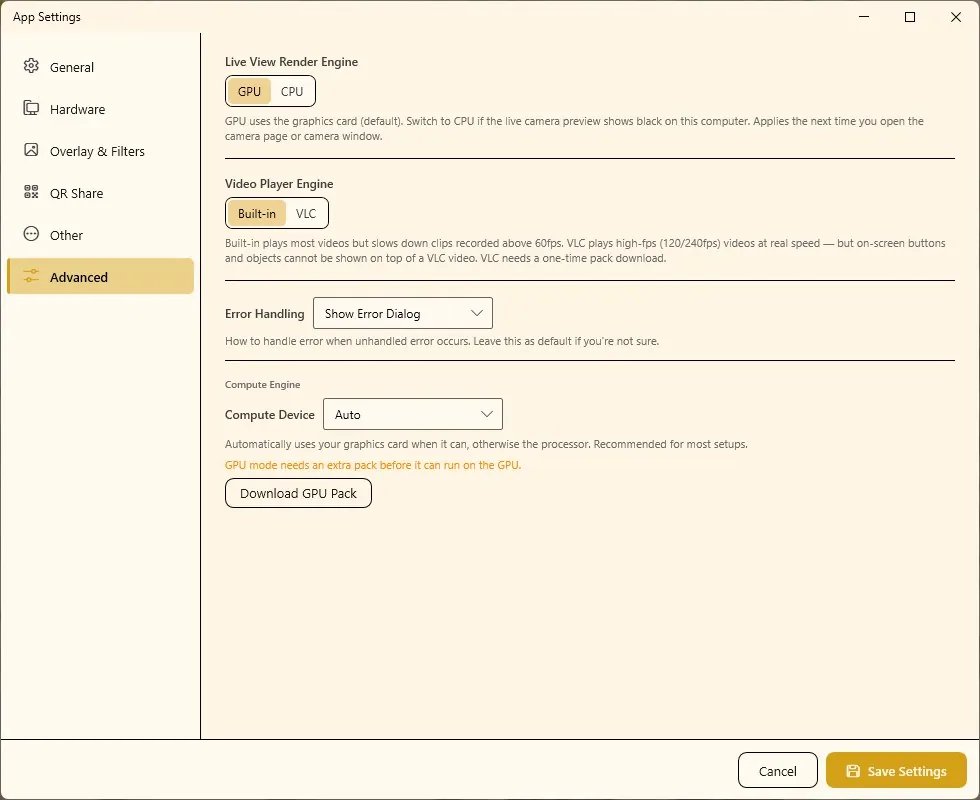
- Open Settings › Advanced.
- Set Live View Render Engine to CPU and click Save Settings.
- Close and reopen the camera page or camera window. The change applies the next time it opens.
Q-Booth may also tell you at launch that no graphics card was detected and that the preview runs in CPU mode. Updating the graphics driver usually helps.
"No camera detected" or the camera is missing from the Device list
Cause: the camera is off, not plugged in, set to the wrong type, or was connected after the list was loaded.
Fix:
- Open Settings › Hardware and check that Status is on for Camera 1.
- Check that Type matches your camera: WebCam, Canon or GoPro.
- Check the cable and that the camera is switched on, then click the Refresh icon next to the device list.
- Close other programs that may be using the same webcam, then try again.
More: Camera settings.
Canon: "The camera is not responding" or the camera hangs during an event
Cause: the camera switched itself off (auto power-off), the battery ran low, or the USB cable came loose for a moment.
Fix:
- Set the camera's Auto Power Off to a long time, and use a power adapter instead of a battery for all-day events.
- Use a good, firmly seated USB cable.
- If Q-Booth says the camera connection is stuck, close and reopen Q-Booth — the camera works again after the restart.
Canon: "The camera sent a RAW / HEIF file, which this app cannot read"
Cause: the camera is set to save RAW or HEIF.
Fix: in the camera's own menu, set image quality to JPEG, then shoot again.
Canon: ISO, aperture or shutter speed cannot be changed from Q-Booth
Cause: the camera's mode dial is on full Auto, which ignores manual commands. The dial position also limits what you can change (Av mode: aperture only, Tv mode: shutter only, M: both).
Fix: turn the mode dial to a creative or manual mode (for example M), then open Configure again.
If you choose a Kelvin white balance on a body that does not support it, Q-Booth switches to Auto white balance and tells you — that is expected.
GoPro: pairing or connecting fails
Cause: the camera is not in pairing mode, Bluetooth or Wi-Fi is off on the computer, or the camera is too far away.
Fix:
- Put the GoPro in pairing mode: on the camera, Preferences › Wireless Connections › Connect Device › GoPro Quik App.
- Turn on Bluetooth in Windows. The computer needs Bluetooth 4.0 or newer and a Wi-Fi adapter.
- If Windows denies Wi-Fi access for the app, allow it in Windows settings.
- Move the camera closer to the computer and try again; if it still fails, restart the camera and pair it again.
- For a test recording: charge the battery and make sure an SD card is in the camera.
GoPro: the booth loses its internet while the GoPro is connected
Cause: the Wi-Fi adapter used for the GoPro is dedicated to the camera's own hotspot.
Fix: give the booth a second connection — wired Ethernet or a second Wi-Fi adapter — for Web QR, email and AI Online. A "Live preview not available" box with a GoPro is normal: GoPro has no live preview.
The final photo is mirrored (text reads backwards)
Cause: the live view is mirrored on purpose so guests feel they are looking in a mirror, and the result copies it.
Fix: in Configure Webcam (or the Canon settings), keep the mirrored Orientation for the live view and tick Flip result image so the final photo is the right way round.
Printer
The print is cropped, shifted or has white edges
Cause: margins or size mode do not suit the paper, or the template ratio does not match the paper size.
Fix:
- Open Settings › Hardware and click Configure… under Printer.
- Check Paper Size, Print Size Mode and Margins.
- Click Test Print and adjust until the sheet is right.
- Make sure the template's aspect ratio matches the paper (for example a 2:3 template on 4R / 4×6 paper).
More: Printer settings.
QR and sharing
Web QR: the guest's QR code does not open, or the upload fails
Cause: the cloud subscription is not active, the FTP details are wrong, or the venue network blocks the upload.
Fix:
- Open Settings › QR Share.
- Cloud method: click Check License Status and confirm the subscription is active.
- FTP method: check the account details. The Result URL (the public address used in the QR) is not the same as the Upload URL.
- Click Test QR and scan the code with a phone.
- Repeat the test on the venue network before guests arrive.
A QR printed on the photo only starts working once that photo has finished uploading. More: QR Share settings.
Local QR: guests cannot open the download page
Cause: the local server is not running, the phone is on another network, or the firewall blocks the port.
Fix:
- If Q-Booth says "Local QR server is not running", turn on Enable Local QR for image sharing and click Save Settings.
- Click Check Status to confirm the server runs, then Test QR.
- Guests must be on the same Wi-Fi as the booth. Add the Wi-Fi name and password to the session so the QR can connect them.
- Make sure the Windows firewall does not block the Local QR port (8000 by default).
"Email a link" is not offered, or results never arrive by email
Cause: Email a link needs both Web QR and Email Share configured. If Web QR is missing, the email step is skipped and the result only goes to the event gallery.
Fix: set up and test Web QR and Email Share in Settings › QR Share.
The result email is not sent or does not arrive
Cause: wrong SMTP details, or the venue network blocks the SMTP ports (587 / 465).
Fix:
- In Settings › QR Share › Email Share, enter your address next to Test Send and click it. Check the inbox and the spam folder.
- Gmail: use an App Password, not your normal Gmail password.
- If SMTP fails only at the venue, switch Method to Qbooth cloud service.
AI Offline
The AI Offline Server stays on Loading, or Process says the server is not online
Cause: the AI engine is still starting (this takes about one to two minutes), or this computer cannot run it.
Fix:
- Start Q-Booth early and wait until the AI Offline Server status at the bottom of the menu shows Online.
- AI Offline needs a Pro licence and an NVIDIA RTX graphics card. If Q-Booth says the local AI engine is not available on this computer, one of these is missing.
- Restart Q-Booth. Make sure no security software is blocking Q-Booth.
- Still offline? Export the logs (see below) and contact support.
Face Swap does not need the AI Offline Server. More: AI Offline Studio.
"No NVIDIA GPU was detected" or "GPU mode needs an additional pack"
Cause: Compute Device is set to GPU, but there is no NVIDIA RTX 30-series or newer card, or the GPU Pack is not installed.
Fix:
- Open Settings › Advanced.
- With a supported NVIDIA card: click Download GPU Pack and wait for it to finish. Otherwise set Compute Device to Auto or CPU.
- Click Save Settings and restart Q-Booth — the change applies after a restart.
- Click Test Engine to check that everything passes.
Face Swap or Face Restore is slow
Cause: it runs on the processor, or the engine is loaded again for every photo.
Fix: use GPU mode on an NVIDIA RTX card (see above). On a computer without a graphics card, set Engine Boot to Keep Loaded so only the first photo waits. See Advanced settings.
Face Swap fails or puts faces in the wrong place
Cause: no face is visible in the guest's photo, or the face order does not match the scene.
Fix: remind guests to look at the camera; check the face mapping preview before saving the template; use scene pictures with clear, front-facing faces. See Face Swap.
The AI picture adds extra people or changes the guests' faces
Cause: the prompt describes people instead of giving an instruction.
Fix: write the prompt as an instruction, for example "change the clothes…, change the background…, keep the same people, do not add anyone". See Writing prompts.
AI Online
"API key for … is not set"
Cause: the template uses your own account (3rd Party), but no key is saved for the selected provider. Each provider keeps its own key.
Fix: open Settings › General › AI Online Service, choose the provider, paste the key into API Key and click Save Settings. Or switch the template to Built-in to pay with tokens. See AI Online Studio.
"Not enough tokens" or "Your free trial tokens are used up"
Cause: the Built-in balance is lower than the model's cost. A template with a video step needs the cost of all steps together; nothing is charged when it stops.
Fix: click Buy tokens in AI Online Studio, top up on your lumaqube.com account, then refresh the balance. Check the balance before every event.
AI Online fails, times out, or "Could not reach the server"
Cause: slow or blocked internet, or a model that takes longer than the time limit.
Fix:
- Check the internet connection on the booth.
- "Could not open a secure connection": check the computer's date and time, and any antivirus or firewall.
- On slow networks, raise Max Timeout in Settings › Other (default 180 seconds).
- Your own key: check the provider account has balance.
Video playback
High-fps video (120 / 240 fps) plays in slow motion or stutters
Cause: the Built-in player slows down clips recorded above 60 fps.
Fix: in Settings › Advanced, set Video Player Engine to VLC, click Download VLC Pack once, then save.
On-screen buttons and objects cannot be shown on top of a VLC video. Keep Built-in if your page design puts elements over the video.
Kiosk mode and running events
I cannot exit the running event — Esc does nothing
Cause: Esc is disabled on purpose while the kiosk is locked.
Fix: press Shift + F4, or double-click the top-right corner of the screen. If Require PIN to exit is on, enter the PIN. With Shortcut Only (Shift+F4 Only), only the keyboard shortcut works.
Guests get out of the booth screen
Fix: in the event's GENERAL › Settings, turn on Block Alt + Tab, Block Windows Key and Require PIN to exit. See Event settings.
Launch is blocked with a warning
Cause: the event has no templates. An event needs at least one template to run.
Fix: add a template in CONTENT › Templates. See Templates.
My changes were gone after I closed Q-Booth
Cause: Launch runs what is in the editor but does not save it.
Fix: click Save in the Event Editor after testing. A new event is not written to disk until its first Save.
The Category Picker page does not appear
Cause: categories are shown As Filter on the Template Picker.
Fix: in Categories, set the display mode to As Standalone Page. See Categories.
Lenticular
The lenticular print is blurry or shows ghosting between images
Cause: the LPI does not match this printer, paper and lens combination.
Fix:
- Run the Pitch Test again for the exact printer, paper and lens you use, and print it without scaling.
- Type the best value into LPI on the Lens tab yourself — the Pitch Test does not fill it in.
- For a two-image flip, keep the separator on.
Repeat the Pitch Test whenever the printer, paper or lens changes. See Lenticular Studio.
Performance, storage and gallery
Q-Booth gets slower after a long event
Fix:
- Press Ctrl + Shift + J to open the Job Monitor and check for pending or failed jobs (uploads, processing).
- After the event, run Manage › Backup.
- Then use Reset Event to clear the accumulated results before reusing the event.
Saving or downloading fails with a disk space message
Fix: free up space on the drive, or move the result folder to a larger drive in Settings › General. Copy old results to archive storage after each event.
Results do not appear in the Gallery
Cause: the Gallery only shows folders you add yourself; it does not link to events automatically.
Fix: in the Gallery, click Manage Folders and add the event's result folder. If the event uses an EXTERNAL RESULT FOLDER, you can add that too. See Gallery.
Deleting in the Gallery is permanent — there is no trash or undo.
Part of the window cannot be clicked ("Display Arrangement Problem")
Cause: a second monitor is placed higher than the main display in Windows.
Fix: in Windows display settings, drag the second monitor down until the top edges of both screens are level.
Licence, installation and start-up
"This license is already activated on another device"
Fix: on the old computer, open About and click Deactivate License. Then activate the same License ID on the new computer.
Always deactivate before you reformat the computer or replace main hardware. Logout Session does not release the licence — it only ends the session on this computer.
"Unable to validate your license: this PC's hardware information could not be read"
Fix: restart the computer. If it keeps happening, contact support.
The licence asks to go online at the venue
Cause: a cloud licence checks in over the internet regularly (every 24 hours by default).
Fix: open Q-Booth online shortly before you travel to a venue without internet. For long offline periods, ask support about a longer window or a USB dongle licence. See the FAQ.
"Windows Is Blocking This App" — Q-Booth does not start
Cause: Windows Smart App Control blocked a file Q-Booth needs.
Fix: click Open Windows Security in the message, choose App & browser control › Smart App Control settings, set it to Off and start Q-Booth again.
Windows does not let you switch Smart App Control back on without reinstalling Windows.
"Another instance is already running"
Cause: only one copy of Q-Booth can run at a time, and an earlier one may be stuck in the background.
Fix: open Task Manager, end the Q-Booth process, then start Q-Booth again.
"Your settings file could not be read … settings have been reset"
Fix: check the camera, printer and QR settings again. If you exported your settings earlier, use Import Settings… in Settings › Other to restore them.
Q-Booth "could not verify its own files"
Fix: reinstall Q-Booth from the original installer. See Installation.
Still stuck? Contact support
- Open Settings › Other and find Export Logs.
- Choose the period (for example today's log) and click Export Logs…. Q-Booth saves a ZIP file. Passwords and API keys are removed automatically.
- Note the version number shown in About.
- Send the ZIP, the version number and a short description of what happened to support.
Next steps
Still need help?
Our team answers on WhatsApp. Tell us your Q-Booth version and what you see on screen.