Guest Survey
Build a short survey that guests answer at the booth after tapping Start, and read or export their answers.
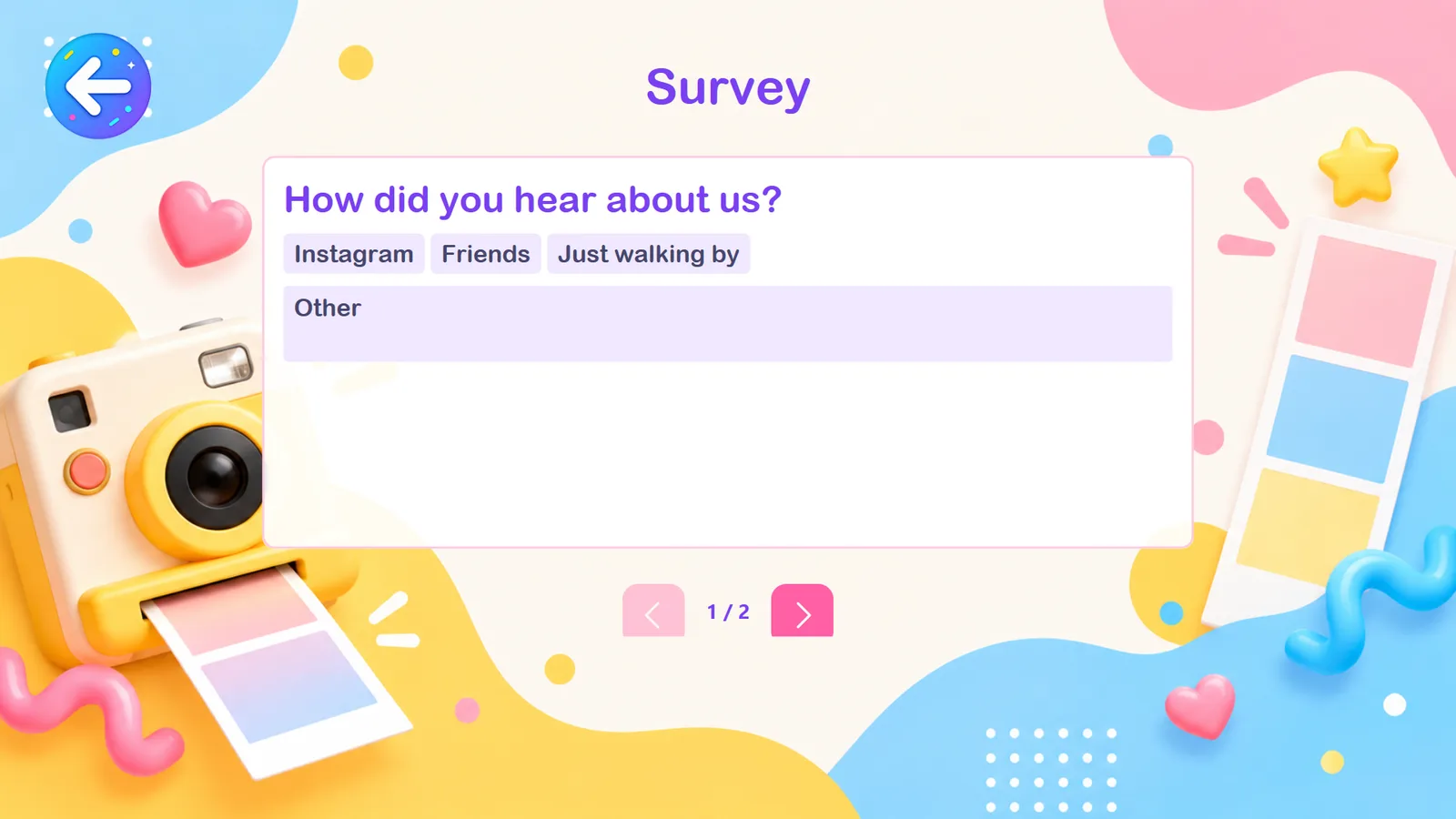
A survey asks guests a few short questions at the booth, right after they tap Start and before they pick a template. Use it to learn how guests heard about the brand, collect quick feedback, or gather answers for your client's marketing team. The answers appear in the event report and can be exported.
Chapters (8)
Before you start
- Save the event at least once. The Survey and Report sections only appear in the left panel after the first save.
- Keep it short: two or three questions is plenty. Every question adds time to each guest's session.
Where the survey appears for guests
The survey runs right after the guest taps Start on the Welcome Page, before the Category Picker and Template Picker, not after the photo. If Kiosk Mode is on, the guest first enters a voucher or pays, then answers the survey.
- One question is shown per screen, with a counter (for example 1 / 2) and back/next buttons.
- The guest must answer before going on ("Please answer this question before continuing.").
- The look of the survey screen (title, question card, keyboard, choice style) comes from the DESIGN › Input Page design, where the survey section has its own title. See Page Designer.
Create a survey
- Open the event and go to OTHERS › Survey.
- Click New. The first survey of an event becomes the live one automatically.
- Type a SURVEY TITLE (for example "Event Feedback"). Guests do not need to see it; it helps you find the survey later.
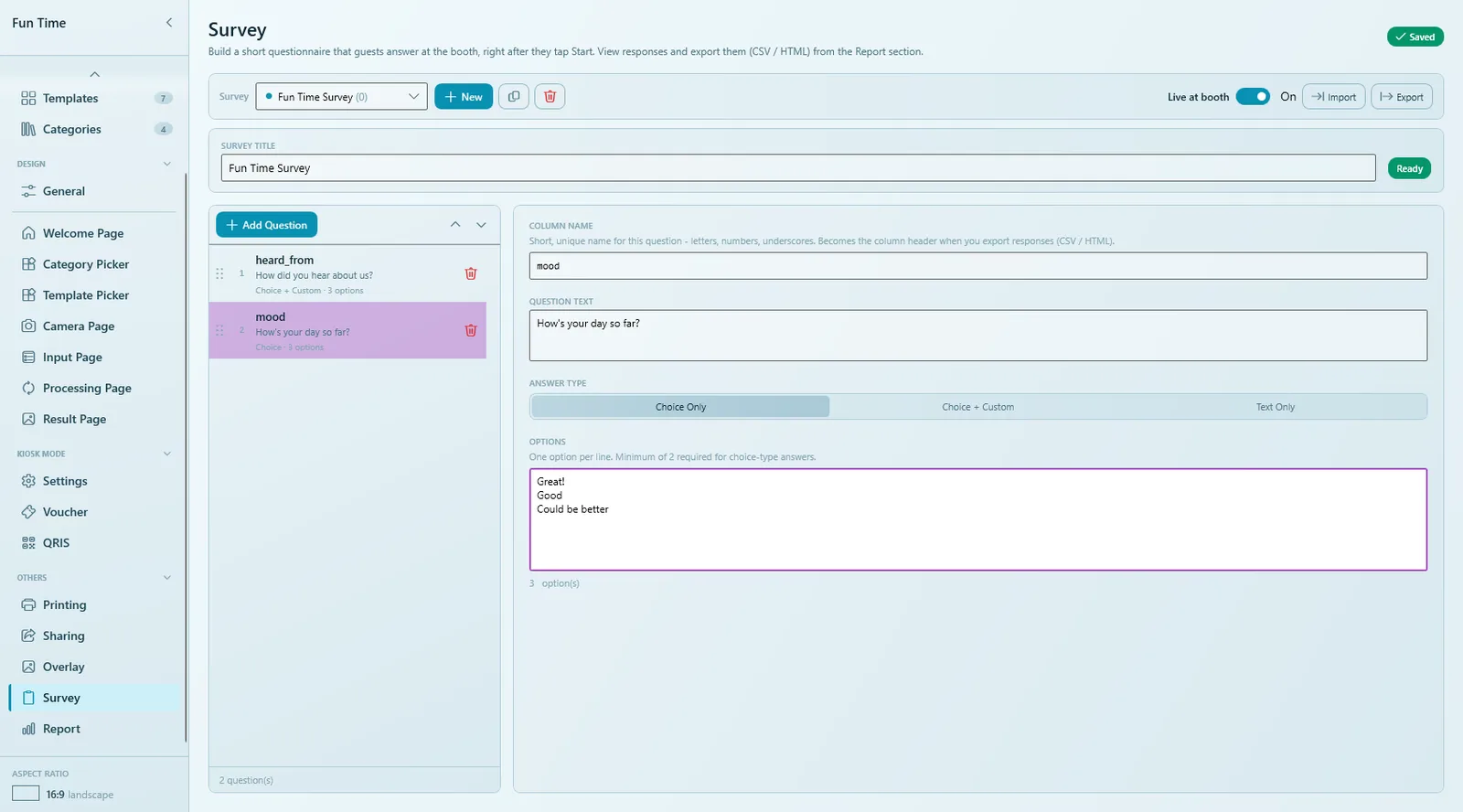
- Click Add Question and fill in the question on the right (see the table below).
- Repeat for each question. Drag rows, or use the up/down arrows, to change the order.
- Check that Live at booth is On, then click Save.
Question fields
| Field | What to enter |
|---|---|
| COLUMN NAME | A short, unique name for the question: letters, numbers and underscores only (for example heard_from). It becomes the column header when you export the answers. |
| QUESTION TEXT | The question the guest reads, for example "How did you hear about us?" |
| ANSWER TYPE | How the guest answers. See below. |
| OPTIONS | The choices, one per line. At least 2 are required for the choice types. |
Answer types
| Type | Guest sees | Good for |
|---|---|---|
| Choice Only | Buttons with your options; one tap answers the question. | Ratings and short lists ("Great! / Good / Could be better"). |
| Choice + Custom | Your options plus an "Other" field where the guest can type their own answer. | Questions where you can't list every answer ("Instagram / Friends / Just walking by / Other"). |
| Text Only | A text box with the on-screen keyboard. | Open feedback, names of a favourite product, and so on. |
A question marked Incomplete (no column name or question text, or fewer than 2 options for a choice type) is skipped at the booth without any warning. Make sure the survey shows Ready next to its title.
Manage several surveys
An event can hold several surveys, but only one is live at the booth. Pick a survey from the Survey list at the top to edit it.
| Control | What it does |
|---|---|
| New | Creates an empty survey. |
| Duplicate (copy icon) | Copies the survey's questions, without any answers. |
| Delete (bin icon) | Deletes the survey and all of its answers. This cannot be undone. |
| Live at booth | Makes this survey the one guests answer. Turn it off to run the event without a survey. |
| Export / Import | Saves the survey design as a file and loads it into another event. Import always creates a new survey; it never overwrites one. |
| Clear Responses | Deletes the answers collected so far but keeps the questions. |
As soon as a survey has answers, its questions are locked so past answers stay consistent. To change it, duplicate it and edit the copy, or use Clear Responses to start fresh.
Read and export the answers
- Open OTHERS › Report.
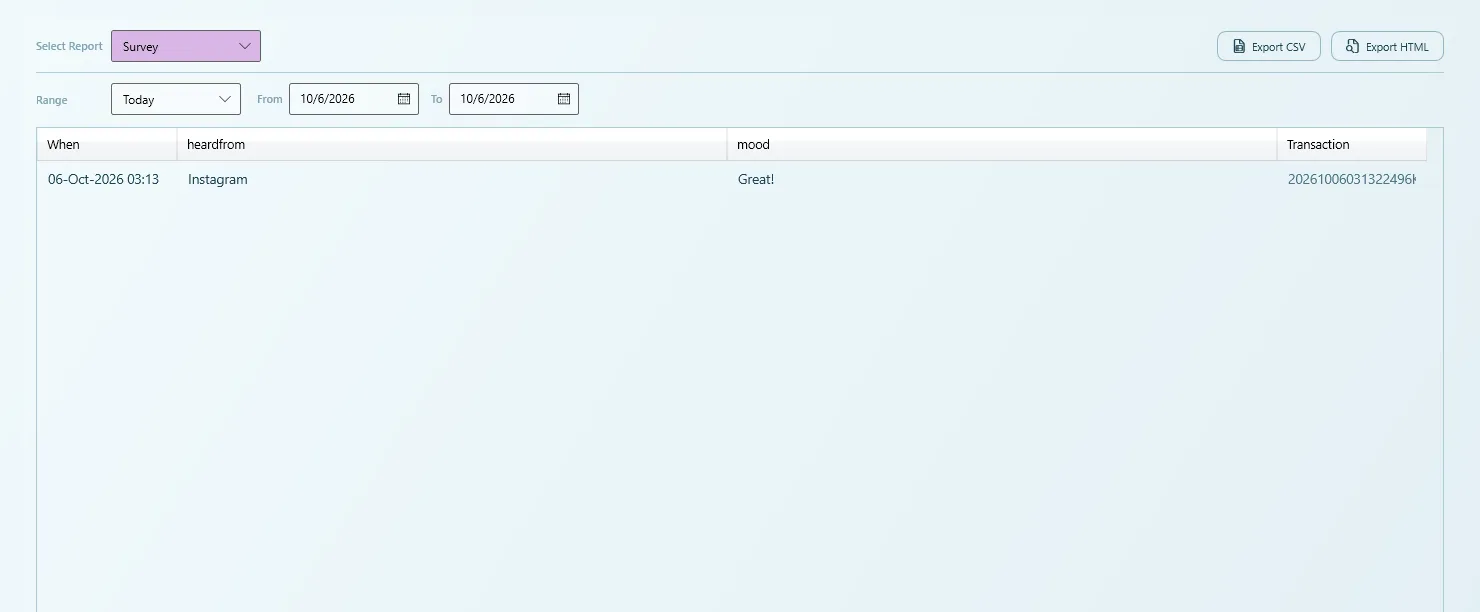
- Set Select Report to Survey and pick the survey. Past surveys that are no longer live still show their answers.
- Choose a Range (for example Today or All). Each row is one guest's answers: When, one column per question (the column names you chose) and the Transaction code of that session.
- Click Export CSV for a spreadsheet, or Export HTML for a web page you can send to your client.
More about filters and exports: Report.
Reset Event in GENERAL › Manage also deletes all survey answers. Export them, or make a Backup, before resetting. See Backup & export.
Tips
- Use simple, friendly wording and big, short options. Guests answer standing up, often in a group.
- Choose clear column names such as
heard_fromorrating; your client will see them in the export. - Test the survey with Launch (F5) and answer it once yourself, then check that the answer appears in the report.
Common problems
Guests don't see the survey.
Check that Live at booth is on for the survey and that its questions are not marked Incomplete. Incomplete questions are skipped silently.
I can't edit my questions any more.
The survey already has answers, so it is locked. Duplicate it and edit the copy, or clear the responses first.
One question never appears.
It is probably incomplete, for example a choice question with only one option. Add a second option and save.
Next steps
Still need help?
Our team answers on WhatsApp. Tell us your Q-Booth version and what you see on screen.