Settings: Other
Choose image and video quality, set processing timeouts, monitor background jobs, back up or restore all settings and export logs for support.
The Other tab collects settings that don't belong to one piece of hardware: the quality of saved images and videos, processing time limits, the background job monitor, backup and restore of all your settings, the transparent WebM converter and log export for support.
If the Other tab is missing, turn on Show all settings at the bottom left of the App Settings window.
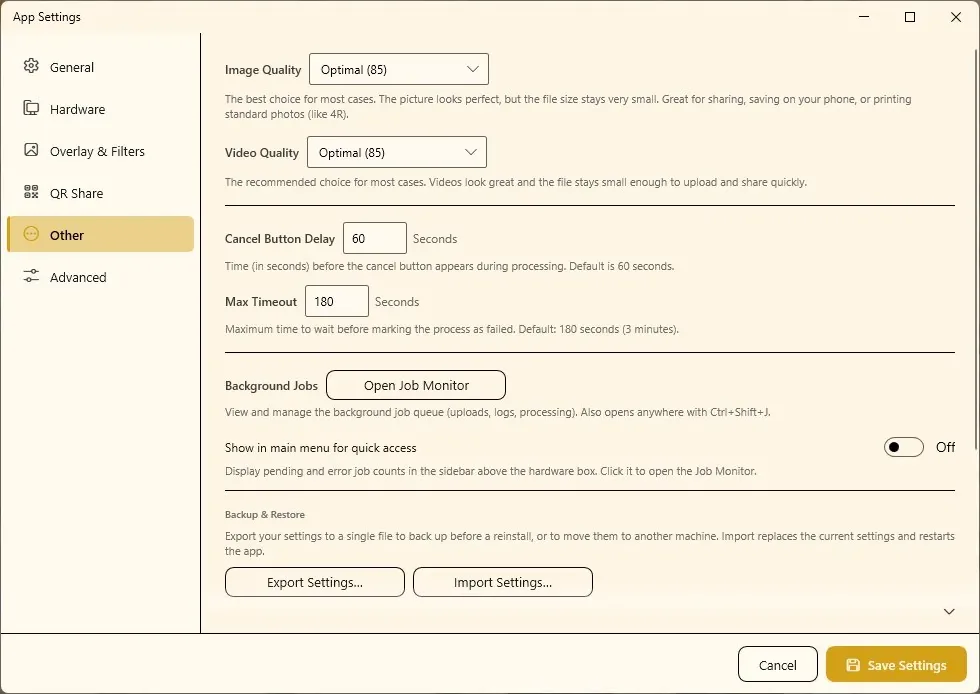
Image and video quality
Image Quality sets the JPEG quality of saved results; Video Quality does the same for videos.
| Choice | Images | Videos |
|---|---|---|
Optimal (85) — default | The best choice in most cases. Looks perfect, file stays small. Great for sharing, phones and standard prints such as 4R. | Recommended. Looks great and stays small enough to upload and share quickly. |
High (92) | A bit more detail, noticeably larger file. For large prints (e.g. A4) or close zooming. | A bit more detail in fast motion (e.g. boomerang), noticeably larger file. When quality matters more than upload speed. |
Maximum (100) | Highest possible, very large file. Looks the same as Optimal to the eye — only for heavy editing later. | Nearly untouched quality, very large file. Usually looks like High — only if you will edit the video later. |
Bigger files take longer to upload for QR and email. At busy events, stay on Optimal (85).
Processing time limits
| Option | Default | What it does |
|---|---|---|
| Cancel Button Delay | 60 seconds | How long processing runs before a cancel button appears for the guest. |
| Max Timeout | 180 seconds (3 minutes) | How long Q-Booth waits before it marks a process as failed. |
Raise Max Timeout if AI Online results fail on a slow network. Don't set Cancel Button Delay so low that guests cancel results that would have finished.
AI Online API key
The AI-Online API Provider and API Key fields used to be on this tab. In current versions they are on the General tab under AI Online Service — see General settings. How to create a provider account and key is explained in AI Online Studio.
Background Jobs
Uploads, log tasks and some processing run in a background queue so the booth never waits for them.
- Open Job Monitor shows the queue: what is pending, running, finished or failed. You can also open it anywhere with Ctrl+Shift+J.
- Show in main menu for quick access adds pending and error counts to the main menu, above the hardware box. Click it to open the Job Monitor.
If the booth's internet drops, uploads wait in the queue. Check the Job Monitor after the connection is back, and before you shut down after an event.
Backup & Restore settings
Save all app settings — camera, printers, overlays, filter presets, QR share and email accounts — in one .qbset file. Use it before reinstalling Windows or Q-Booth, or to copy your setup to another booth computer. Events are not included; back those up separately (see Backup & Export).
Export
- Click Export Settings….
- Choose where to save the
.qbsetfile (a USB stick or cloud folder is a good idea) and confirm. - Q-Booth reports how many settings files were included.
Import
- Click Import Settings… and choose a
.qbsetfile. - Confirm. Q-Booth first saves your current settings into its
backupfolder, then replaces them with the imported ones. - The app restarts to apply them.
- Check the camera, printer and QR settings — hardware names can differ on another computer.
A .qbset file contains your saved account details (FTP, SMTP, API key). Keep it private. If you need to undo an import, import the automatic backup Q-Booth made in the backup folder.
Transparent WebM Converter
Turns a video into a transparent clip you can use as an animated overlay or effect (for example in Motion Studio). Click Open Converter.
- Select video… under Source.
- Choose the Method: Color Key removes the dominant background colour (best with a green screen, or plain black for glowing effects); AI finds the subject automatically without a green screen, but works frame by frame and can take several minutes.
- For Color Key, adjust Tolerance (suggested 0.20–0.40) and Softness (around 0.10 for most clips; higher for hair).
- Optionally Trim the start and end, and choose the Output folder with Change….
- Click Convert to WebM and compare Original with Result (transparent).
Export Logs
When support asks for logs, this creates one ZIP file with the app's log files and current settings. Passwords and API keys are removed automatically.
- Choose the period: Today's log, Last 7 days or All logs. Pick the period in which the problem happened.
- Click Export Logs… and save the ZIP.
- Send the ZIP to support together with the version number from the About window and a short description of what happened.
Troubleshooting
AI Online results fail or time out.
Check the internet connection and the API key on the General tab, then raise Max Timeout.
"This file is not a valid settings backup."
Only .qbset files exported by Q-Booth can be imported. Export again from the source computer.
"No log files found for the selected period."
Choose a longer period, for example Last 7 days or All logs.
The app gets slow after a long event.
Open the Job Monitor (Ctrl+Shift+J) to see whether many jobs are waiting or failing.
Next steps
Still need help?
Our team answers on WhatsApp. Tell us your Q-Booth version and what you see on screen.