Settings: General
Set the app language, theme, menu layout, AI Online API key and the folders where Q-Booth saves photos and results.
The General tab is the first page of App Settings. It controls how Q-Booth looks (language, colours, size), how the main menu behaves, where your AI Online key is stored, and where photos and results are saved on disk. You normally set it once per computer.
Open App Settings
- Click Settings in the main menu. The App Settings window opens.
- The left column lists the tabs: General, Hardware, Overlay & Filters, QR Share, Other and Advanced.
- Make your changes, then click Save Settings at the bottom right. Cancel closes the window and throws away everything you changed since you opened it.
Some tabs and groups are hidden to keep the window simple. If you don't see a tab or option described in these articles, turn on Show all settings at the bottom left of the window. It only changes what this window shows — nothing else. In Expert mode it is on by default; in Easy mode it starts off.
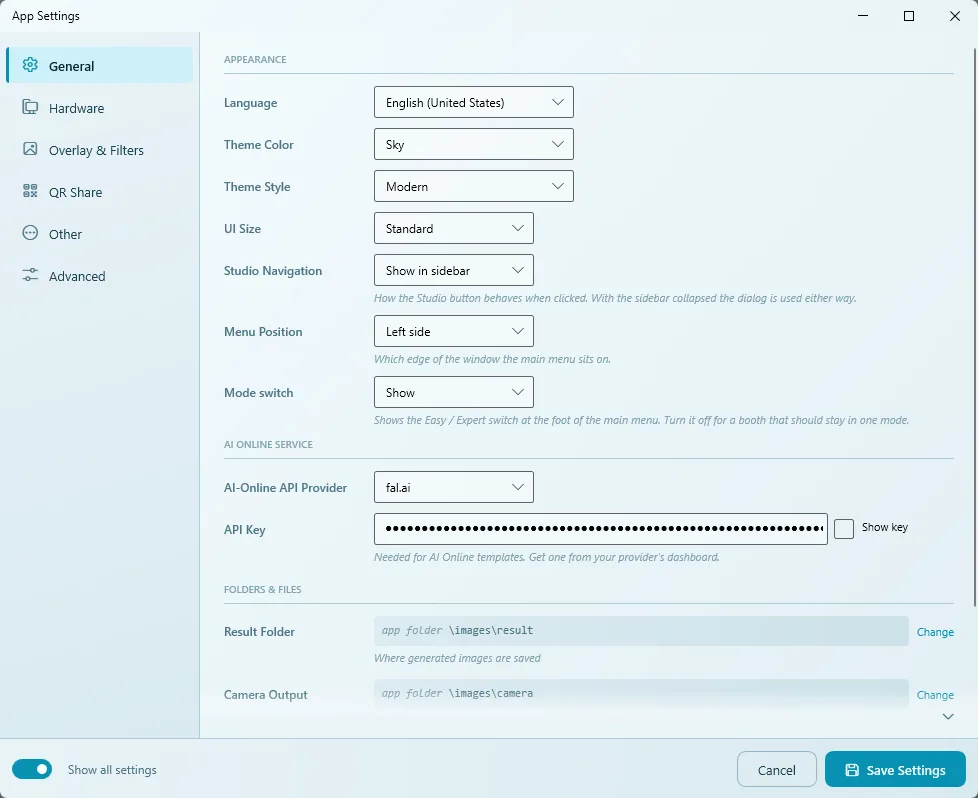
Appearance
These options only change how the Q-Booth window looks on your computer. They do not change what guests see in a running event — that is designed per event in the Page Designer.
| Option | What it does |
|---|---|
| Language | The language of the whole interface. The menus switch immediately. |
| Theme Color | The colour scheme of the app, for example Light, Dark, Sky, Honey, Ember or Mustard. |
| Theme Style | The shape and style of buttons and controls (Modern, Classic, NeoBrutalism). A few buttons only refresh after you close and reopen the window they are in. |
| UI Size | Standard, Big or Huge. Makes text and controls larger — handy on a touchscreen or a high-resolution monitor. |
Main menu and navigation
| Option | Choices | What it does |
|---|---|---|
| Studio Navigation | Select studio dialog / Show in sidebar | What happens when you click Studio in the main menu. Select studio dialog keeps the menu short and opens a picker window; Show in sidebar lists every studio as its own menu item. When the menu is collapsed to icons, the dialog is always used. |
| Menu Position | Left side / Right side | Which edge of the window the main menu sits on. |
| Mode switch | Show / Hide | Shows or hides the Easy / Expert switch at the foot of the main menu. Hide it on a booth that should always stay in one mode, so staff can't switch by accident. |
There is no right or wrong choice here — pick whatever feels most comfortable for the people who operate the booth.
AI Online Service (API key)
If you use AI Online templates with your own provider account, the key is entered here:
- In AI-Online API Provider, choose your provider (fal.ai or wavespeed.ai).
- Paste the key into API Key. Tick Show key if you want to check what you pasted.
- Click Save Settings.
Keys are stored separately for each provider, so switching the provider does not erase the other key. How to create an account and get a key is explained step by step in AI Online Studio.
Treat the API key like a password. Don't show it on screen while recording or streaming, and don't send it in chat.
Folders & Files
Every path already has a working default inside the Q-Booth folder, so most booths never need to change anything here.
| Option | Default | What it does |
|---|---|---|
| Result Folder | app folder\images\result | Where finished results from the studios are saved. |
| Camera Output | app folder\images\camera | Where raw camera shots are saved. |
| Processing Animation | app folder\assets\shared_media\process_animation.mp4 | The image or video shown while a result is being processed. |
| Filename Prefix | QIMG | The first part of every result file name, e.g. QIMG_20260425_001.jpg. Change it to your brand or client name to make files easy to recognise. |
Click Change to pick another folder or file, or Use Default to go back to the original location.
Only move the folders if you have a reason — for example drive C is almost full and you want results on a bigger drive. Events keep their own result and camera folders inside each event; an event can also copy results to an extra folder in its event settings.
Common questions
I changed the language, but some text is still in the old language.
Most text switches immediately. If a window that was already open still shows old text, close and reopen it. Event pages that guests see use the text you typed in the Page Designer, not the app language.
Where are my photos?
Studio results go to the Result Folder; raw camera shots go to Camera Output. Results from a running event are stored inside that event. The easiest way to find any of them is the Gallery.
I can't find Folders & Files or Studio Navigation.
Turn on Show all settings at the bottom left of the App Settings window.
Next steps
Still need help?
Our team answers on WhatsApp. Tell us your Q-Booth version and what you see on screen.