Gallery
Browse, filter, reshare, reprint and delete results from every event and studio, and read Q-Booth file names.
The Gallery is a central browser for every photo and video on this computer, across all events and all studios. Use it to find a result, reprint it, share it again or delete it. Each event also has its own gallery with only that event's results.
Two places to browse results
| Where | What it shows |
|---|---|
| Gallery in the sidebar | Any folders you add: results, camera shots, clipboard images, other events, other output folders. |
| Event editor › GENERAL › Gallery | Only the results of that event. See Event settings. |
The sidebar Gallery works by folder. It has no search box and does not link itself to event folders automatically. If it looks empty, the folder you want has probably not been added yet.
Add folders
- Click Gallery in the sidebar.
- Click Manage Folders at the bottom of the folder panel.
- Click Add Folder and choose a folder, for example an event's result folder or an Automation result folder.
- Repeat for every folder you want to see, then click Save.
By default the folder panel lists the results folder, the camera folder and the clipboard folder. Subfolders one level down are shown with a file-count badge. Folders whose names start with an underscore (such as _extras) are hidden on purpose.
Browse and filter
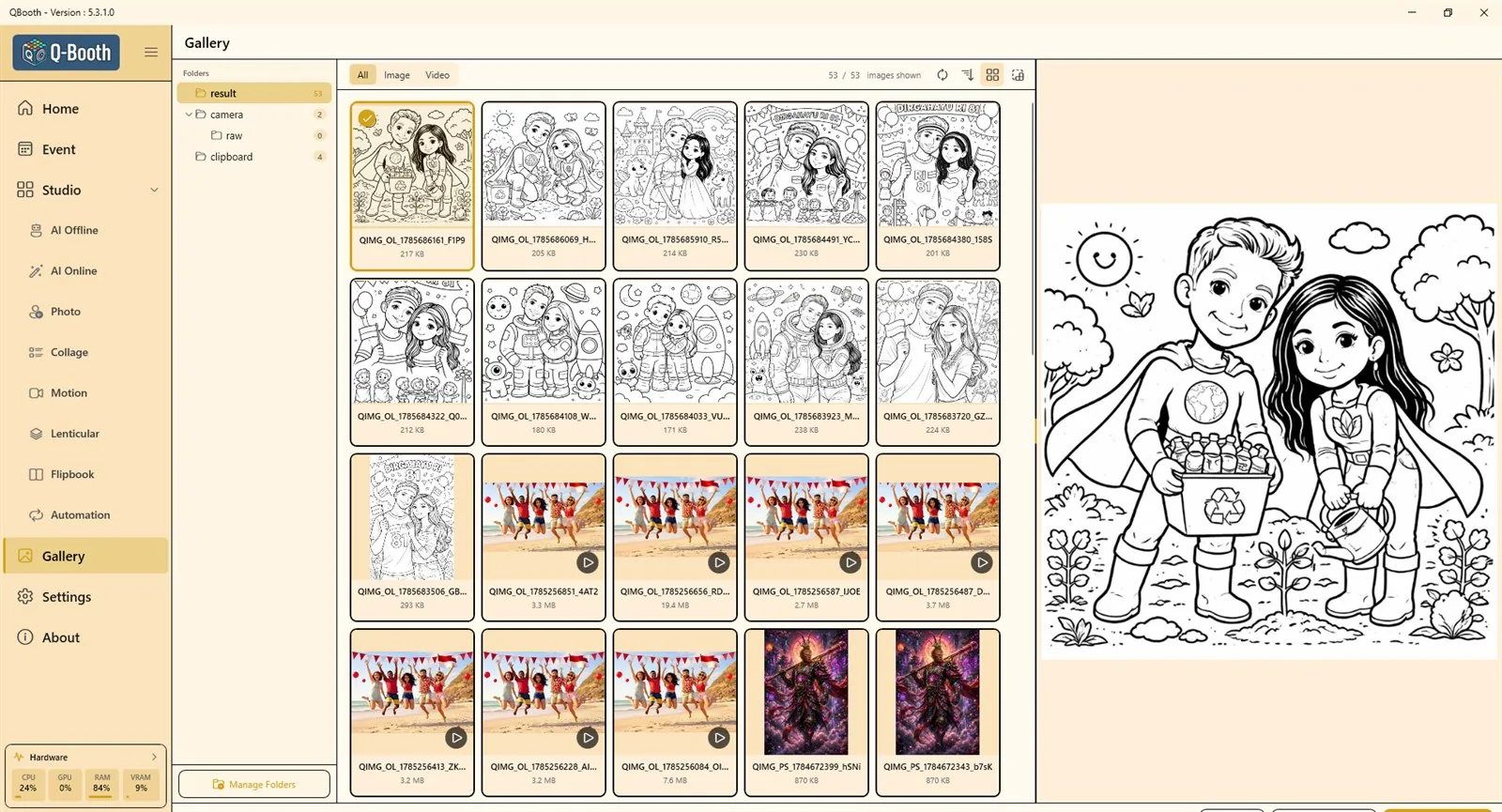
- Pick a folder in the Folders panel on the left.
- Filter with All, Image or Video.
- The counter shows how many files are visible, for example "53 / 53 images shown".
- The buttons at the top right refresh the folder, switch the sort between newest first and oldest first, and change the card size.
- If a folder has many files, click Load More at the bottom.
Preview a result
Click a card to see it large on the right. A session that produced several files (for example a collage with an image, a video and the original photo) is shown as one card with a count badge. In the preview, the other files of that session appear in a Product strip, and by-products (such as collage layers or lenticular frames) in a separate Extra strip.
What you can do with a result
| Button | What it does |
|---|---|
| Share | Opens the same Share Result window used in the studios: Print, Email, Web QR, Save File, Copy to Clipboard, Open in App and Adjust Photo. You can reshare a file as often as you like. |
| Combined QR | Appears when the selected session was uploaded with several files. Opens the QR code that holds all files of that session. |
| Delete | Deletes the file being previewed, or the whole session if a session card is selected. |
| Delete Multiple | Switches to multi-select. Tap the cards to mark them (or right-click a card to start with that card marked), use Select All if needed, then confirm. |
Deleting in the Gallery is permanent: there is no Trash and no undo, and the extra files of a session are removed too. Report statistics in the event are kept; the report shows a "deleted" placeholder instead of the image.
The full path of the selected file is shown at the bottom, so you can find it in Windows Explorer.
Reading file names
Q-Booth starts each file name with a code for the studio that created it, so you can always tell where a file came from:
| Name starts with | Made by |
|---|---|
QIMG_AI_ | AI Offline Studio |
QIMG_OL_ | AI Online Studio |
QIMG_PS_ | Photo Studio |
QIMG_COL_ | Collage Studio |
QIMG_MS_ | Motion Studio |
QIMG_LT_ | Lenticular Studio |
QIMG_FL_ | Flipbook Studio |
IMG_ / CAM_ | Raw camera shot |
CLP_ | Image pasted from the clipboard |
- The number after the code is a timestamp, followed by a four-character random code so names never collide, for example
QIMG_PS_1784672399_hSNi. - The ending shows the file's role:
_input= copy of the original photo,_img= main image,_vid= final video. Flipbook pages end in_01,_02and so on. QIMGis the default prefix. If you set your own Filename Prefix in Settings › General, your prefix is used instead.
The event's own gallery
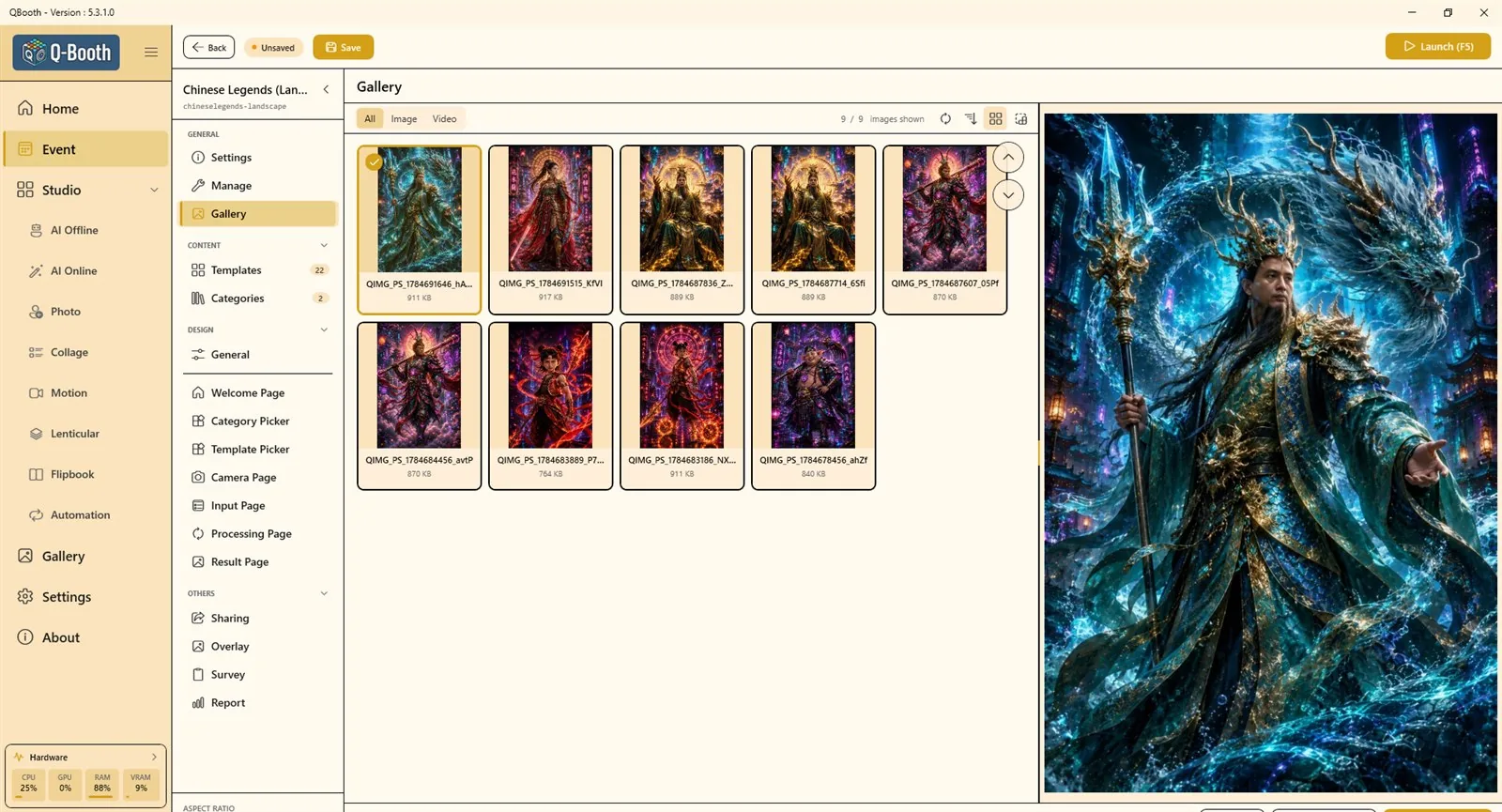
Open the event, then GENERAL › Gallery. It shows all photos and videos of this event in a grid, with the same All / Image / Video filter, counter, Share, Delete and Delete Multiple buttons. You do not need to add any folder here.
Troubleshooting
The Gallery is empty.
Click Manage Folders and add the folder that holds your results. For one event, use the event's own Gallery page instead.
A result is not in the list.
Check that you are in the right folder and that the filter is All. Click refresh. Files inside folders that start with an underscore (for example collage layers or lenticular frames in _extras) are not listed; they appear in the Extra strip of their session instead.
I deleted a file by mistake.
Gallery deletes cannot be undone. If you made an event Backup, the file is inside that backup; see Backup & export.
Next steps
Still need help?
Our team answers on WhatsApp. Tell us your Q-Booth version and what you see on screen.