Events overview
Understand what an Event holds, create one from a blank page or a theme, find your way around the Event Editor and manage your events.
An Event is the container for one occasion or one booth. It holds the templates guests can choose from, the design of every screen they see, how results are delivered, and all photos and statistics. The Event is what you actually run (Launch) at the venue.

Chapters (12)
What an Event contains
One Event stores everything the booth needs for a show:
- Identity and screen: name, cover image, Event ID, aspect ratio and the monitor it runs on.
- Templates: the experiences guests pick from (photo, strip/collage, AI, video, flipbook and more), optionally grouped into categories.
- Design: every runtime screen, from the welcome page to the result page.
- Delivery, printing and sharing: how guests get their result.
- Data: all results, the statistics database, survey answers and the activity log.
Events, templates and studios
Q-Booth has two working modes that belong together:
- Studio is where a single template is built: AI Offline, AI Online, Photo, Collage, Motion, Lenticular, Flipbook, Augmented Reality and Automation. Each studio produces one template file.
- Event is where templates are collected, designed around and run.
A studio never stands alone: the goal of every template is to be added to an Event. An Event without at least one template cannot be launched. You can bring a template into an Event in two ways: build it directly from the Event with Create in Studio, or build it on its own from the Studio sidebar and add it later with Open File or From Gallery. See Templates.
Use Create in Studio for templates meant for just one occasion. Build reusable templates (for example your house-style Face Swap) from the Studio sidebar and save them to the Template Gallery, so every future Event can pick them up.
The event list
Click Event in the left sidebar to open the event list.
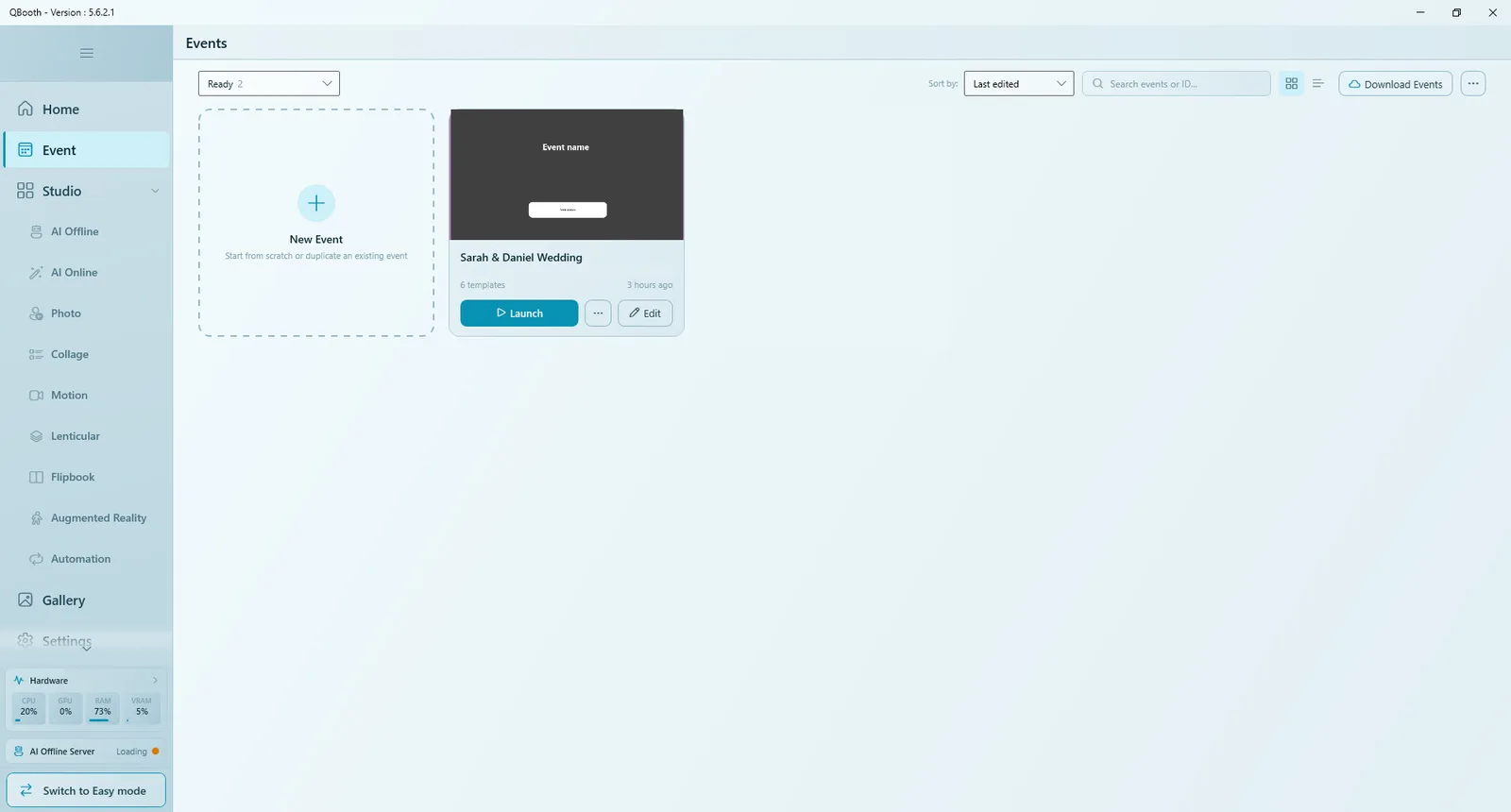
| Control | What it does |
|---|---|
| Status filter (top left) | Shows Ready, Archived, Trash or All events. The number shows how many events are in that status. |
| Sort by: | Last edited, Name or Templates. |
| Search events or ID... | Finds an event by name or Event ID. |
| Grid / list icons | Switch between cards and rows. |
| Download Events | Browse and download ready-made events from the cloud. |
| … (top right) | Import from File… (a .qevent package), Import from Web… and Restore from Backup (a .qeventbak archive). |
Each card shows the cover, the event name, the number of templates and when it was last edited, with three buttons:
- Launch runs the event full screen.
- Edit opens the Event Editor.
- … (More) holds Event stats, Duplicate, Open gallery, Export and Delete.
Create a new event
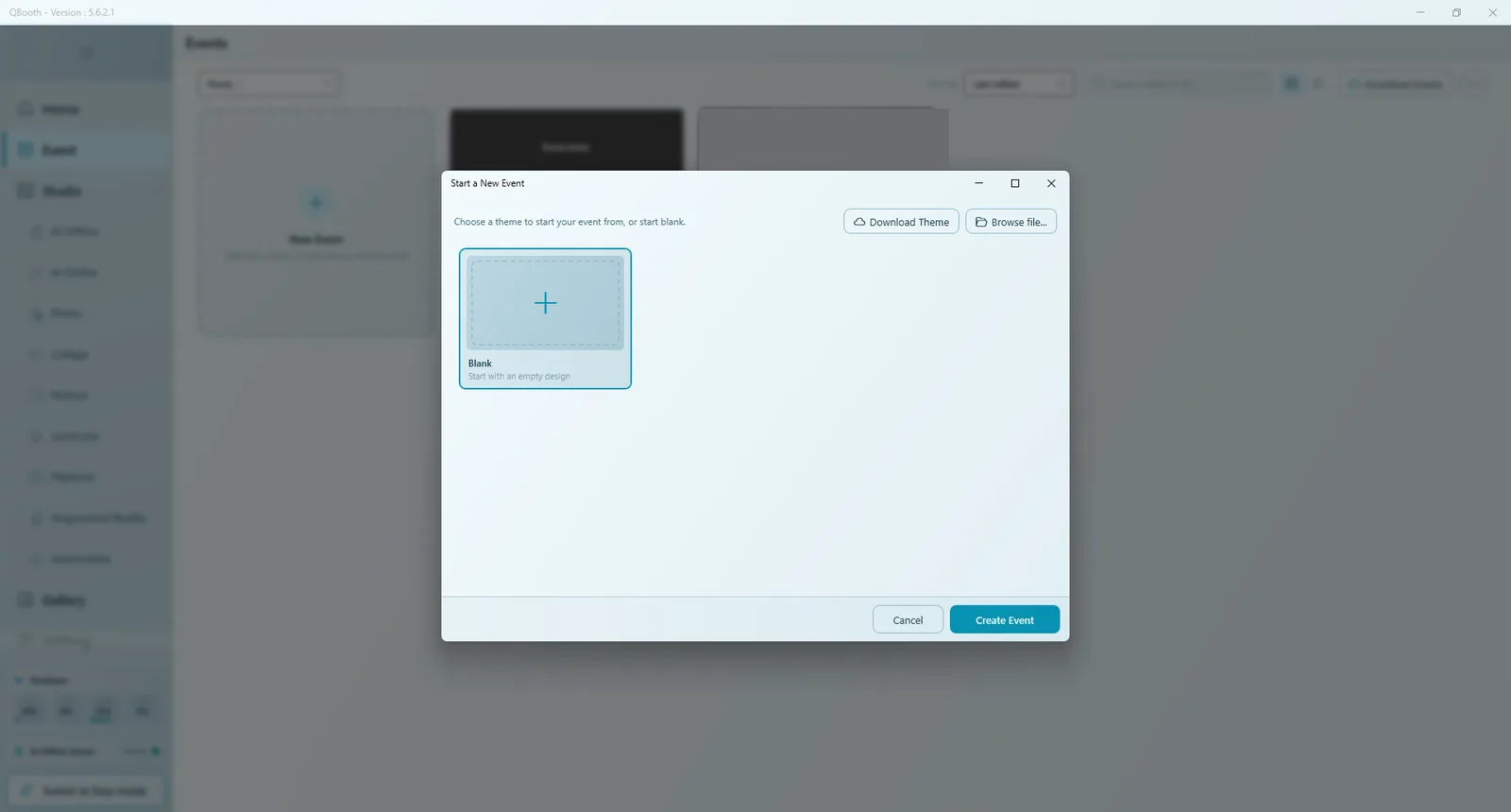
- Open Event in the sidebar and click the New Event card. The Start a New Event window opens.
- Choose Blank to start with an empty design, or pick a saved theme card. Download Theme fetches more themes; Browse file... loads a
.qthemefile from disk. - Click Create Event (or double-click the card). The Event Editor opens on GENERAL › Settings.
- Type the EVENT NAME, pick an EVENT COVER and choose the ASPECT RATIO that matches how the booth monitor stands (see Event settings).
- Click Save. The status changes from Unsaved to Saved.
A new event is not written to disk until you click Save for the first time. Until then it has no folder and does not appear in the event list. The Survey and Report sections also appear only after the first save.
The Event ID is created automatically and is used as the event's folder name. It cannot be changed after the event is created.
Easy mode and Expert mode
Q-Booth has two ways of working, switched with the button at the foot of the main menu (Switch to Easy mode / Switch to Expert mode). This help center describes Expert mode, the full Event Editor.
- Easy mode opens on What are you running today?. New Event › Create walks you through four steps: Event (name, screen shape landscape or portrait, cover), Templates, Look (background and screens) and Start (camera, printer, monitor, then Start Booth).
- An event that uses features Easy mode cannot show (for example categories, or several background images) is marked Built with the full editor: you can still start or delete it there, but change it in Expert mode.
- To hide the switch on a booth that should stay in one mode, use Mode switch in Settings › General.
The Event Editor
Click Edit on an event card to open the editor. It has three parts: the action bar at the top, the section list on the left, and the content panel that changes with the selected section.
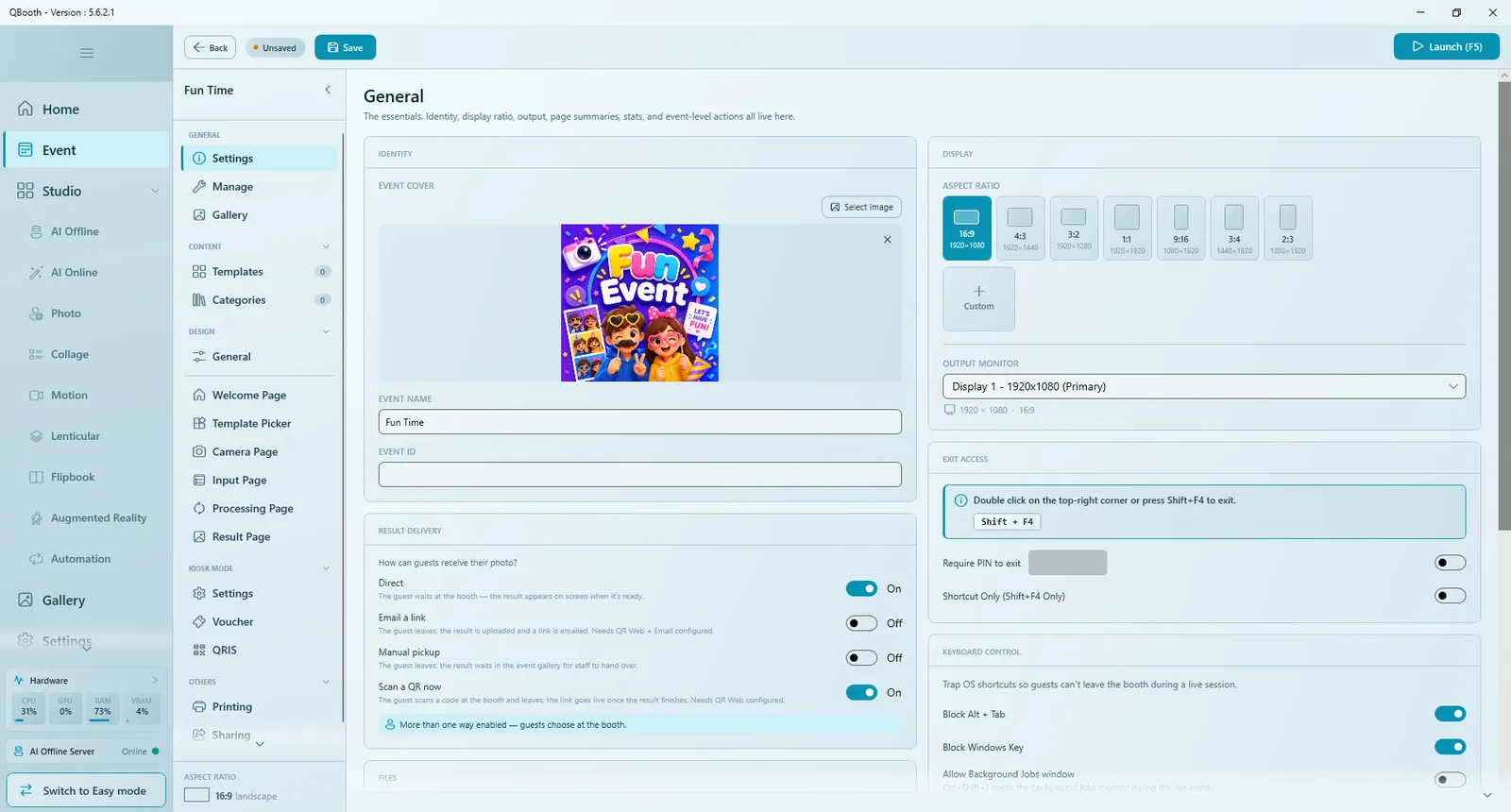
Top action bar
| Control | What it does |
|---|---|
| Back | Returns to the event list. With unsaved changes, Q-Booth asks Leave without saving? |
| Saved / Unsaved | Shows whether all changes are stored. |
| Save | Saves the whole event. |
| Launch (F5) | Runs the event straight from the editor. |
Section list
| Group | Sections | Article |
|---|---|---|
| GENERAL | Settings, Manage, Gallery | Event settings |
| CONTENT | Templates, Categories | Templates, Categories |
| DESIGN | General, Welcome Page, Category Picker (only with categories as a standalone page), Template Picker, Camera Page, Input Page, Processing Page, Result Page | Page Designer |
| KIOSK MODE | Settings, Voucher and payment | Kiosk, payment and vouchers |
| OTHERS | Printing, Sharing, Overlay, Survey, Report | Sharing and printing, Overlay, Survey, Report |
At the bottom of the section list, ASPECT RATIO reminds you of the event's screen shape, for example 16:9 landscape.
Duplicate, rename, archive and delete
- Rename: open the event, change EVENT NAME in GENERAL › Settings, then Save. The Event ID stays the same.
- Duplicate: on the event card, … › Duplicate. The copy gets the same templates and design but starts with fresh statistics; captured results are not copied.
- Archive: GENERAL › Manage › Archive hides the event from the Ready list without deleting anything. Find it again under Archived.
- Delete: … › Delete on the card, or GENERAL › Manage › Delete Event. The event moves to Trash.
- Trash: choose Trash in the status filter to Restore an event, Delete Permanently, or Empty Trash. Items in the Trash are deleted automatically after 30 days.
Delete Permanently and Empty Trash cannot be undone. Make a backup first if there is any chance you need the photos again (see Manage).
Test and launch
- Add at least one template (Templates). An event without templates shows Cannot Launch.
- Click Launch (F5) in the editor, or Launch on the event card. After a short preparation the booth opens full screen on the chosen monitor.
- Walk through one session as a guest.
- Press Shift + F4 (or double-click the top-right corner) to leave the booth. Esc does not work on purpose.
Launch uses what is currently in the editor, including unsaved changes, but it does not save them. If the test looks right, click Save before closing Q-Booth.
The full runtime flow and day-of-show routine are in Run an event.
Common questions
I created an event but it is not in the list.
It was never saved. If the editor is still open, click Save. If you left the editor and discarded the changes, the event was not kept and has to be created again. A new event exists on disk only after its first save.
Where are Survey and Report?
Both appear in the section list after the event has been saved at least once.
There is no Category Picker in the DESIGN group.
It appears only when Display Mode is set to As Standalone Page.
Can I change the Event ID?
No. It is fixed when the event is created because it is the event's folder name. You can change the event name at any time.
Next steps
Still need help?
Our team answers on WhatsApp. Tell us your Q-Booth version and what you see on screen.