Dynamic Prompt
Let guests answer a few questions that fill the blanks in your AI prompt, so every result is personal.
A dynamic prompt is a prompt with blanks. At the event the guest answers a few questions, each answer fills its blank, and the finished prompt goes to the AI. Every guest gets a personal result: their team name, their colours, their shirt number.
Chapters (8)
How it works
- In the studio you write the prompt and mark the blanks as variables, for example
<<team>>. - For each variable you write the question the guest sees and choose how they answer: typing, tapping a choice, or both.
- At the event the questions appear on the event's Input Page before the photo. The answers replace the variables, and the AI generates the picture from the completed prompt.
Dynamic prompts are available in the Prompt section of AI Online Studio and AI Offline Studio. The example below, a personalised football poster, uses AI Online.
Dynamic templates are created and edited in Expert mode; Easy Mode cannot create or edit them.
Open the Prompt Builder
- Open Studio › AI Online and set up the model and a test photo as usual (see Build a template).
- Under PROMPT, click Dynamic.
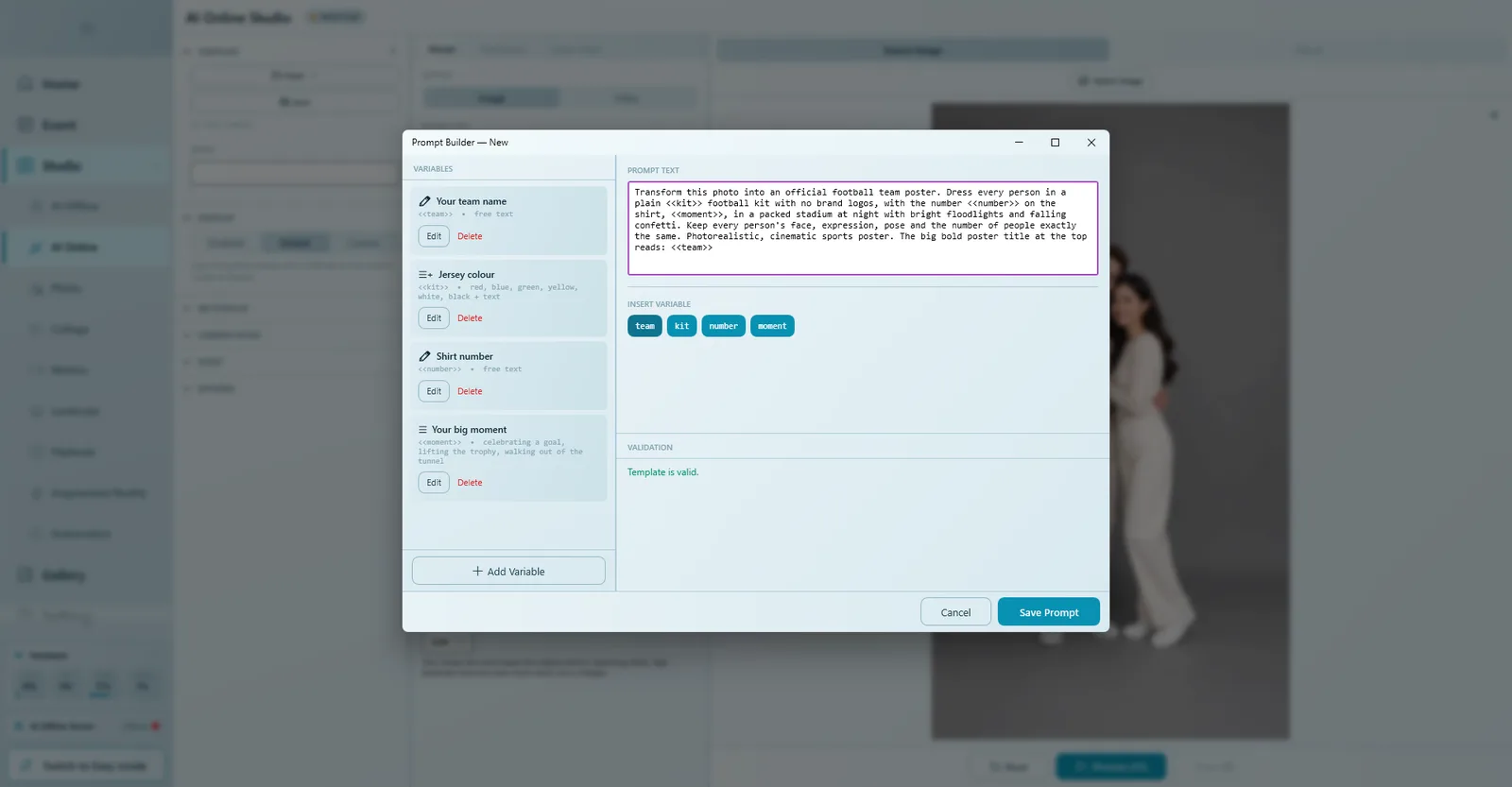
- Click Prompt Builder. The Prompt Builder window opens with Variables on the left and Prompt Text on the right.
Add the variables
- Click Add Variable. The Variable Editor opens.
- Variable Name: a short name without spaces, for example
team(letters, numbers and underscore only). - Display Text: the question the guest sees, for example Your team name.
- Input Type: choose how the guest answers (see the table).
- For a choice type, type the options in Options (one per line).
- Click Save. Repeat for each question.
| Input Type | Guest can… | Good for |
|---|---|---|
| Free Text | Type anything on the on-screen keyboard. | Names, team names, numbers. |
| Choice + Text | Tap one of your options or type their own. | Colours, favourite things. |
| Multiple Choice | Tap one of your options only. | Answers you want to control (scenes, poses, styles). |
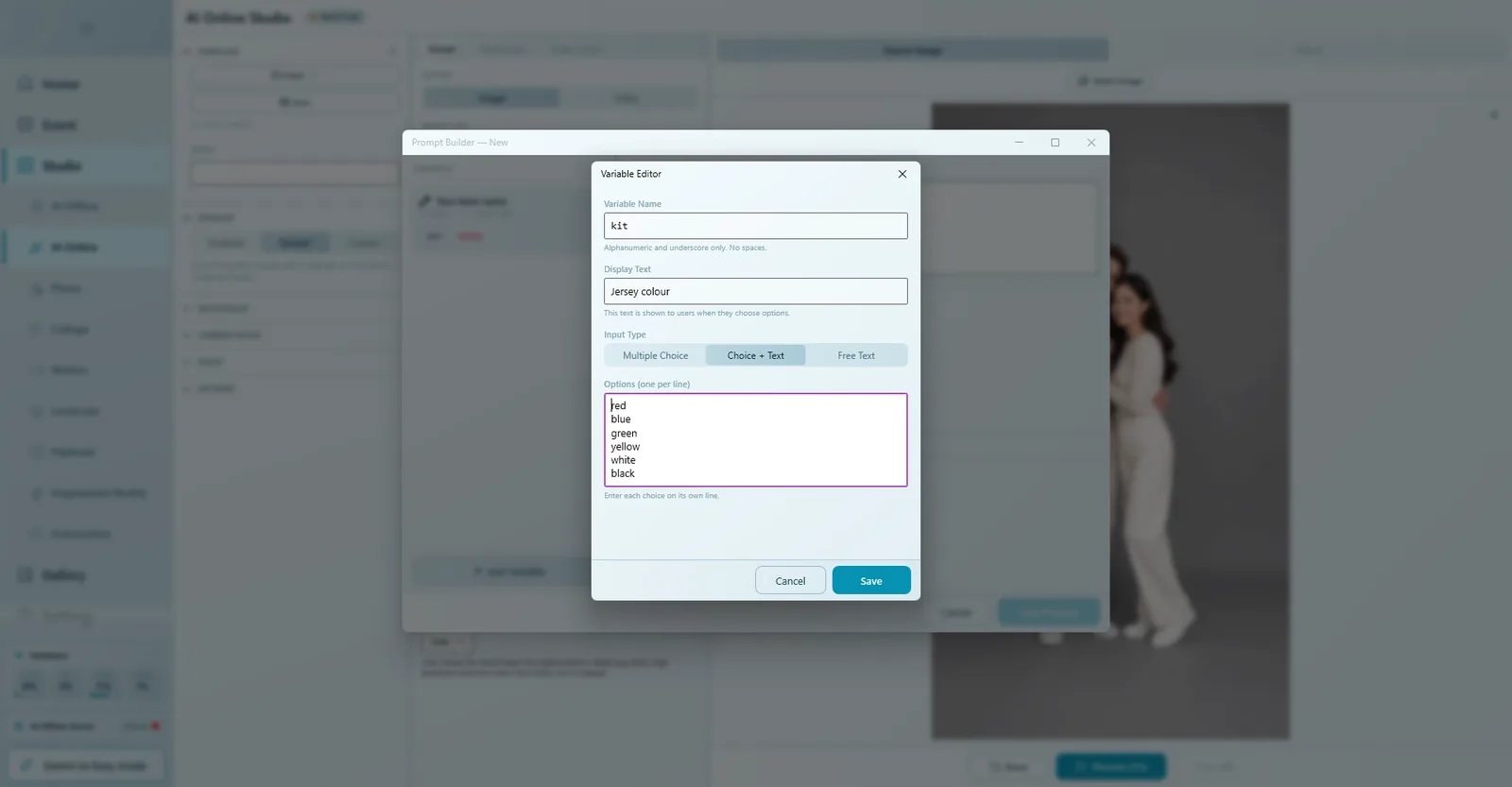
The football example uses four variables:
| Variable | Display Text | Input Type | Options |
|---|---|---|---|
team | Your team name | Free Text | |
kit | Jersey colour | Choice + Text | red, blue, green, yellow, white, black |
number | Shirt number | Free Text | |
moment | Your big moment | Multiple Choice | celebrating a goal, lifting the trophy, walking out of the tunnel |
There is no number-only input type: use Free Text for numbers and turn on the keyboard's number row on the Input Page (see below).
Write the prompt and insert variables
- Type the prompt in Prompt Text. Describe the scene, not the people, so it works for one guest or a group.
- Where an answer belongs, place the cursor and click the variable under Insert Variable. It is inserted as
<<name>>. - Use each variable exactly once.
Example:
Transform this photo into an official football team poster. Dress every person in a plain <<kit>> football kit with no brand logos, with the number <<number>> on the shirt, <<moment>>, in a packed stadium at night with bright floodlights and falling confetti. Keep every person's face, expression, pose and the number of people exactly the same. Photorealistic, cinematic sports poster. The big bold poster title at the top reads: <<team>>
Write the prompt so every answer reads naturally in the sentence. The questions and options can be in your guests' language.
Validation and saving
The Validation box checks your work while you type:
| Message | What to do |
|---|---|
| Template is valid. | All good. Click Save Prompt. |
| Prompt text cannot be empty | Write the prompt. |
| Variable '…' is used … times (must be used only once) | Remove the extra copies. |
| Variable '…' is used but not defined | Add that variable, or fix the spelling in the prompt. |
| Variable '…' is defined but not used (warning) | Insert it in the prompt or delete the variable. |
| No variables used in prompt (warning) | Insert at least one variable, or use Basic instead. |
Errors block saving; with warnings Q-Booth asks Save anyway?. After Save Prompt the studio shows the prompt with its blanks.
Test in the studio
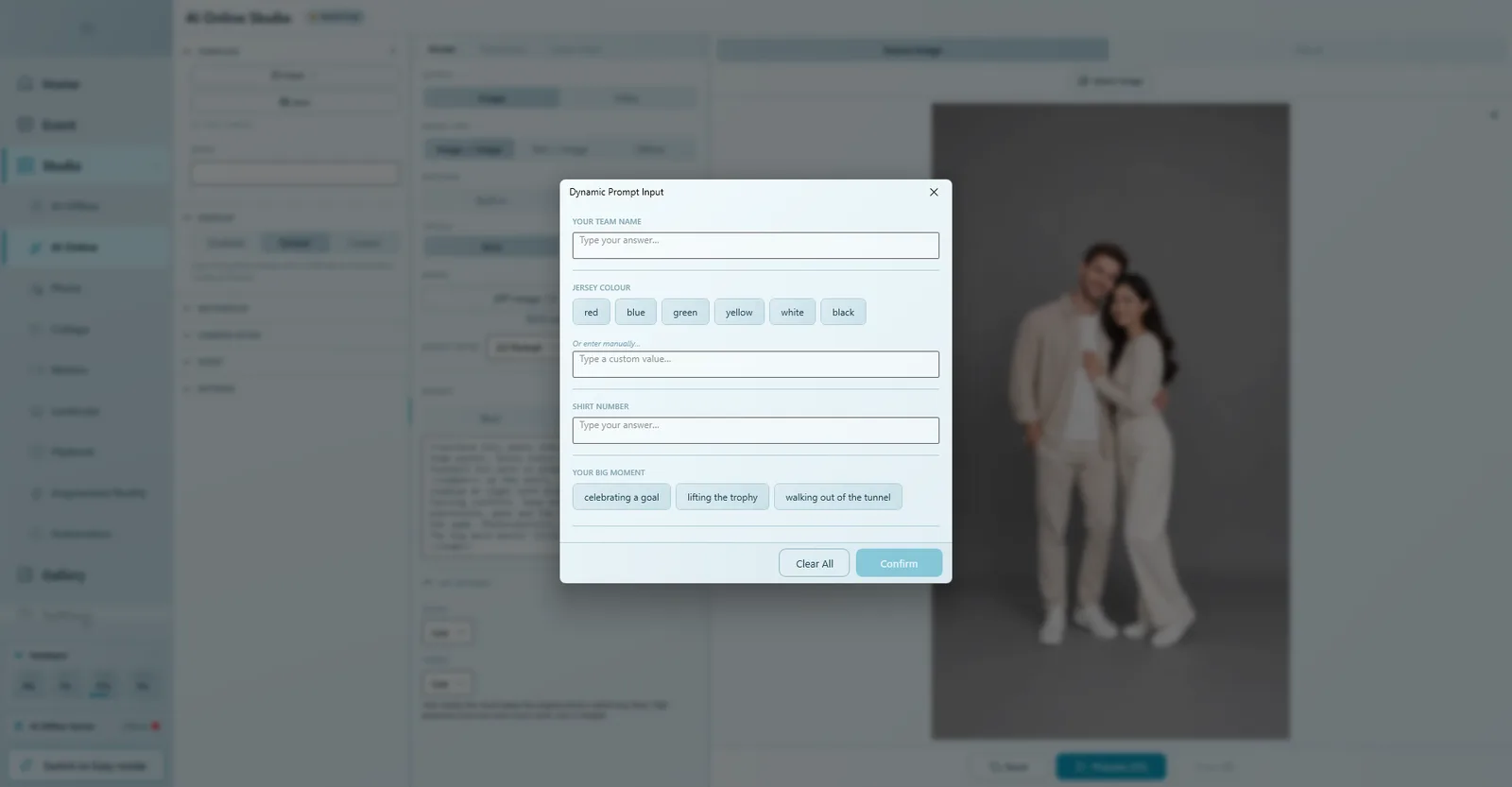
- Press Process (F5). The questions appear, just as a guest will see them.
- Answer them: type, or tap a choice. Clear All empties the form.
- Click Confirm. The AI makes the picture from your answers.
When you are happy, fill in Caption and Cover image, click Save, and add the template to your event with Templates › Open File, like any AI Online template.
Set up the Input Page in the event
The questions appear automatically on the event's Input Page. You only design how the page looks:
- Open the event editor and click Input Page in the design section.
- Select Page Title and set the title shown for Dynamic prompt questions.
- Select Keyboard and keep Include number row on, so numbers are easy to type.
- Adjust the Question Card, navigation and progress bar to match your theme, and press Preview (F9) to try it.
- Click Save.
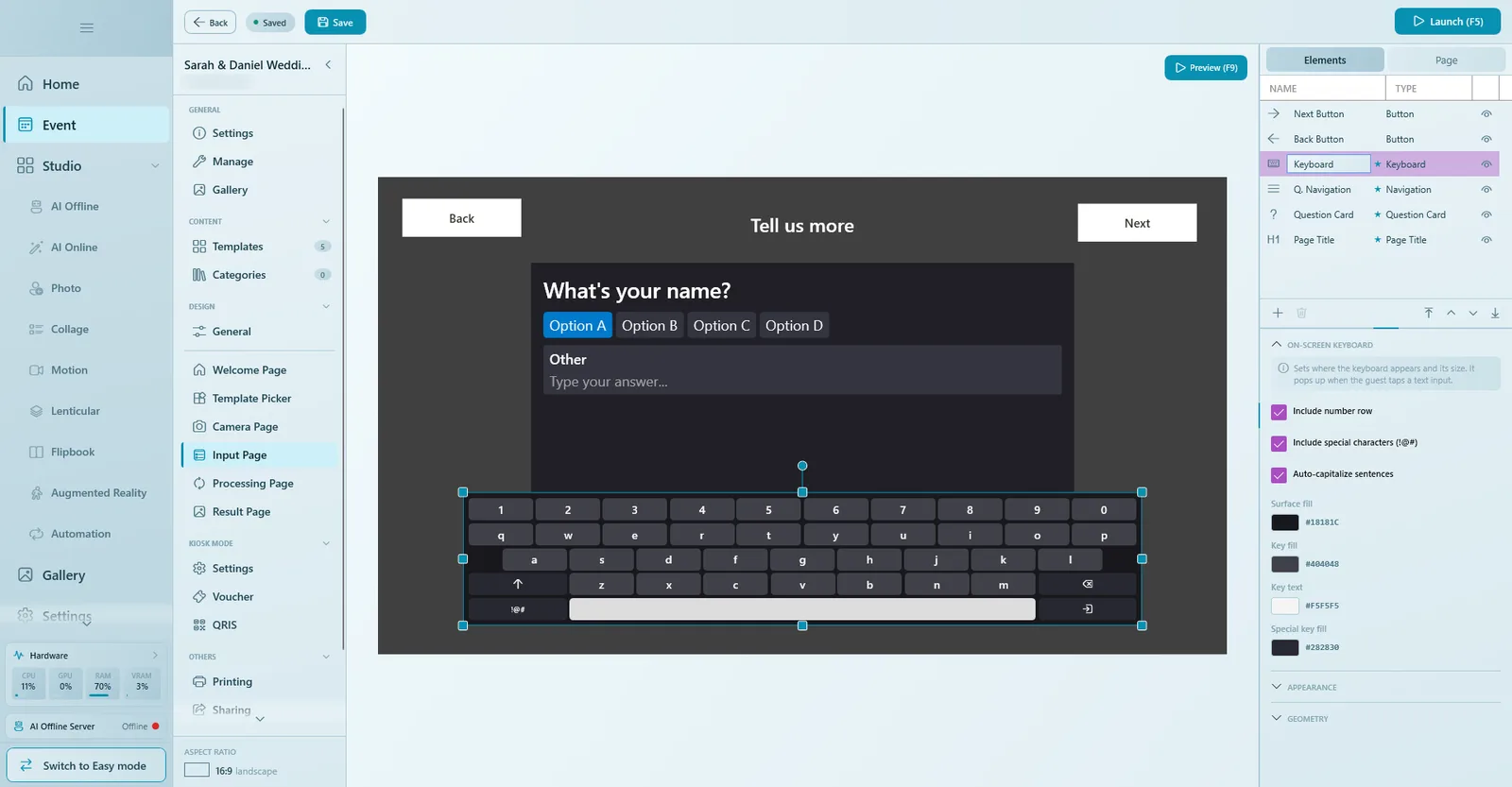
The preview in the event editor shows sample questions, not your template's own questions. Test the real questions with the event launched. More about page design in Page Designer.
What the guest sees
- The guest picks the template.
- The Input Page asks the questions one by one: they type on the on-screen keyboard or tap a choice.
- Next becomes active once every question is answered.
- The guest takes the photo, and the result carries their answers.
Tips
- Keep it to a few short questions: every question adds waiting time at the booth.
- Use choices where you can; they are faster for guests and safer for the AI.
- Choose options that read well in the sentence ("lifting the trophy", not "trophy").
- Test with real, unusual answers (long names, numbers, your own colours) before the event.
Next steps
Still need help?
Our team answers on WhatsApp. Tell us your Q-Booth version and what you see on screen.