Categories
Group an event's templates into categories with covers, and show them as a filter or as a separate Category Picker page.
Categories group an event's templates, for example Single Photo, Strip, Collage and AI. With many templates they keep the choice simple for guests. In CONTENT › Categories you create the categories, give them covers, put them in order and decide how guests see them.

Chapters (12)
When to use categories
- You have more templates than fit comfortably on one Template Picker screen.
- The templates are clearly different kinds (photo, strip, AI, video) and guests should first choose the kind.
- You want to hide a whole group at once, for example all AI templates when the internet is down.
With only a handful of templates you can skip categories completely.
Display Mode
At the top of the Categories page, DISPLAY MODE decides how guests see the categories:
| Mode | What guests see | Best for |
|---|---|---|
| As Filter | No extra page. The Template Picker shows the templates, and a category button (a button with the Open category filter action) lets guests narrow them down. | A few categories; guests who like to browse everything. |
| As Standalone Page | A separate Category Picker page runs before the Template Picker. Guests pick a category first; the Template Picker then opens already filtered. | Many templates; a clear two-step choice. |
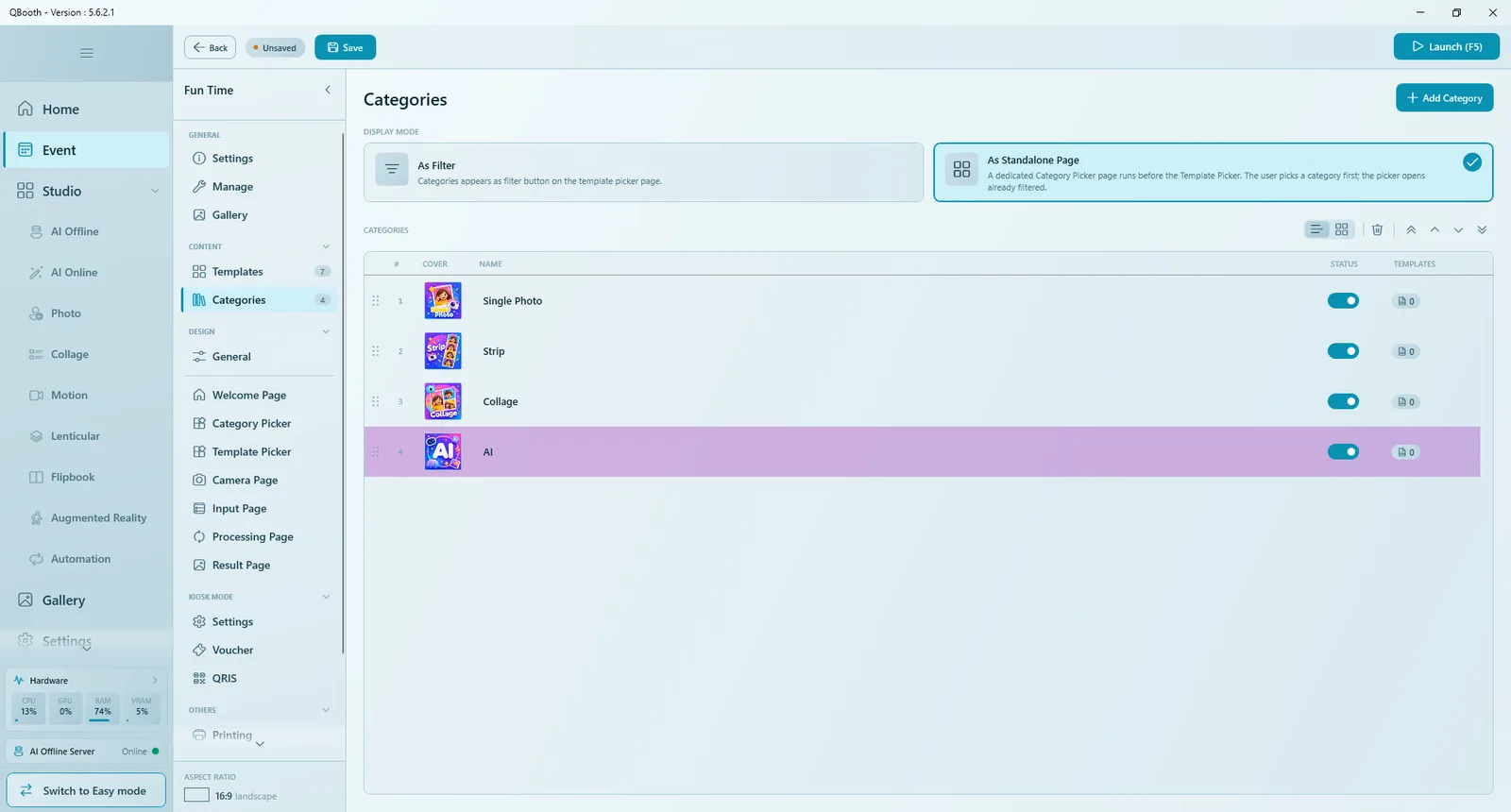
The Category Picker entry in the DESIGN group appears only when As Standalone Page is selected. With only one category, the Category Picker page is skipped automatically at the booth.
Create categories
- Open CONTENT › Categories.
- Click Add Category. A new row named "New Category" is added and selected.
- Click the name in the NAME column and type the category name, for example "Single Photo".
- Click the cover in the COVER column (Choose cover image) and pick an image from the gallery, a file or the clipboard.
- Repeat for every category, then choose the DISPLAY MODE.
- Click Save.
Make covers in the same style and shape, with the category name written large on them. On the Category Picker the cover is the button guests tap; when a category has no cover, its name is shown instead.
The category list
| Column | What it shows or does |
|---|---|
| # | The order guests see. Drag a row by its handle to move it. |
| COVER | The category image. Click to choose another. |
| NAME | Click to rename directly in the row. |
| STATUS | Turn off to temporarily hide this category and its templates from guests. |
| TEMPLATES | How many templates are in the category. Click the badge to jump to the Templates page, filtered to this category. |
The toolbar above the list switches between list and card view, deletes the selected category, and moves it to the top, up, down or to the bottom.
Assign templates to a category
Templates are assigned on the Templates page, not on the Categories page.
- Open CONTENT › Templates.
- Click the chip in the CATEGORY column of a template (it shows - when no category is set).
- Pick the category from the menu.
- Repeat for each template, then Save.
To assign many templates at once: click Select, select the rows, then Set Category. A template's category can also be set in its gear menu (Edit Template › CATEGORY).
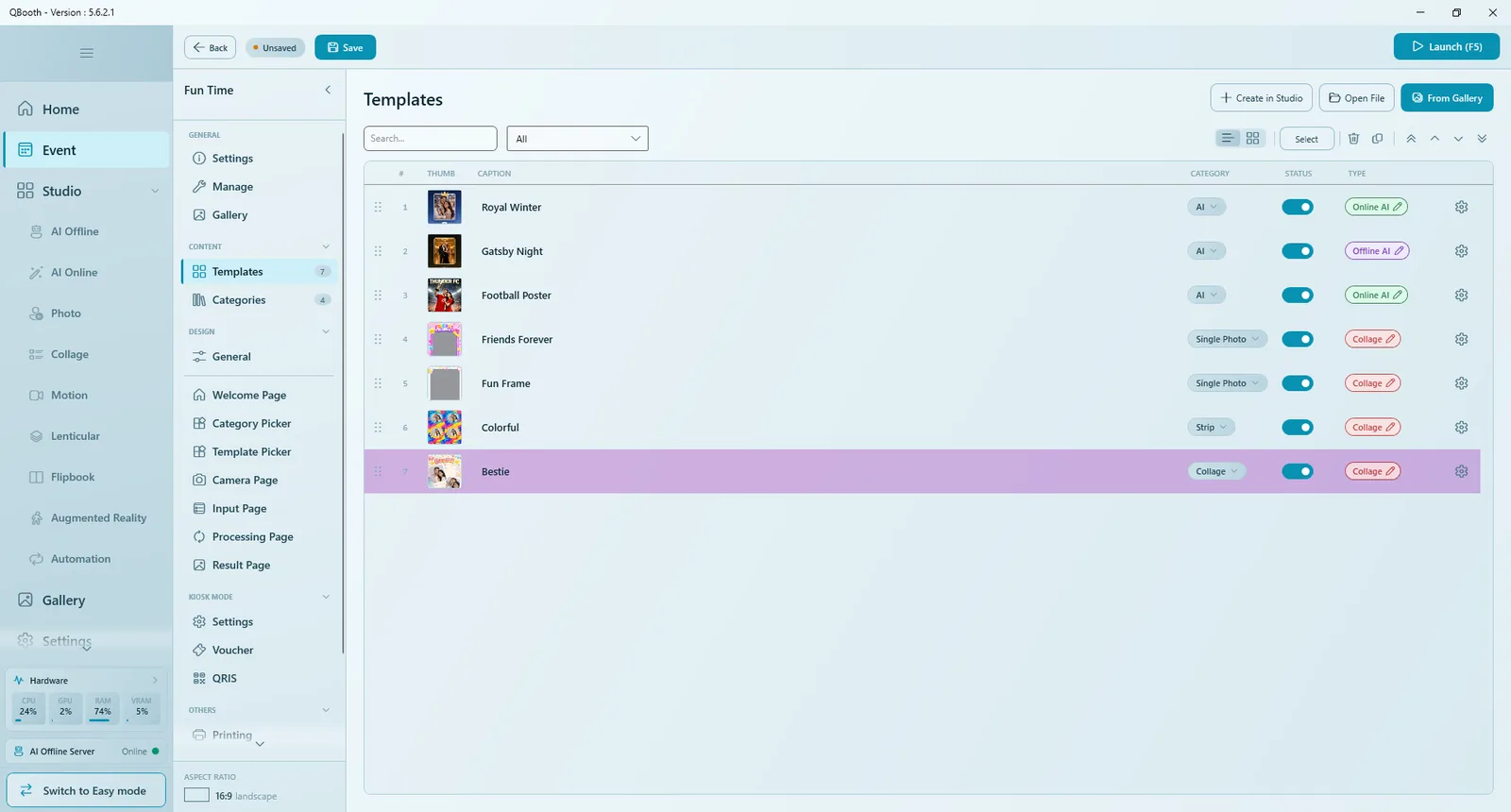
Templates remember their category even when you rename it. If you delete a category that is still in use, Q-Booth tells you how many templates use it; after you confirm, those templates are moved to No Category.
How categories appear on the pages
- Category Picker (standalone mode): its card gallery shows one card per category, using the covers. Design it like the Template Picker; see Page Designer › Category Picker.
- Template Picker: its Template Gallery element has a CATEGORY setting: All shows the category the guest picked (or everything), No Category shows only templates without a category, and Select always shows one fixed category. See Template Picker.
- In filter mode, add a button with the Open category filter action to the Template Picker so guests can open the category list.
- Add a Back button to the Template Picker in standalone mode, so guests can return to the categories.
Tips
- Keep it to a few categories (three to five is plenty for most booths).
- Order categories by popularity: the first card gets the most taps.
- Check the TEMPLATES count after tagging: a category with 0 templates shows guests an empty page.
- Test the flow with Launch (F5): pick a category, then a template, then go back.
Common problems
The Category Picker page does not appear.
Set DISPLAY MODE to As Standalone Page. If the event has only one category, the page is skipped on purpose.
Guests see an empty Template Picker after choosing a category.
No switched-on template is assigned to that category. Assign templates in the Templates page, or switch the category off.
Some templates never show up.
Templates without a category appear only under All or No Category. Check the Template Gallery element's CATEGORY setting on the Template Picker.
Next steps
Still need help?
Our team answers on WhatsApp. Tell us your Q-Booth version and what you see on screen.