Backup, Export and Moving
Export or back up events, keep template files and settings safe, export logs, and move Q-Booth to a new computer.
This page shows how to keep your work safe and how to move it to another computer: event exports and full backups, template files, a single-file backup of all your settings, and log files for support.
What can be saved, and how
| What | How | File |
|---|---|---|
| An event's design only (pages, templates, categories) | Event › Manage › Export Event | .qevent |
| An entire event (design, statistics, photos, results, activity log) | Event › Manage › Backup | .qeventbak |
| A studio template | Save in the studio | .qsd, .qso, .qsp, .qsc, .qsm, .qsl, .qsf |
| All app settings | Settings › Other › Export Settings… | .qbset |
| Log files for support | Settings › Other › Export Logs | .zip |
Export, back up or archive an event
Open the event and go to GENERAL › Manage. Every action here is recorded in the event's Activity Log on the right.
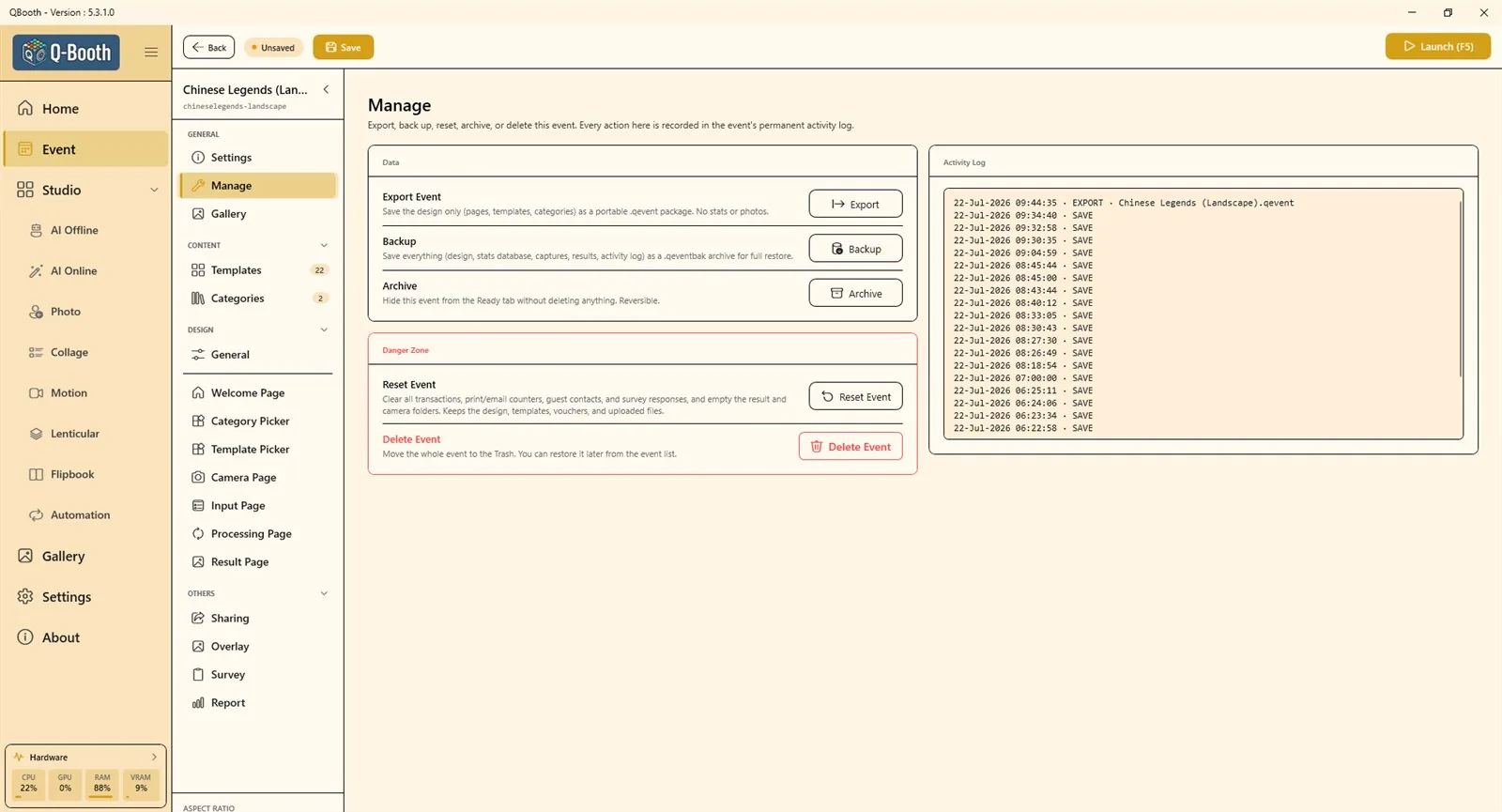
Export Event (design only)
- Save the event first. A new, unsaved event cannot be exported.
- Under Data, click Export next to Export Event.
- Choose a name and location and save. The result is a small
.qeventpackage.
Use it to keep a copy of a finished design, reuse it for another client, or move the design to another booth. It contains no statistics and no photos.
Backup (everything)
- Under Data, click Backup.
- Choose where to save the
.qeventbakfile.
A backup holds the design, the statistics database, camera shots, results and the activity log, so the event can be restored completely. Because it includes all photos, it can be large; save it to an external drive.
Make a Backup after every event, before you reset or delete anything, and before reinstalling Windows.
Archive
Archive hides the event from the Ready tab of the event list without deleting anything. You can undo it at any time from the Archived tab.
Danger Zone: reset or delete
| Action | What happens |
|---|---|
| Reset Event | Deletes all transactions, print/email counters, guest contacts and survey answers, and empties the result and camera folders. The design, templates, vouchers and uploaded files are kept. |
| Delete Event | Moves the whole event to Trash. You can restore it from the event list. Items in the Trash are deleted automatically after 30 days. |
Reset Event permanently deletes the result photos in the event folder. Always make a Backup first.
Restore a backup or import an event
- Open Event in the sidebar to see the event list.
- Click the Import / Restore button.
- Choose Import from File… for a
.qeventdesign package; it is added as a new event. - Or choose Restore from Backup for a
.qeventbakfile. - If an event with the same ID already exists, Q-Booth asks whether to overwrite it (you confirm by typing a number) or to restore it as a separate copy with a new ID.
A .qtheme file is an event theme, not an event package. Themes are chosen when you create a new event.
To bring back a deleted event, open the Trash tab of the event list and click Restore.
Template files
Every studio saves its template as a file wherever you choose. Keep these files in one folder that you back up regularly, for example on cloud storage.
| Extension | Studio |
|---|---|
.qsd | AI Offline Studio (also Face Swap templates) |
.qso | AI Online Studio |
.qsp | Photo Studio |
.qsc | Collage Studio |
.qsm | Motion Studio (music and assets are embedded, so the file is self-contained) |
.qsl | Lenticular Studio |
.qsf | Flipbook Studio |
Templates that are already inside an event travel with that event's export or backup.
Back up all settings (.qbset)
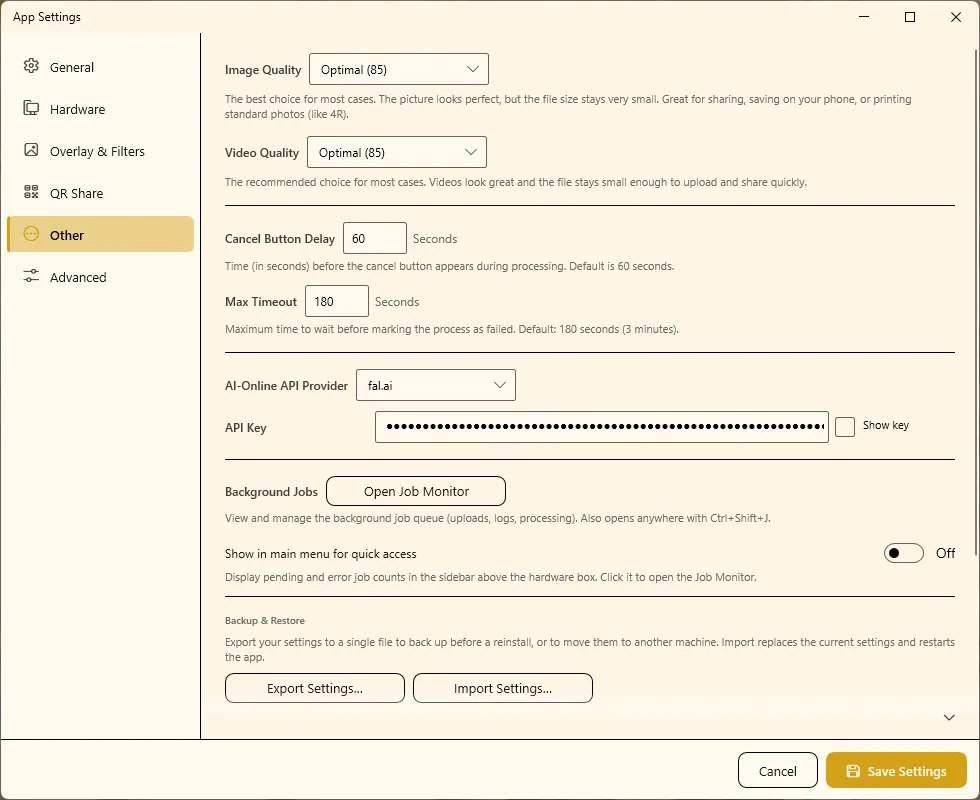
- Open Settings › Other.
- Under Backup & Restore, click Export Settings….
- Save the
.qbsetfile. One file holds your app settings, filter presets, QR Share and email settings.
To load it on this or another computer, click Import Settings… and choose the file. The import replaces all current settings and restarts Q-Booth. Your previous settings are saved first in a backup folder, so you can import them again to go back.
A settings backup includes your saved QR upload, email and API key settings. Treat the .qbset file as private and do not share it publicly.
Export logs for support
- Open Settings › Other and scroll to Export Logs.
- Choose the period: Today's log, Last 7 days or All logs.
- Click Export Logs… and save the ZIP file.
- Send the ZIP to the support team.
The archive contains the app's log files and current settings. Passwords and API keys are removed.
Where Q-Booth keeps its data
These folders are inside the Q-Booth application folder:
| Folder | Contents |
|---|---|
events\ | One subfolder per event (named by Event ID) with the design, database, and the result and camera folders. |
images\ | Global result, camera and clipboard folders (used by the studios). |
settings\ | App configuration, interface state and job list. |
log\ | Log files for diagnostics. |
backup\, exported_event\ | Event backups and exports (default save locations). |
assets\ | Built-in assets: event themes, filters, textures, videos and templates. |
The result and camera folders can be changed in Settings › General (Result Folder, Camera Output).
Move to a new computer
- On the old computer: Export Settings… to a
.qbsetfile. - For every event you want to keep: Backup (with photos and statistics) or Export Event (design only).
- Copy your template files and any result folders you still need.
- Put everything on a USB drive or cloud storage.
- On the new computer: install Q-Booth (see Installation).
- Import Settings… with the
.qbsetfile. Q-Booth restarts. - In the event list, use Restore from Backup or Import from File… for each event.
- Check the hardware on the new machine: camera, printer and microphone in Settings, and test Web QR on the new network.
- Open Gallery › Manage Folders. The folder list comes along with the settings, but it points to locations on the old computer: remove folders that do not exist here and add the new ones.
- Run one complete test session before the next event.
Troubleshooting
Export Event says the event cannot be exported.
Save the event first. A new event that has never been saved has nothing to export yet.
"This file is not a valid settings backup."
Choose a .qbset file made with Export Settings…. Event files (.qevent, .qeventbak) are imported from the event list instead.
Importing a file says it is an Event Theme.
.qtheme files are themes; pick them when creating a new event.
After moving, the Gallery is empty.
The Gallery still lists the folder paths of the old computer. Open Manage Folders, remove the old paths and add the folders on this computer; see Gallery.
Next steps
Still need help?
Our team answers on WhatsApp. Tell us your Q-Booth version and what you see on screen.