AI Offline Studio
Create AI photo templates that run on the booth computer, with no internet and no cost per photo.
AI Offline Studio turns guest photos into new AI pictures right on the booth computer. There is no internet needed during the event and no cost per photo, so it is ideal for venues with poor Wi-Fi and for events with many guests.

Chapters (8)
AI Offline or AI Online?
| AI Offline | AI Online | |
|---|---|---|
| Where the AI runs | On the booth computer | On an online AI service |
| Internet at the event | Not needed | Required, and it must be stable |
| Cost per photo | None | Charged by the service for every generation |
| Hardware | NVIDIA RTX graphics card | Any computer that runs Q-Booth |
| Output | Pictures (plus a Before → After video) | Pictures and AI videos |
Requirements
- Licence: the AI templates (Imagine, Re-Imagine, Composite) need a Pro licence. Face Swap also works with an Advanced licence.
- Graphics card: an NVIDIA RTX card with at least 8 GB of VRAM. 8 processor cores and 16 GB RAM or more are recommended. See System requirements.
- Disk space: the offline AI models need tens of GB on top of the app.
- GPU Pack: to run Face Swap and Face Restore on the graphics card, download the GPU Pack in Settings › Advanced › Compute Device. See Advanced settings.
The AI Offline Server
The AI engine starts together with Q-Booth. Its status is shown at the bottom of the sidebar as AI Offline Server:
| Status | Meaning |
|---|---|
| Loading | The engine is starting. This usually takes a minute or two. |
| Online (green) | Ready. You can process AI templates. |
| Offline (red) | Not running. AI templates cannot be processed. |
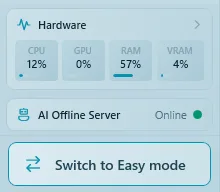
Face Swap does not use the AI Offline Server: it can process even when the status is Offline. All other AI Offline templates need it to be Online.
Choose an AI template
- Open Studio › AI Offline (or Create in Studio › AI Offline from an event).
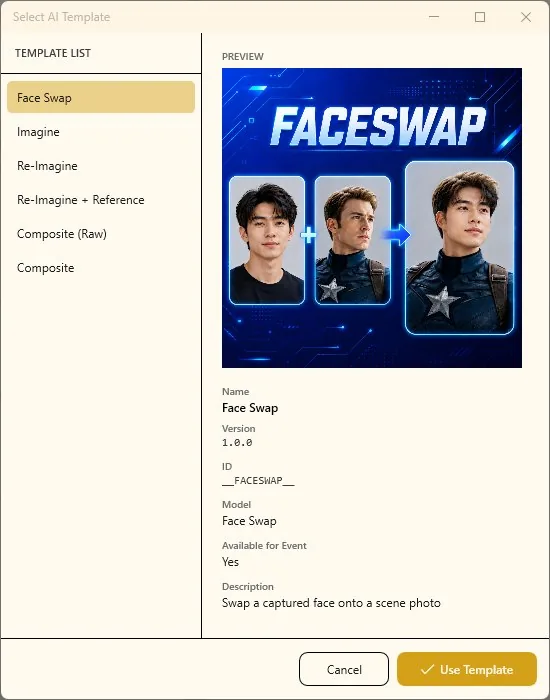
- Click the Template button at the top of the middle panel. The Select AI Template dialog opens.
- Click a template in the list. On the right you see a preview and its details: Name, Version, Model, Available for Event and Description.
- Click Use Template. If the template has an example input, Load Sample fills it in for you.
The AI template types
| Template | What it does | Needs a guest photo |
|---|---|---|
| Face Swap | Puts the guest's face into a scene picture. Explained in its own article: Face Swap. | Yes |
| Imagine | Creates a picture from text only. | No |
| Re-Imagine | Changes the guest's photo according to your prompt and keeps their faces. The right choice for most events. | Yes |
| Re-Imagine + Reference | Like Re-Imagine, plus a reference image that the AI follows for style, costume or composition. | Yes |
| Composite | Combines the guest with a background image, using a prompt, guide image and colour correction so the result blends naturally. | Yes |
| Composite (Raw) | Combines the guest with a guide image and background without an AI style layer: a pure blend, faster. | Yes |
Build a Re-Imagine template step by step
- Check that AI Offline Server shows Online.
- Choose Re-Imagine in Select AI Template.
- In Source Image, click Select Image and load a test photo (Camera, Clipboard, Gallery or File).
- Open the Prompt tab, keep Basic and write your prompt as an instruction (see the example below).
- Set Quality with the slider.
- Set Aspect Ratio in the left panel. Auto keeps the shape of the photo.
- Press Process (F5). After a short wait the result appears; check it with Compare.
- Add a frame under Overlay and, if you like, turn on Before → After Video under Options.
- Fill in Caption and Cover image under Event, then click Save. AI Offline templates are saved as
.qsdfiles.
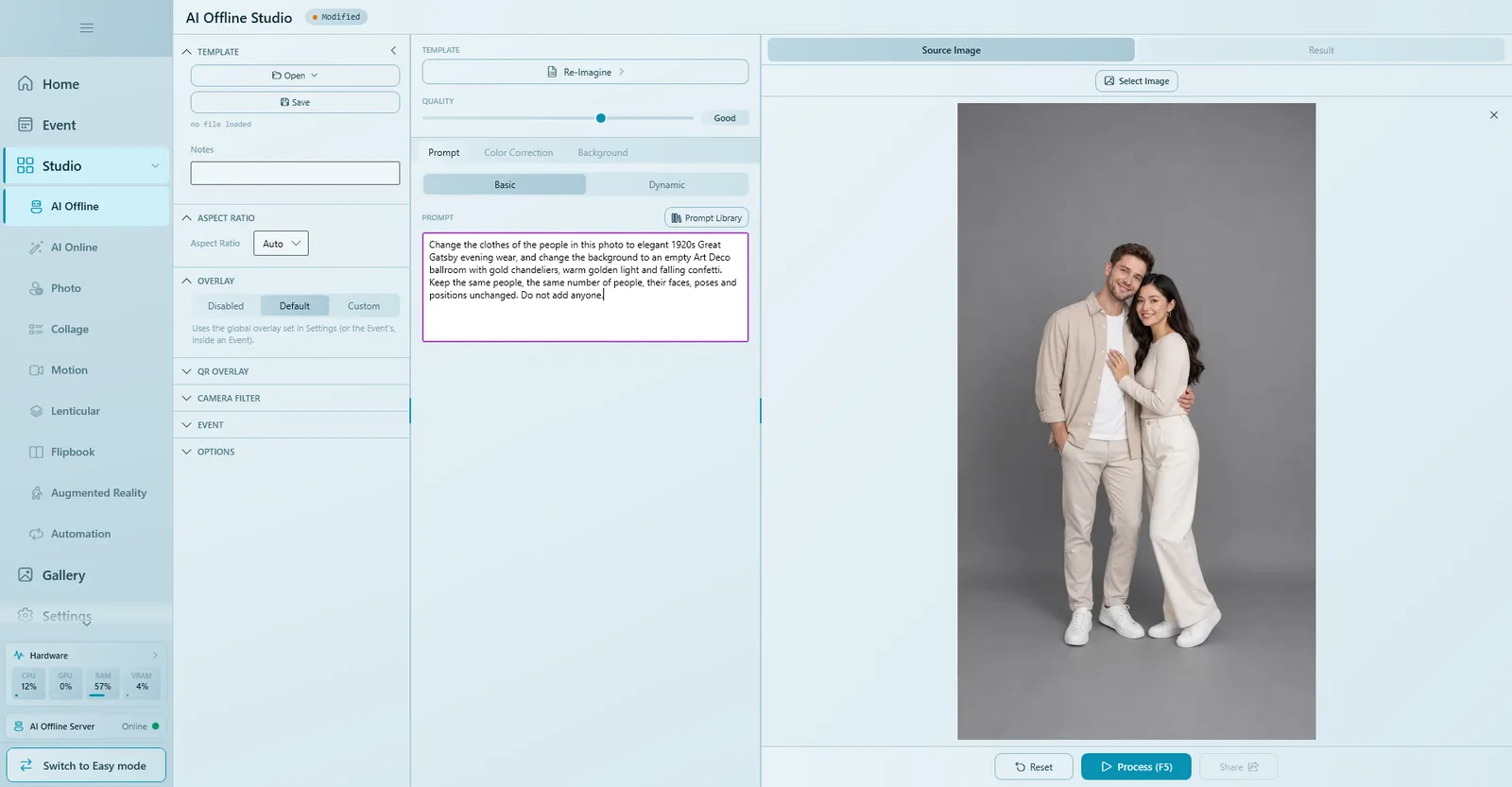
Example prompt that keeps the guests as they are, for one person or a whole group:
Change the clothes of the people in this photo to elegant 1920s Great Gatsby evening wear, and change the background to an empty Art Deco ballroom with gold chandeliers, warm golden light and falling confetti. Keep the same people, the same number of people, their faces, poses and positions unchanged. Do not add anyone.
Write Re-Imagine prompts as instructions ("change the clothes…, change the background…, keep the same people…, do not add anyone"). A purely descriptive prompt can make the AI add extra people or change faces. More advice in Writing good AI prompts.
The Prompt tab
| Control | What it does |
|---|---|
| Basic | One fixed prompt for every guest. |
| Dynamic | A prompt with blanks that guests fill in by answering questions. See Dynamic Prompt. |
| Prompt Library | Your saved prompts: pick one to use it, or save the current one for later. |
| Negative Prompt | Shown by templates that support it: things the result should avoid. |
Quality
The Quality slider trades speed for detail. Higher looks better but takes longer, and guests are waiting at the booth. Choose the highest quality whose waiting time is still comfortable, and time it on the event computer.
Reference, guide and background images
Depending on the template, extra tabs appear in the middle panel:
| Tab | What to put in it |
|---|---|
| Reference Image | Re-Imagine + Reference: the image whose style, costume or composition the AI should follow. Required as soon as the tab is shown. |
| Guide Image | A PNG with transparency that guides pose or composition. Must be a PNG file, so Camera and Clipboard are not available here. Required when the tab is shown. |
| Background | Composite: the backdrop that appears in the final picture. Required. |
| Color Correction | Five sliders for the final look: Temperature, Hue, Brightness, Contrast, Saturation. |
Do not confuse Guide Image with Background: the guide image only steers the AI and is not visible in the result, while the background is what guests actually see behind them. If a required image is missing, Process and Save show a message telling you which tab to fill in.
Composite and Composite (Raw)
Composite blends the guest into your background and can use a prompt and colour correction for a natural look. Composite (Raw) only uses a guide image and a background: choose it when you want a plain, fast blend without the AI re-interpreting the picture.
Output options
| Setting | What it does |
|---|---|
| Aspect Ratio | The shape of the result. Auto follows the source photo. |
| Overlay | Default, Custom (a frame just for this template) or Disabled. |
| Include original photo in result | Delivers the guest's original photo as an extra result next to the AI picture. |
| Before → After Video | Makes a short video that turns the guest's photo into the AI picture. Great for sharing on social media. |
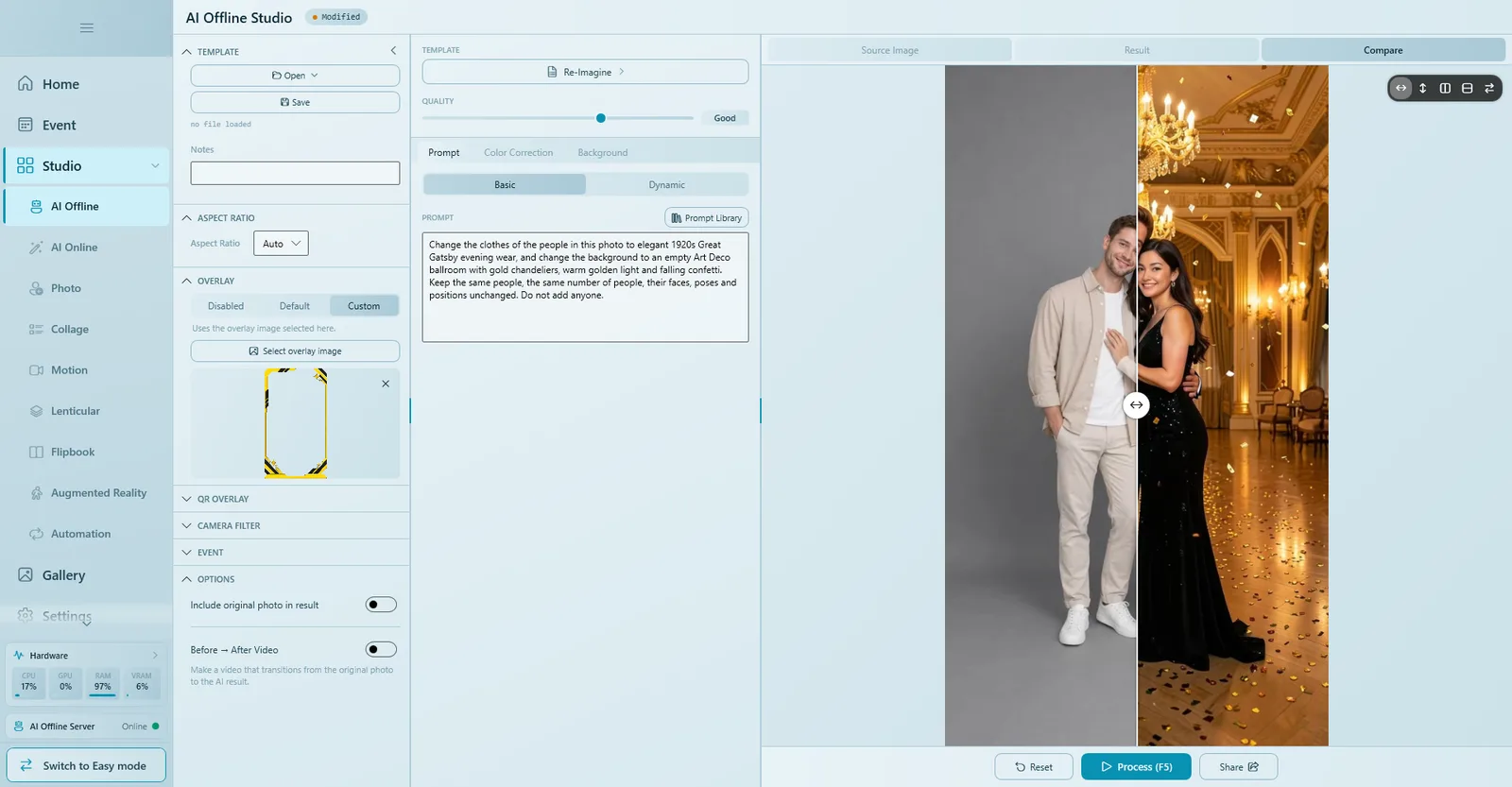
The file format follows the template; JPEG and video quality are set once for the whole app in Settings › Other.
Use it in an event
- Expert mode: in the event open Templates and click Open File to add the
.qsd, or Create in Studio › AI Offline to build it there and click Save & Return. - Easy Mode: the AI Photo offline card does the same in one dialog, and Try it runs a test photo.
At the event the guest picks the template and takes a photo; the booth computer creates the picture and the result is shared as usual (for example with a QR code). See Templates and Run an event.
Common problems
The server stays on Loading or shows Offline.
Give it a minute or two after Q-Booth starts. If it does not become Online, restart Q-Booth. Make sure the computer has an NVIDIA RTX card and enough free memory; close other heavy programs. See Troubleshooting.
"This AI Offline template needs a Pro license to run."
Imagine, Re-Imagine and Composite need a Pro licence. With an Advanced licence only Face Swap is available.
Processing is much slower at the event than in the studio.
During the event the camera and the event screens also use memory. Lower the Quality, close other programs, and always time a test run with the event launched, not only in the studio.
The result adds people or changes faces.
Rewrite the prompt as an instruction and end with "Keep the same people, the same number of people, their faces, poses and positions unchanged. Do not add anyone."
Process or Save is blocked with "This template needs a guide image" (or reference / background image).
Open the tab named in the message and choose an image. Guide images must be PNG files.
Three things to remember
- Start Q-Booth early and wait until the server is Online.
- Pick a quality your guests will not mind waiting for.
- Test every template on a real photo, in the event, before the doors open.
Next steps
Still need help?
Our team answers on WhatsApp. Tell us your Q-Booth version and what you see on screen.