Art Drawing & Art Studio
Turn every guest photo into a drawing, with a video of it being drawn: the Easy Art Drawing card, Art Studio, AI sources and events.
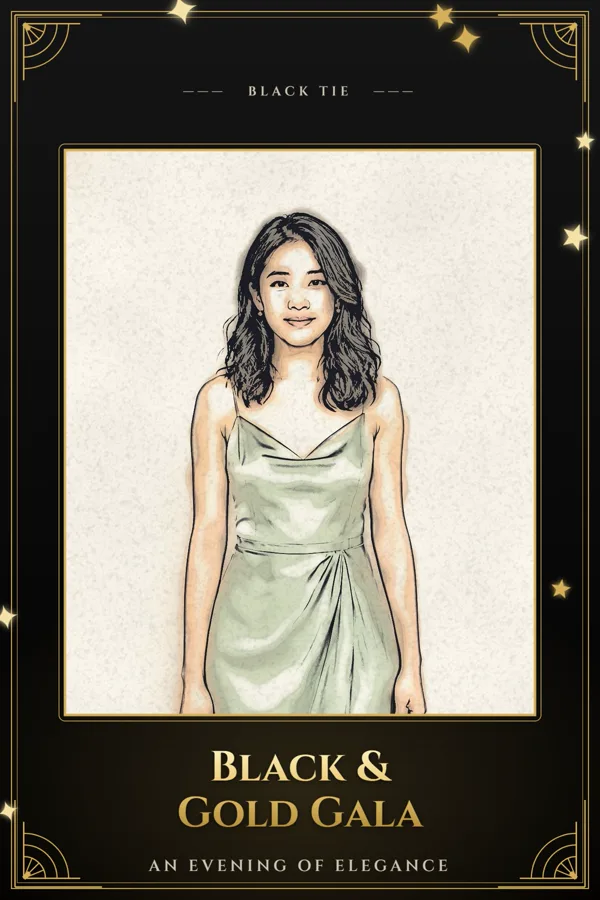
Art Drawing turns each guest photo into a hand-drawn-looking picture, and makes a short video of it being drawn, stroke by stroke. Guests take home the video and the drawing. Make it quickly with the Art Drawing card in Easy mode, or with full control in Art Studio in Expert mode. Both make the same kind of template, and both run at your events.

Chapters (17)
- 0:00Intro
- 0:18Easy mode: the Art Drawing card
- 0:24Seven drawing styles
- 0:41Camera photo or AI image
- 1:14Picture shape & drawing time
- 1:25Frame (only at the end)
- 1:38Extras
- 1:48Try it & save
- 2:04Art Studio (Expert mode)
- 2:19Source image & style preview
- 2:29Drawing time, video size, aspect ratio
- 2:44Start with the photo · Photo in the corner
- 2:58Source: AI templates & licences
- 3:36Overlay, BGM, original photo
- 3:56Process & results
- 4:11At your event
- 4:32Three things to remember
Before you start
- Art Drawing is in every licence, with no add-on. Your licence only limits which AI template a drawing can start from (see Drawing from an AI picture).
- Drawing the camera photo needs no internet and costs nothing. It all happens on this PC.
- A camera set up in Settings › Camera, for events.
- Optional: a frame as a transparent PNG, the same kind you use for photo templates.
The seven styles
Each template uses one style. For another style, make another template.
| Style | What it looks like |
|---|---|
| Pencil | Grey pencil lines and shading on paper. |
| Charcoal | Soft, dark charcoal with smudged tones. |
| Ink | Clean black ink lines. |
| Color pencil | Coloured pencil strokes. |
| Pop Art | Bold outlines, flat colours and halftone dots. |
| Ink & watercolor | Ink lines with soft watercolour washes. A good all-round choice. |
| Watercolor | Watercolour only, no ink lines. |
Easy mode: the Art Drawing card
- Create or open an event and go to the Templates step. Pick the Art Drawing card.
- Give the template a name, then fill in the form from top to bottom (below).
- Press Try it to draw a test photo, check the video, then press Save Template. The template is added to the event's list.
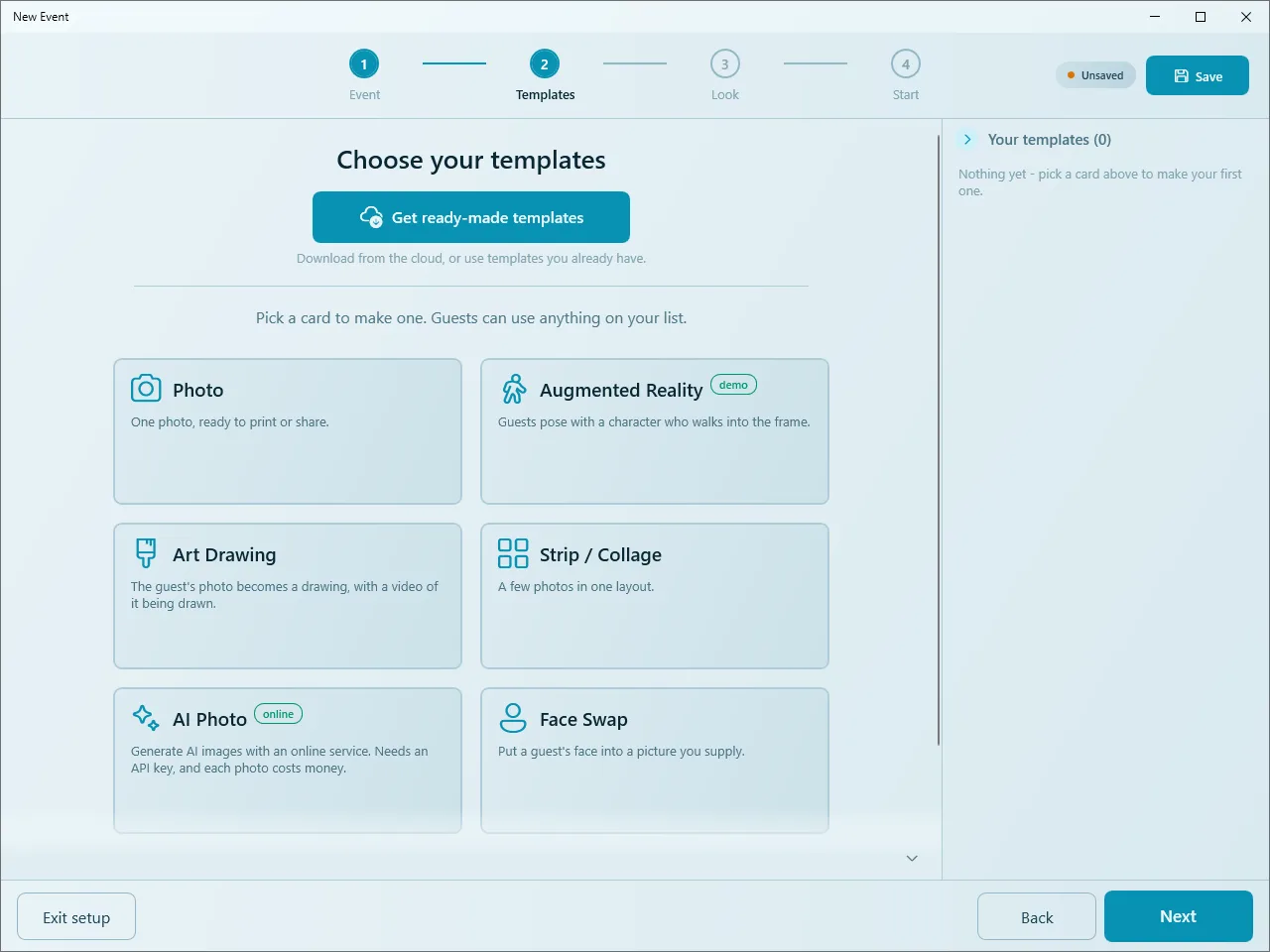
| Field | What it does |
|---|---|
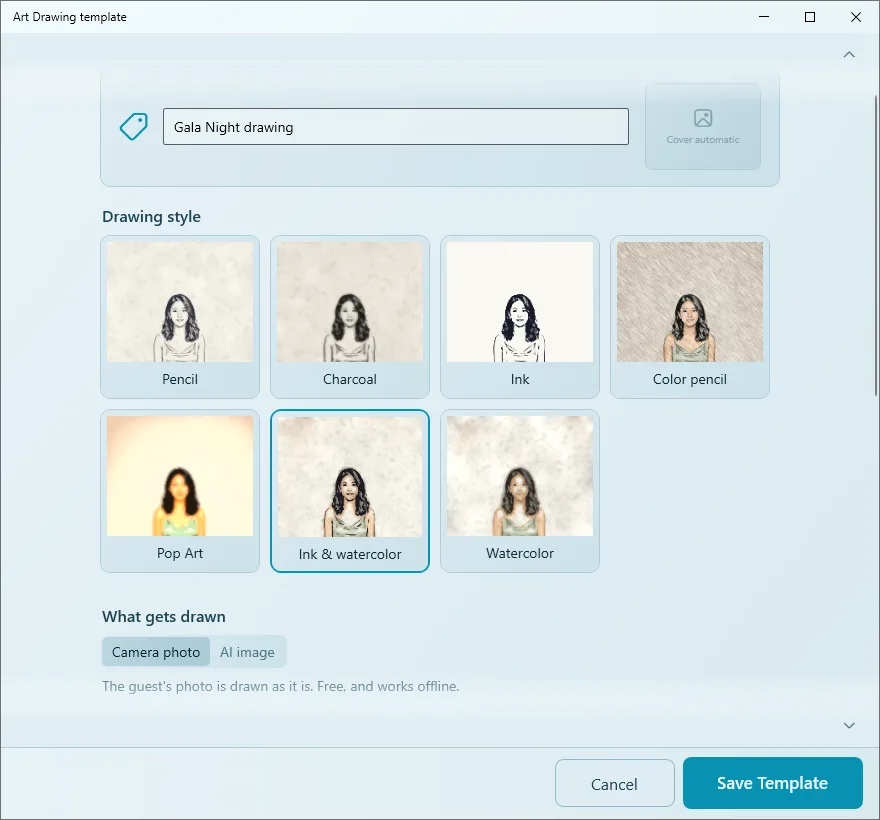
| Drawing style | One of the seven styles. Once you've picked a test photo, each tile previews it in that style. |
| What gets drawn | Camera photo: the guest's photo is drawn as it is. Free, and works offline. AI image: AI first turns the photo into a new picture (for example a caricature), then that picture is drawn. Each guest uses one AI picture. |
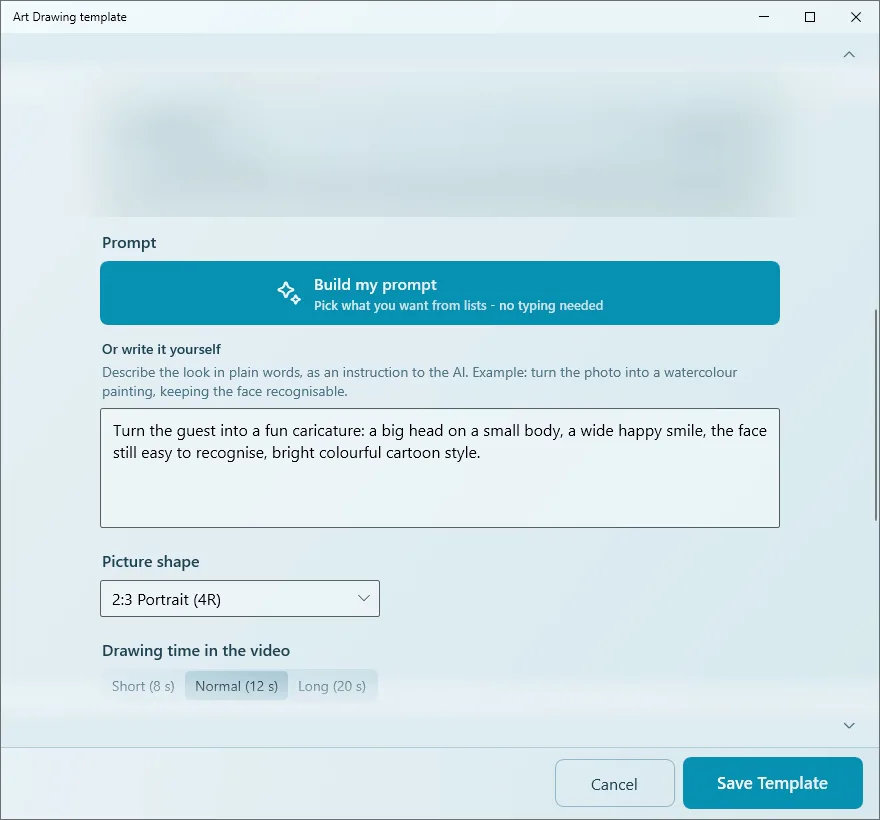
| AI model, Prompt | Only with AI image. The same model list and Build my prompt button as the AI Photo card. See AI Online Studio and Writing prompts. |
| Picture shape | The shape of the drawing, for example 2:3 Portrait (4R). |
| Drawing time in the video | How long the drawing takes in the video: Short (8 s), Normal (12 s) or Long (20 s). |
| Frame | A transparent PNG. It shows on the finished drawing (the end of the video, and the picture), never while it is being drawn. |
| Extras | Keep the plain photos: guests also get their own photo, untouched. Also give the AI picture (with AI image): guests also get the AI picture before it was drawn. |
| Try it | Choose a photo..., then Run test. With Camera photo it draws your test photo on this PC, free, and nothing is sent anywhere. Then Play the video. |
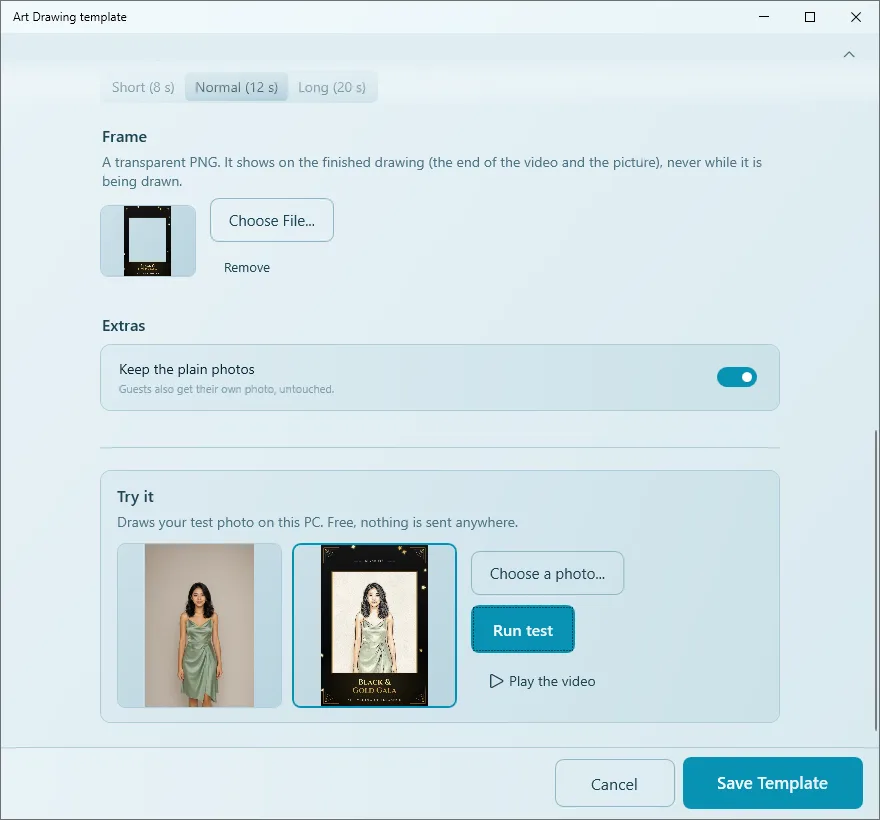
Choose a frame whose window fits the face, and use a test photo shaped like your guests' photos. The frame covers everything outside its window, so a face too close to the edge gets cut.
A template made in Art Studio with an AI step the Easy form can't show (AI Offline, face swap, dynamic prompts) can't be edited with the Easy form: its row in the event list shows Edit in Expert mode instead. Edit it in Art Studio.
Art Studio (Expert mode)
Switch to Expert mode and open Studio › Art Studio, right after Motion. Settings are on the left, the source and drawing options in the middle, and Source Image │ Result on the right.
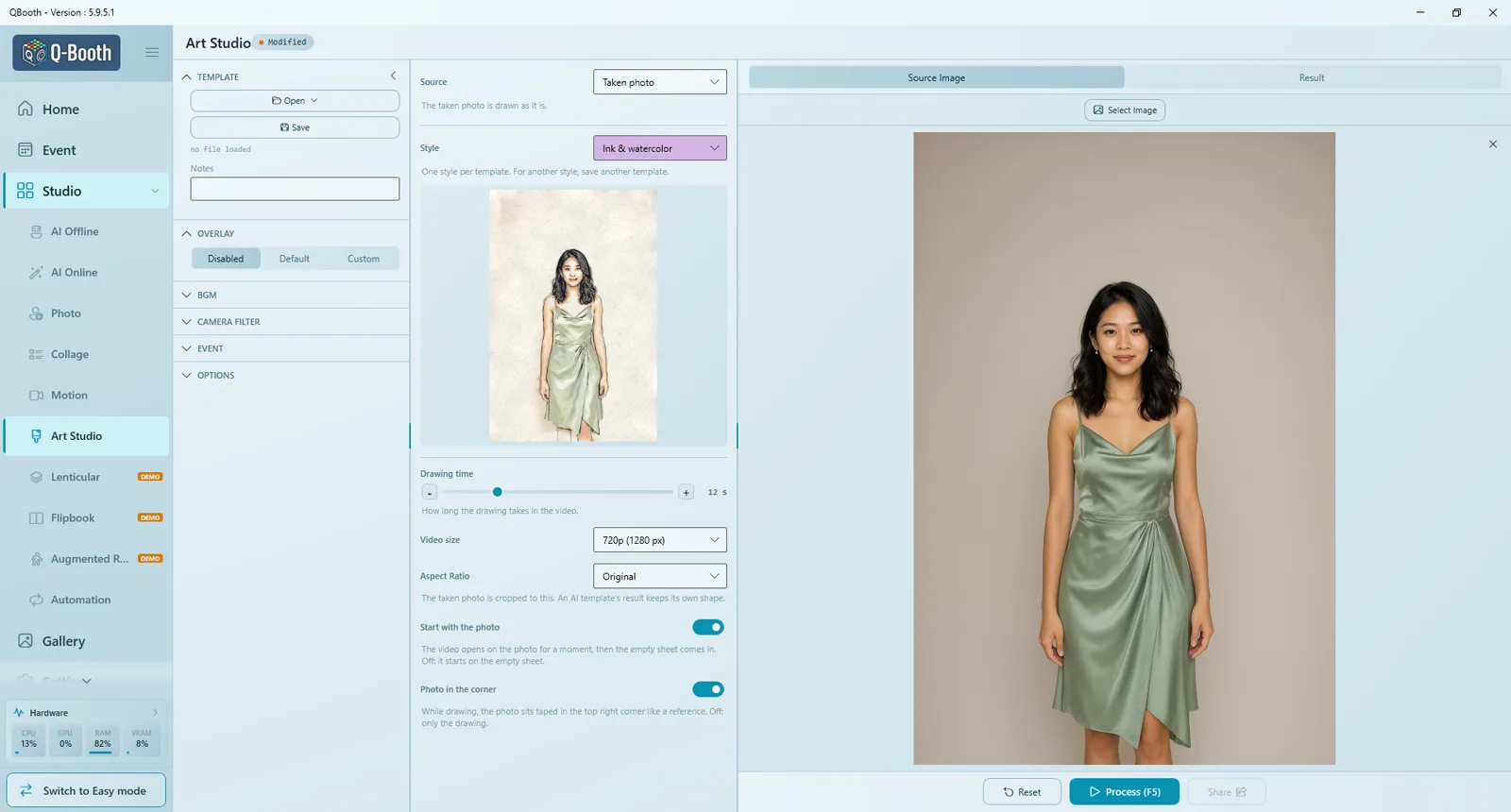
Drawing options (middle)
| Setting | What it does | Default |
|---|---|---|
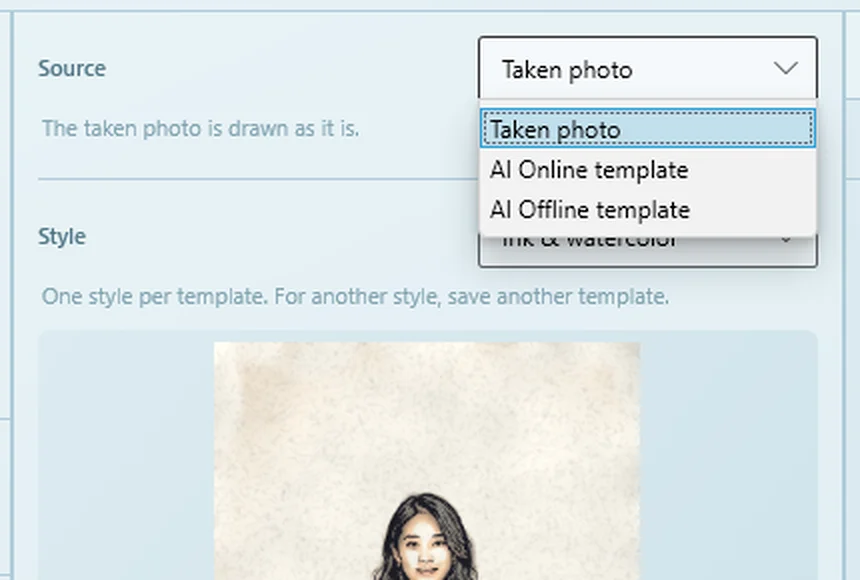
| Source | Taken photo, AI Online template or AI Offline template. See Drawing from an AI picture. | Taken photo |
| Style | One of the seven styles. With a source image loaded, the preview below shows your own photo in that style. | Pencil |
| Drawing time | How long the drawing takes in the video, 4–40 seconds. | 12 s |
| Video size | 720p (1280 px) or 1080p (1920 px). 1080p is sharper but takes a little longer to make. | 720p |
| Aspect Ratio | Crops the taken photo to this shape. An AI template's result keeps its own shape. | Original |
| Start with the photo | The video opens on the photo for a moment, then the empty sheet comes in. Off: it starts on the empty sheet. | On |
| Photo in the corner | While drawing, the photo sits taped in the top right corner like a reference. Off: only the drawing. | On |
Template, overlay and sound (left)
- Template: Open, Save and Notes. Art Studio templates are .qsk files.
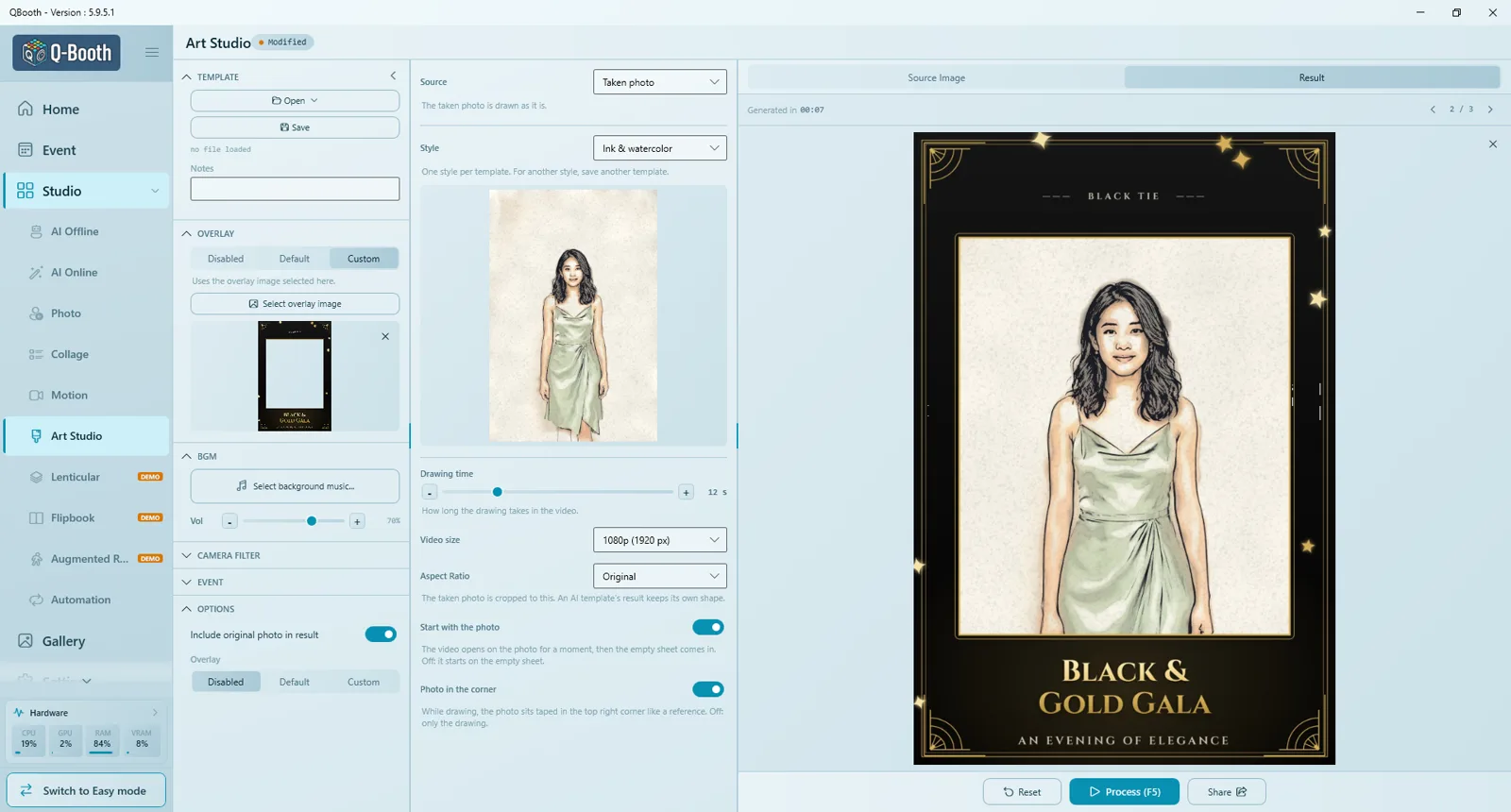
- Overlay: Disabled, Default or Custom. A still overlay (your frame) fades in with the finished drawing, never while it is being drawn. An animated overlay covers the whole video.
- BGM: the video is silent unless you pick background music here. It loops under the video and fades out at the end.
- Camera filter and Event (caption, thumbnail), as in the other studios.
- Options › Include original photo in result: guests also get the plain photo.
Try it and save
- Load a test photo in Source Image (drop it, or Select Image).
- Press Process (F5). In a few seconds you get the results; use the arrows above the result to flip between them.
- Save the template as a .qsk file.
Drawing from an AI picture
Instead of the taken photo, the drawing can start from an AI template: the photo goes through that template first, and its result is drawn. Pick an existing template or create one right there (the AI studio opens in a window; press Save & Return).
| Licence | What it can draw from |
|---|---|
| Basic | Taken photo |
| Advanced | + AI Online template, and AI Offline template for face swap templates only |
| Pro | Any AI template |
- The AI template must make a picture. A template that makes a video can't be drawn, so video output is switched off in the AI window opened from Art Studio.
- If the AI step fails, the whole run fails. The plain photo is not drawn instead. Test your AI template first.
- Tick Include the AI image in the result to give guests the AI picture too.
- Each guest uses one AI picture (AI Online) or one run on this PC (AI Offline).
What guests get
- The video of the drawing being made. This is the main result.
- The drawing as a picture, with your frame.
- Optional: the original photo, and with an AI source, the AI picture.
At an event
- In the event editor, open Content › Templates. Add an Art template like any other: Create in Studio, Open File (.qsk) or From Gallery. Templates made with the Easy card are already there.
- Guests choose it on the Template Picker page, take their photo, and a few seconds later the video plays on the result page.
- When printing is on, the drawing is what gets printed.
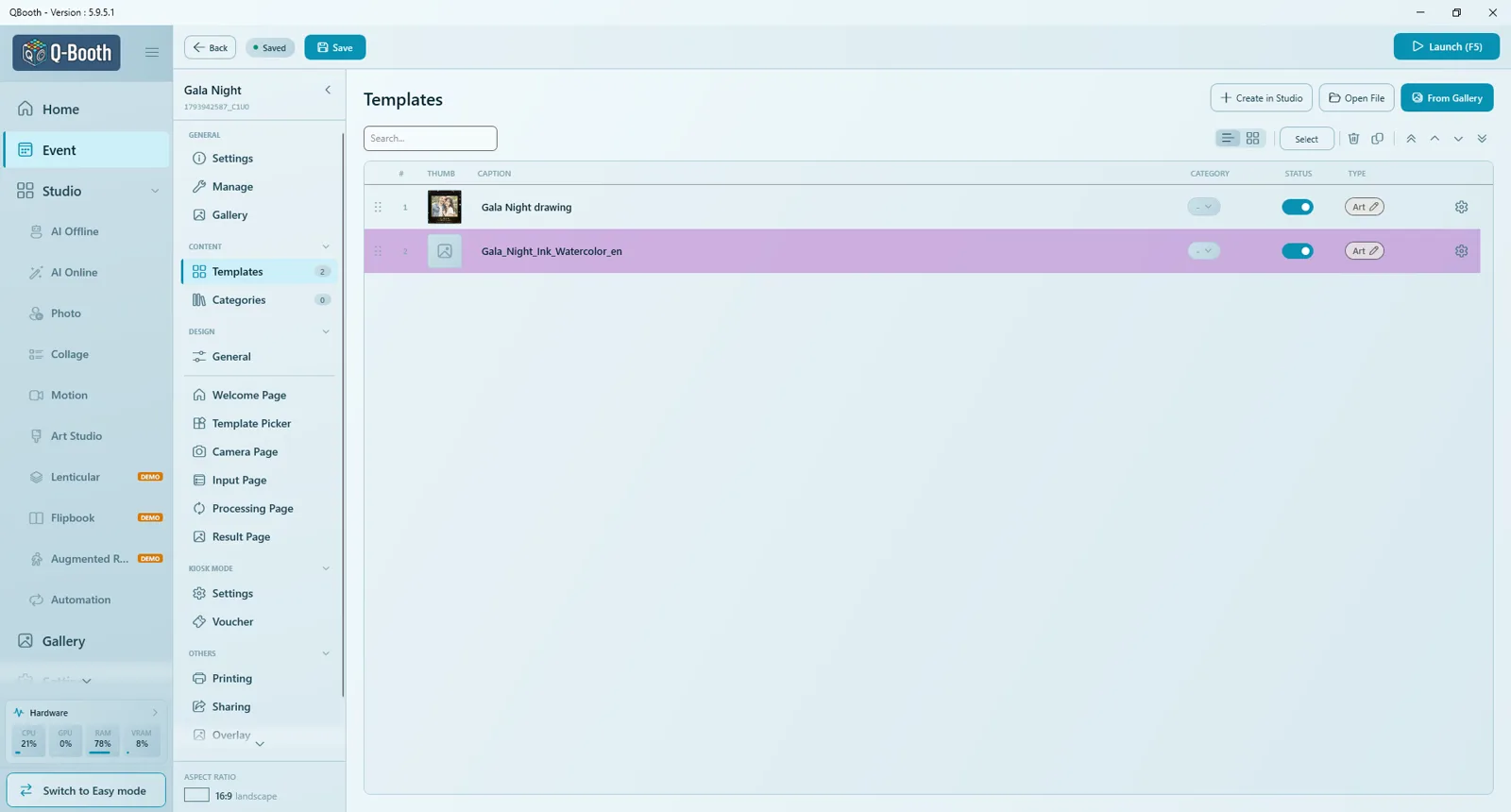
The drawing doesn't play live on the processing page: drawing the camera photo takes only a few seconds, and with an AI source the wait is the AI step. No QR code is printed on Art results.
Common problems
| Message or problem | What to do |
|---|---|
| This AI template makes only a video. Art Studio needs an image to draw. | Pick another AI template, or set its Output to Image and remove the video step. |
| The AI step failed: … | The AI template couldn't make its picture (internet, credit or the template itself). Test the AI template on its own first. |
| This Art template draws from an AI template your license can't run… | Open it in Art Studio and set Source to Taken photo, or use a licence that includes that AI. |
| The frame cuts a head | Use a frame with a larger window, or set a matching Aspect Ratio so the photo fills the window. |
| The video has no sound | That's the default. Add music under BGM. |
Still need help?
Our team answers on WhatsApp. Tell us your Q-Booth version and what you see on screen.