The Unattended Photo Booth: Running a Self-Service Kiosk That Earns on Its Own
How to run an unattended self-service photo booth in malls, arcades and bars: voucher codes, lockdown settings, daily upkeep and reading the numbers.
Also available in: Bahasa Indonesia · 中文
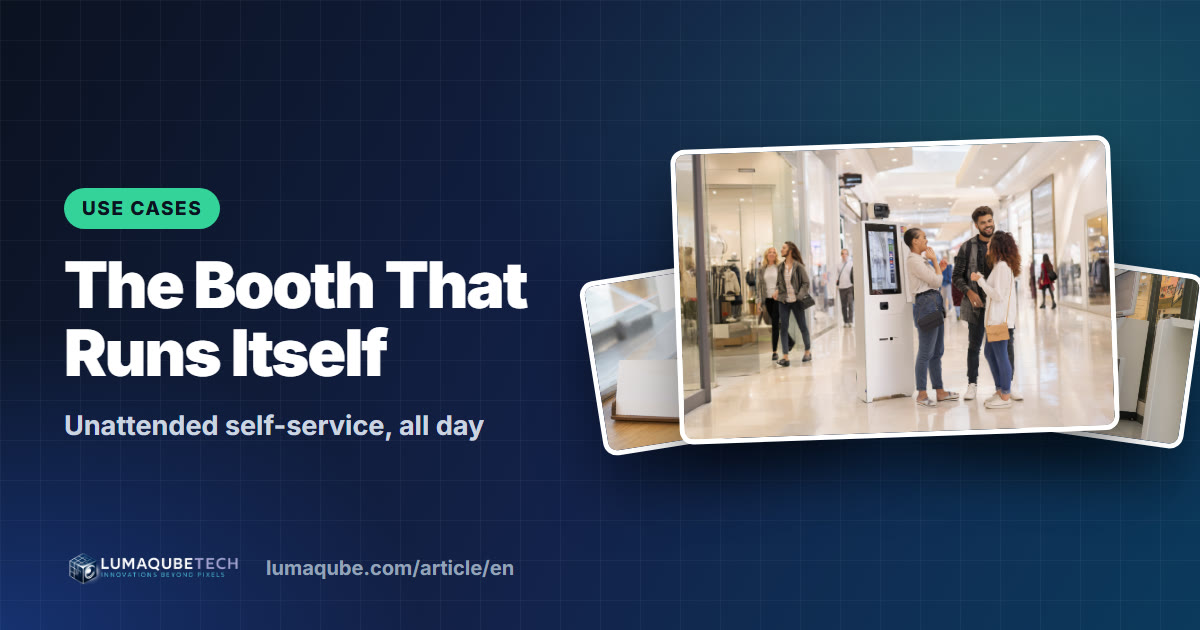
Picture a photo booth that works on its own from opening to closing: customers walk up, pay, pose, take their prints and leave, with no attendant on site. That's the unattended self-service photo booth, a business model spreading through malls, arcades, bars and venues. This guide shows how to run one with Q-Booth's Kiosk Mode: voucher codes before every session, the settings that stop freebies and tampering, daily upkeep, and reading the numbers.
Where an unattended booth works
- Shopping malls: busy corridors, near the cinema or the food court.
- Family entertainment centers and arcades: a natural add-on next to the games.
- Bars, breweries and restaurants: a fun extra that keeps groups longer and puts your venue on their feeds.
- Hotels, campuses and attractions: a souvenir framed with the location's branding.
- Multi-day fairs and expos: the booth keeps earning while you're elsewhere.
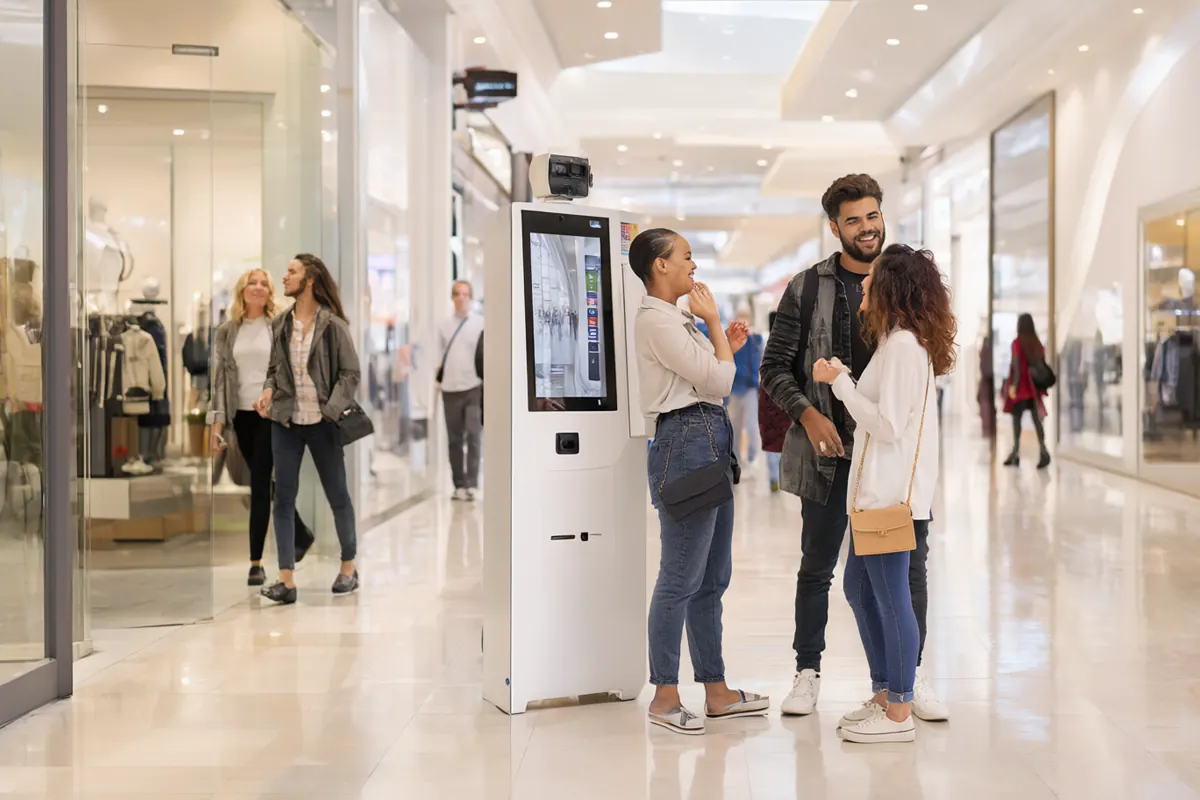
One customer session, start to finish
- The customer taps Start on the touchscreen.
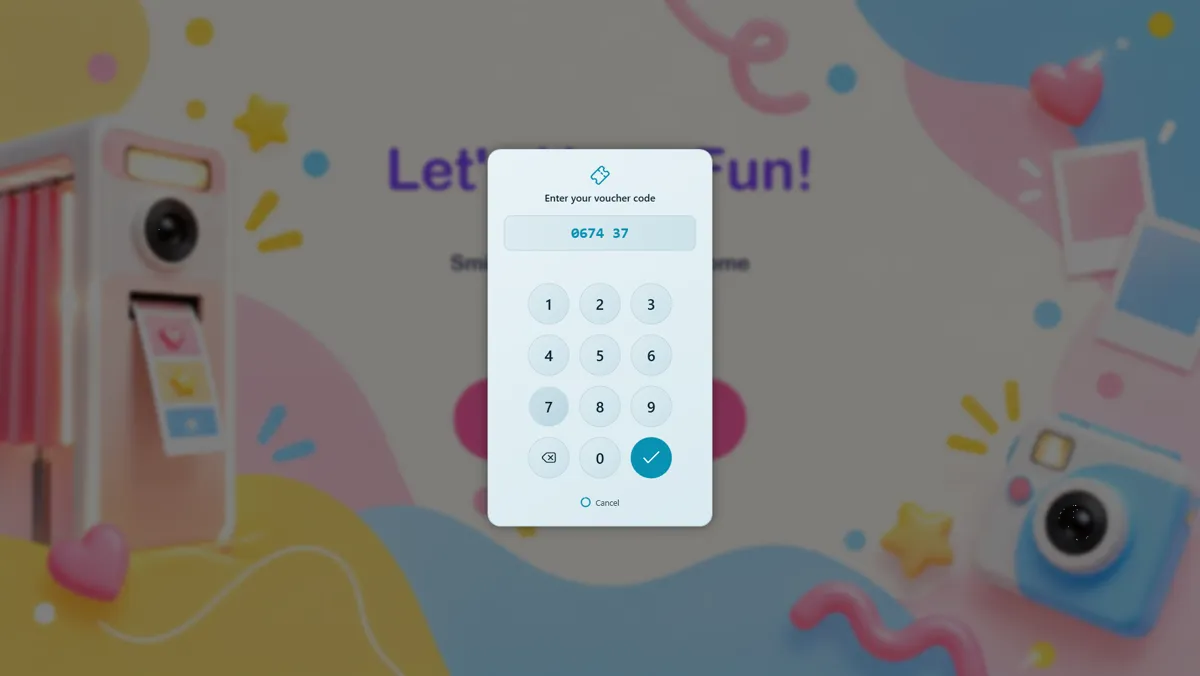
- The Kiosk Mode gate asks for a voucher code. No valid code, no session.
- (Optional) a quick survey question.
- They pick a template, take their photos and see the result.
- They print their included copies and scan the QR code for the digital version.
- The booth returns to the start for the next customer.
Selling sessions with voucher codes
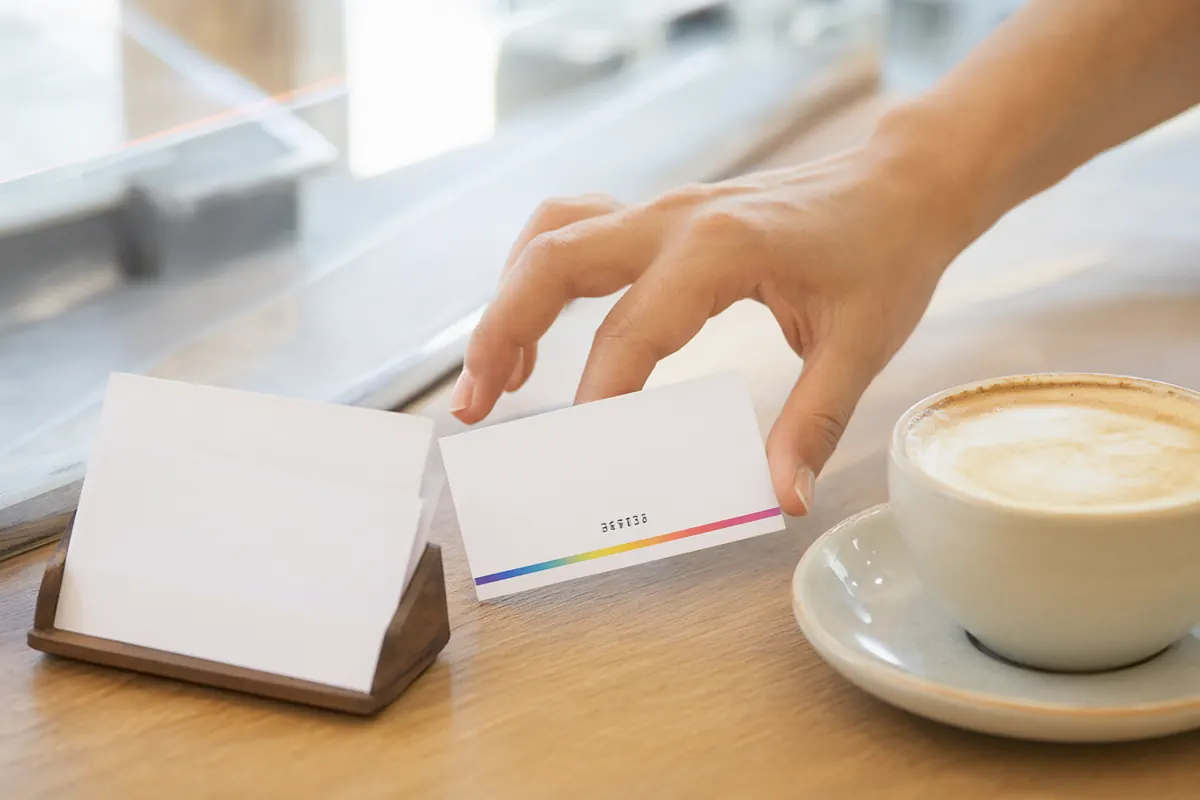
In KIOSK MODE → Voucher, press Create Voucher to generate a batch of anywhere from 1 to 10,000 codes. Codes are numbers only, each works once, and a batch can carry an expiry date. Print them as business-card-sized cards (about 85 × 55 mm), or export the list as a spreadsheet.
Ways to sell them:
- At the venue's counter or point of sale, so card and cash payments go through the till you already have.
- Bundled with something: a ticket, a drink, a party package, a hotel stay.
- Online, sending the code with the order confirmation.
- As loyalty rewards or giveaways for promotions.
The settings that make it safe to leave alone
| Setting | Where | Why |
|---|---|---|
| Enable Kiosk Mode with Voucher ticked | KIOSK MODE → Settings | No session starts without a valid code. |
| Set session print limit | OTHERS → Printing | Each paid session gets a fixed number of prints. |
| Require PIN to exit | GENERAL → Settings → EXIT ACCESS | Only you can leave the booth screen. |
| Block Alt + Tab and Block Windows Key | GENERAL → Settings → KEYBOARD CONTROL | Customers can't switch to other apps. |
| Restart and switch-template buttons | Hidden automatically in Kiosk Mode | Nobody can start a new session without a code. |
| Result page timer | Result Page | Long enough to scan the QR, then back to the start. |
Write the exit PIN down and keep it away from the booth. Without it, staff can't leave the booth screen.
Hardware that survives all-day use
- An enclosed kiosk with a touchscreen, so the PC and cables are out of reach.
- A camera: a good webcam with strong light, or a Canon camera on a mains power adapter (not batteries) for all-day running.
- A high-capacity printer: a dye-sub with rolls of hundreds of prints, so refills are rare.
- Fixed lighting customers can't move, and locked camera settings.
- A UPS against brief power cuts, and stable internet if you offer QR downloads.
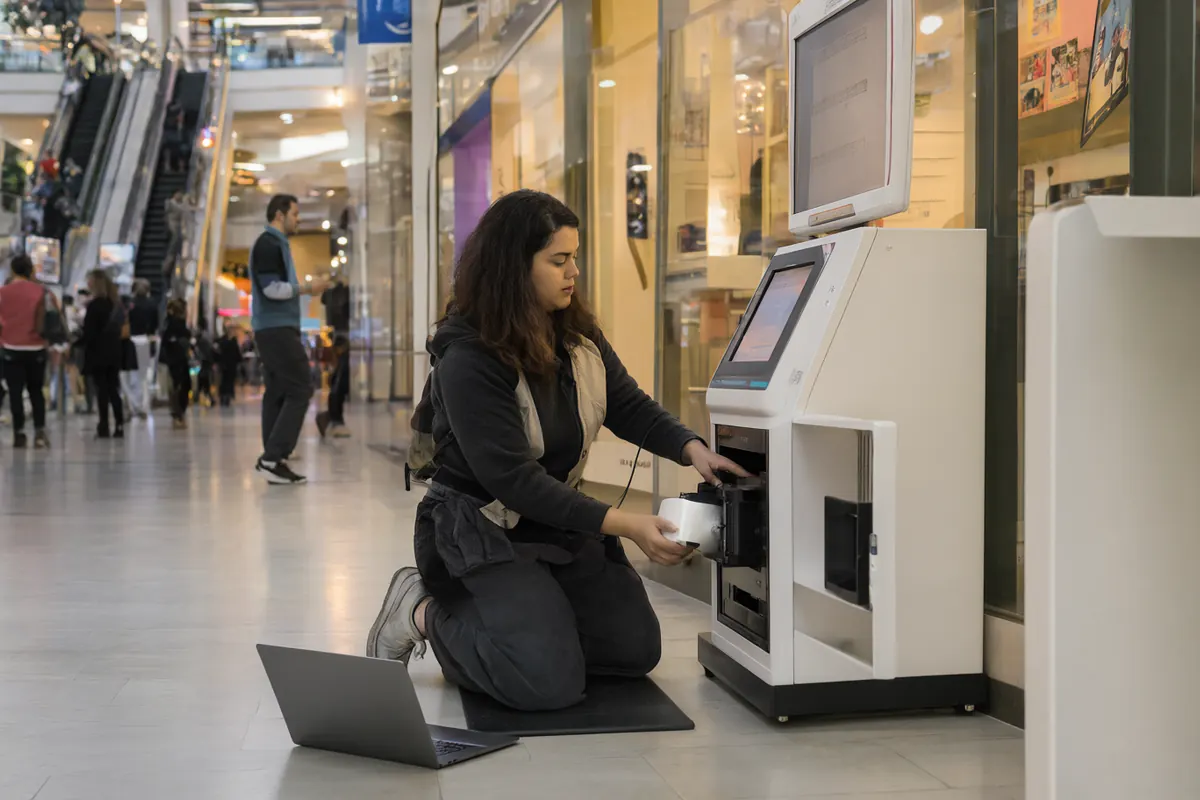
Daily routine
- Morning: power up and run one full test session, including a print.
- Check paper and ribbon; refill before the busy hours.
- Clean the touchscreen, the camera lens and the area in front of the booth.
- Midday and afternoon: a quick look for errors or paper jams.
- Evening: check the day's report, then shut down properly.
Reading the numbers
Open Report in the Event Editor. The Summary tab can show Sessions, Vouchers Used and Prints. Multiply vouchers used by your price per session for your takings, and check the count against what you sold. The per-template table shows which themes are most popular, so put those first. The daily view shows your busiest days, which helps you plan refills and promotions. Export HTML gives you a report to share with the venue if you split revenue.
What can it earn?
Daily profit = revenue − (media cost per session × sessions) − daily fixed costs (rent or venue share, power, internet)
As an illustration, at $10 a session and 40 sessions a day, a booth takes about $400 a day before media, rent or revenue share, and power. Location and promotion drive the session count more than anything else, so record real numbers for the first two weeks before working out your payback. The break-even method is in How to Price Photo Booth Packages.
Frequently asked questions
Can a voucher be used more than once?
No. Each code works once. For multi-session packages, hand out several codes.
Can customers pay by card at the booth?
Kiosk Mode gates sessions with voucher codes. Take card or cash payments at your counter or online and give the customer a code, so your existing payment system handles the money.
What happens if a customer walks away?
If they leave before entering a code, the voucher gate returns to the start after 30 seconds. At the end of a session, the result page returns to the start when its timer runs out. Keep the template choice short so sessions finish quickly.
Does an unattended booth need internet?
Vouchers and printing work offline. Internet is only needed for online QR downloads.
Ready to run your own photo booth?
Q-Booth runs photo, collage, video and AI photo booths from one Windows app. Try it free before you buy.
Learn Q-Booth
Step-by-step guides and video tutorials for every kind of booth.